Forgetting a screen lock can instantly cut off access to photos, contacts, and everyday data, but both Android and iPhone offer official recovery paths that do not rely on illegal third-party tools. The catch is simple: several of these methods can erase everything on the device, so the safest option depends on what is still accessible.
On Android, the fastest route often comes from Google’s own device-finding service, while Samsung users have an additional option that can remove the lock without wiping stored data. When neither an account login nor internet access is available, recovery mode becomes the last resort.
Android users can start with Google’s official device service
The most direct method for many Android phones is Google’s Find My Device service. It only works if the phone is powered on, connected to the internet, signed in to the correct Google account, and had the feature enabled earlier.
Users can open android.com/find from another phone or computer, sign in with the same Google account used on the locked device, select the phone, and choose Erase Device. After confirmation, the phone returns to factory settings and will require the same Google account again during setup.
Samsung offers a rare advantage for users who still know their account
Samsung phones have a separate service called Find My Mobile, and its key advantage is that it can unlock the device without deleting stored data. That makes it especially useful when the screen lock is forgotten but the Samsung account is still available.
To use it, users need to visit findmymobile.samsung.com from another device, log in to the Samsung account, select the phone, and tap Unlock. After entering the Samsung account password, the screen lock is removed while photos, contacts, and files remain on the device.
Recovery mode is the fallback when the account or internet is unavailable
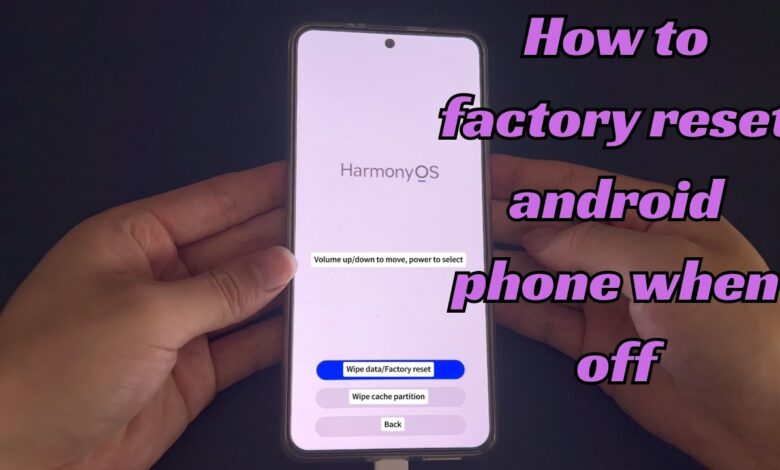
If the phone is offline or the Google account details are no longer accessible, Android recovery mode can still be used. The button combination depends on the brand, but the process begins by turning the phone off completely.
Common combinations include Power plus Volume Up for Samsung, Xiaomi, Redmi, and Poco devices, while Power plus Volume Down is used on Oppo, Realme, Vivo, Motorola, and LG phones. When the logo appears, users can release the buttons, move through the menu with the volume keys, and choose Wipe Data or Factory Reset to finish the process.
iPhone also has three official reset routes
Apple users with iOS 15.2 or later can erase an iPhone directly from the device itself. This method does not require a computer, but it does require repeated wrong passcode attempts until the screen shows “iPhone Unavailable.”
From there, tapping Erase iPhone and entering the Apple ID password will start the reset. The phone is then prepared for setup again as if it were new.
If the device cannot be accessed at all, iCloud provides a remote option. Users can open icloud.com/find on another device, sign in with the Apple ID, select the iPhone, and erase it remotely.
The third route uses a computer with Finder or iTunes. The iPhone must be connected to a PC or Mac and placed into recovery mode using the correct button sequence for the model, including iPhone 8 and later, iPhone 7 and 7 Plus, or iPhone SE and iPhone 6s.
| Platform | Official Option | Main Outcome |
|---|---|---|
| Android | Google Find My Device | Factory reset and data erasure |
| Samsung | Find My Mobile | Unlock without deleting data |
| iPhone | On-device erase, iCloud, Finder/iTunes | Remote or local reset depending on access |
What users should understand before choosing a reset path
Factory resetting a phone removes photos, contacts, messages, and apps stored on the device. That is why regular backups through Google Drive, Google Photos, iCloud, or a computer remain important before a lockout happens.
Account verification also remains in place after a reset. Android devices will still ask for the previously registered Google account, while iPhone setups can still require the Apple ID linked to the device.
After access is restored or the phone has been reset, recovery from backup may be possible. On Android, users can sign in with the Google account during setup and choose Restore Backup, while iPhone users can recover data from iCloud Backup or a computer backup.
Illegal unlock apps and unknown tools are still the riskiest option, because they can carry malware, steal data, or leave the phone unusable. For users facing a forgotten code, the safest path is to rely on the official tools already built into Android, Samsung, and Apple ecosystems.