


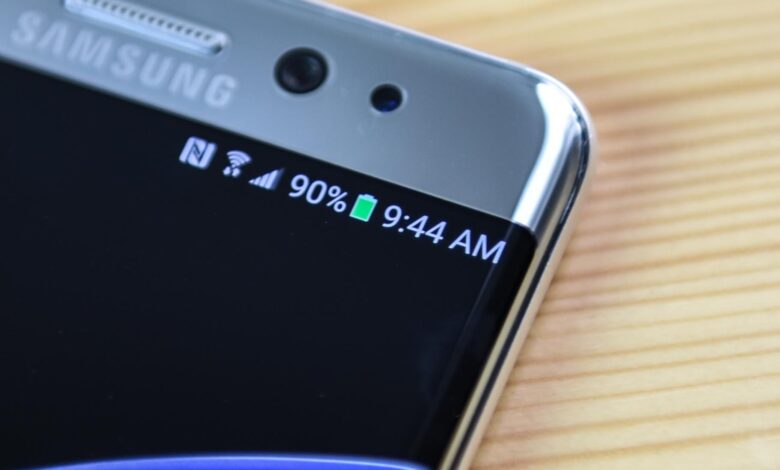
Many Samsung users are startled when a leaf icon appears inside the battery symbol, but the mark does not signal a defect. It is simply Samsung’s visual cue that Power Saving Mode is turned on.
The indicator can look like a technical warning at first glance, yet its purpose is straightforward. It tells users that the phone is reducing certain functions to extend battery life.
Why the leaf appears on the screen
Samsung uses the leaf as a constant reminder that the device is conserving power. The icon helps explain why some features may behave differently while the mode is active.
Power Saving Mode is designed for moments when charging is not possible. It is also useful when a charger or power bank is unavailable and the phone needs to last longer.
Like similar battery-saving tools on iPhone and other Android devices, Samsung’s feature limits selected background activity. One of the most noticeable effects is reduced processor speed, which can make the phone feel slower than usual.
What Samsung limits in Power Saving Mode
Samsung offers several adjustment levels inside Power Saving Mode. On the Galaxy Z Flip 6, the Standard setting in Android 16 or One UI 8.5 limits processor speed to 70 percent by default.
| Power Saving Setting | Main Limits | Battery Estimate on Galaxy Z Flip 6 |
|---|---|---|
| Standard | Processor capped at 70%, Always On Display off, brightness down 10%, Motion smoothness set to Standard, Dark Mode on, screen timeout 30 seconds | 4 days |
| Maximum | Background activity and notifications restricted to core apps such as Messages, Phone, and Wallet | 8 days 15 hours |
| Power Saving off | Background network use, sync, and location access are not limited by the mode | 3 days 9 hours |
The same mode also disables Always On Display, lowers screen brightness by 10 percent, changes Motion smoothness to Standard, turns on Dark Mode, and sets screen timeout to 30 seconds. Samsung also says it restricts background network use, synchronization, and location access.
The Maximum option is more aggressive. It limits background activity and notifications for nearly everything except a few core apps, and users can still adjust which apps are allowed to receive notifications or run tasks in the background.
Samsung also shows an estimated battery life when the feature is enabled. On a Galaxy Z Flip 6 that was lightly used and sitting at 80 percent battery, the phone was estimated to last three days and nine hours with Power Saving Mode off.
That estimate increased to four days in Standard mode and jumped to eight days and 15 hours in Maximum mode. The numbers show how strongly the feature can stretch battery life depending on the selected level.
How to remove the leaf icon
The leaf stays visible as long as Power Saving Mode remains active, and charging the phone to 100 percent does not turn it off automatically. To remove the icon, the mode must be disabled manually.
The fastest way is through Quick Settings by swiping down from the top of the screen and tapping the Power Saving toggle with the battery-and-leaf symbol. If the mode was enabled by accident, that toggle was likely tapped unknowingly.
Users can also open Settings, go to Battery, and find Power Saving to turn it off or change its behavior. Tapping the Power Saving text opens the Standard and Maximum controls, while some Galaxy phones also include Adaptive Power Saving Mode, which adjusts power use based on user habits.
Modes and Routines can be used to automate battery saving at certain times as well. That gives Galaxy owners another way to manage power without constantly switching the feature on and off by hand.