
An HDMI cable often goes unnoticed until the screen starts acting up. When the connection weakens, the result can be a flickering picture, brief signal drops, or audio that no longer matches the image.
That matters because HDMI carries both video and sound through one connection. If the cable can no longer deliver data consistently, the display may look unstable even when the TV, monitor, laptop, or console is still working properly.
1. Intermittent screen flicker is usually the first warning
One of the easiest signs to spot is a screen that flashes, goes black for a few seconds, or loses signal at random. These symptoms often appear when data transmission is no longer steady.
A simple test is to try another HDMI cable or switch to a different port. That helps separate a cable problem from an issue with the display device or the source hardware.
2. White specks and softer image quality can point to cable trouble
Another common symptom is sparkling, where tiny white dots flicker across the screen. This usually indicates the cable is struggling to send data cleanly.
The image may also look blurred, grainy, or less accurate in color even when the resolution settings are correct. If the same problem appears across different content, the cable deserves attention.
3. Audio that cuts out or falls out of sync should not be ignored
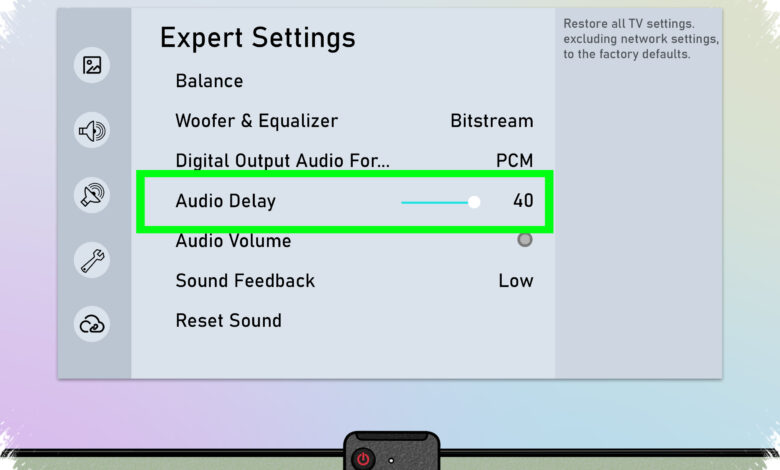
HDMI problems are not limited to visuals. Sound can become choppy, disappear briefly, or arrive later than the picture on the screen.
Audio issues can also come from settings, but if the configuration is already correct and the problem continues, replacing the cable is a practical comparison step.
4. Visible physical damage often confirms the warning signs
Loose connectors, bent pins, or cables that have been bent sharply can all interfere with stable signal delivery. Physical wear is often easier to miss than picture problems, but it can be just as disruptive.
Basic care helps extend a cable’s life. Remove it by holding the connector, avoid wrapping it too tightly, and keep it away from heat sources.
5. Newer devices may demand more from an older cable
Upgrades can also expose cable limits. A 4K 120 Hz TV, a high-refresh-rate gaming monitor, or an 8K device needs more bandwidth to perform at its best.
At the same time, an HDMI 2.1 label or a high-bandwidth claim does not automatically mean every older cable must be replaced. If the existing cable still handles the device’s requirements, replacing it may be unnecessary.
In practice, a failing HDMI cable usually shows a mix of visual glitches, audio errors, and physical wear. If the same symptoms keep returning after changing ports or testing another device, the cable itself is often the most likely culprit.
| Warning Sign | What It Can Look Like | What to Try |
|---|---|---|
| Signal instability | Flickering, black screen, random signal loss | Test another cable or a different port |
| Image degradation | White specks, blur, grainy picture, inaccurate color | Check whether the issue appears across different content |
| Audio problems | Choppy sound, brief dropouts, audio delay | Confirm settings, then compare with another cable |
| Physical wear | Bent pins, loose connectors, sharp bends | Inspect the cable and handle it carefully |