
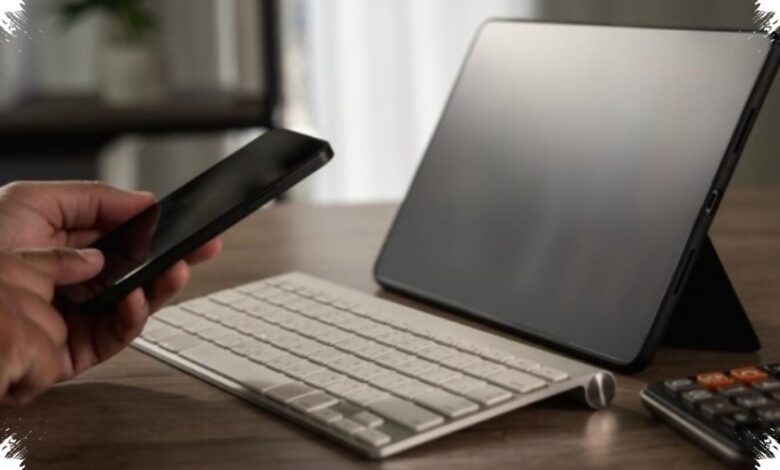
An Android tablet can serve as a compact remote-work device when it is set up for multitasking rather than used only as a large-screen mobile device. Its usefulness depends on desktop mode, suitable input accessories, and careful memory management.
The key advantage is the ability to keep several work tools available at once without constantly closing one task to open another. This can be useful for people who need to read browser materials, write documents, and monitor team communications in parallel.
1. Keep Background Apps Under Control
Closing heavy applications that are not being used helps reserve RAM for priority tasks, including documents, spreadsheets, and video conferences. This becomes more important when several windows are open at the same time.
Multitasking is a central benefit of desktop-style tablet interfaces, but it can also put pressure on available memory. Restricting unnecessary active apps can reduce the risk of freezing while work is in progress.
Some Android tablets offer RAM Plus or virtual RAM through their settings menus. The feature can provide additional memory capacity when several applications need to run together.
Virtual memory is not available on every device, so users need to check their tablet settings before relying on it. It should be treated as a device-dependent option rather than a universal feature.
2. Use Web Services When They Are More Practical
Productivity services accessed through Google Chrome in desktop mode can be lighter than installing numerous native applications. This approach can also limit the amount of storage and RAM consumed by separate apps.
According to Techno Viva, using web-based versions or progressive web apps can help reduce the risk of lag during everyday work. The approach is particularly relevant when the tablet is expected to handle several routine tasks.
3. Add Proper Input Devices
A Bluetooth keyboard and mouse can make typing and cursor control feel closer to a conventional PC setup. Wireless accessories also reduce dependence on cables and dongles around a work area.
Users who still need USB accessories can consider a USB Type-C hub that supports Power Delivery. A quality hub can help maintain stable data transfers and accessory connections.
Stable connections matter because delayed typing input or cursor movement can make a device feel slow even when the tablet itself remains operational. Selecting reliable accessories is therefore part of the overall work setup, not merely an optional addition.
| Setup | Work Function | Key Consideration |
|---|---|---|
| Desktop mode | Runs multiple application windows | Enable the device’s built-in feature |
| Bluetooth keyboard and mouse | Improves typing and navigation | Reduces cable and dongle use |
| USB Type-C hub with Power Delivery | Connects USB accessories and transfers data | Choose a quality hub for stability |
| App and RAM management | Keeps multitasking responsive | Close unneeded heavy applications |
Desktop Mode Changes the Tablet’s Role
Desktop mode is the feature that gives an Android tablet a more computer-like workspace. It supports a layout with multiple application windows on one screen, making task switching more orderly.
Samsung users with compatible devices can activate Samsung DeX, with guidance available through Samsung Support. The interface is designed to provide a desktop-style display when the tablet is paired with an external screen and additional input devices.
Similar work-oriented modes are also available on some devices from other manufacturers, including Xiaomi and Lenovo, through Quick Settings. Availability and the method of activation depend on the tablet being used.
An Android tablet is not automatically a complete laptop replacement for every workload. Still, desktop mode, responsive accessories, and disciplined app management can make it a practical and more portable option for remote work.