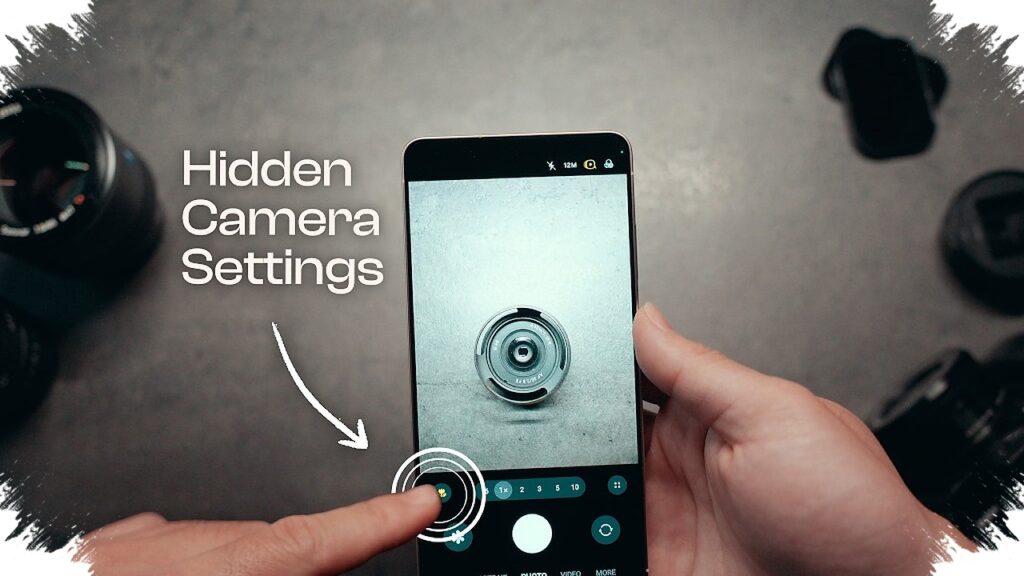
Samsung camera users often leave the default settings untouched, even though a few hidden options can make photos look sharper and cleaner without heavy editing. Three settings in the built-in Camera app can change how much detail is captured, how much manual control is available, and how quickly the phone processes an image.
Start with the right resolution
Many Samsung devices open the camera at a standard 12MP setting. That default is practical for everyday use because it saves storage space and tends to stay stable, especially when lighting is not ideal.
When the goal is finer detail, the resolution can be raised to 50MP on supported devices. This option is most useful for landscapes, distant subjects, or scenes with many visual elements, as long as the surrounding light is sufficient.
The change is easy to make. Open the Camera app and tap the “12M” icon in the upper-right corner until it switches to “50M.” Higher resolution can capture richer detail, but it also creates larger file sizes, so storage capacity becomes a factor if the mode is used regularly.
Use Pro mode when automatic settings are not enough
For users who want more precise results, Pro mode gives manual control over ISO, shutter speed, white balance, and focus. These adjustments allow exposure, sharpness, and color tone to be tuned directly from the camera screen instead of relying only on automatic processing.
That flexibility becomes especially useful when shooting in difficult conditions or when a specific look is needed. The camera can then be adjusted to match the subject and the environment more closely.
Pro mode also supports RAW files. This format offers more room for later editing because image quality is preserved better than with standard files during post-processing. To open it, go to the Camera app, tap More at the bottom, then select Pro. From there, the settings can be changed directly.
Adjust Photo Enhancer based on the situation
Samsung also provides Photo Enhancer, which helps the camera adapt its processing according to the type of shot. It offers three main choices: Prioritize Quality, Balanced, and Prioritize Speed.
Prioritize Quality is the best fit when image detail matters most. Balanced sits between image quality and processing speed, while Prioritize Speed works when a shot must be taken quickly with a lighter processing load.
Scene Detection can also be turned on so the camera automatically adjusts color and contrast based on the surroundings. This helps photos look more natural and lively without demanding much editing afterward.
The setting is available inside the Camera app. Tap the four-dot icon, enter Settings, and then find Photo Enhancer under the Intelligent Features tab. These options can be small changes on screen, but they often separate a basic snapshot from a cleaner and more polished result.