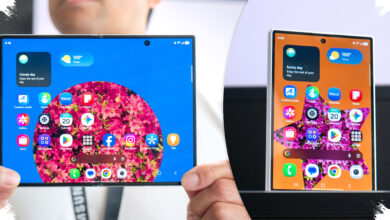

Android often feels slower than it should not because the hardware is weak, but because many useful built-in tools remain unused. Several of the most practical functions are already inside the system, and they can reduce taps, simplify multitasking, and make daily navigation feel far more efficient.
The main advantage is convenience. With the right settings and shortcuts, common actions such as switching apps, opening specific tasks, managing notifications, or handling audio can take only a moment instead of several steps.
Shortcuts that cut everyday friction
One of the fastest ways to move around Android is Fast App Switching. On phones with gesture navigation, a quick swipe to the right on the bottom navigation bar can jump between the two most recent apps, while devices with three-button navigation can use a double tap on the square overview button.
App Shortcuts also save time by opening specific actions directly from an app icon. A long press on the icon in the home screen or app drawer brings up the shortcut menu, and some shortcuts can even be dragged to the home screen for one-tap access.
That makes routine tasks feel lighter. In apps such as Google Drive, the shortcut menu can surface actions like uploading a file or scanning a document.
Making the screen work harder
For people who regularly use two apps at once, Split Screen remains one of Android’s most useful but overlooked features. It is activated from the recent apps view, where the user taps the icon at the top of an app card and chooses Split Screen before selecting a second app.
Once active, both apps stay visible on the display, and the divider in the middle can be moved to adjust their size. Android can also run Picture-in-Picture at the same time, which means three apps may be active in one workflow.
One-Handed Mode helps when the screen feels too large to reach comfortably. After it is enabled in Settings under System or Gestures, a downward swipe on the navigation bar shrinks the display area so the lower part of the screen becomes easier to use with one thumb.
Tools for missed alerts and easier sharing
Notification History is useful when an important alert disappears before it gets read. The feature stores notifications from the past 24 hours, including ones that were already swiped away, but it usually must be turned on manually in Settings under Notifications and then Notification History.
After activation, the same page can be used to review recent alerts and open the related app if action is still needed. That makes it easier to recover messages or reminders that would otherwise be lost.
Android’s share menu can also be cleaned up. Since Android 11, users can pin up to four favorite apps to the top row of the sharing panel by long-pressing a frequently used app and selecting Pin.
Accessibility and quick actions without extra apps
Live Caption adds another layer of practicality by showing real-time text for audio playing on the device. It works with content such as social videos, podcasts, and voice messages, and it runs fully on-device without requiring an internet connection.
The feature can be turned on from the volume controls by pressing the volume button and tapping the Live Caption icon on the slider. The caption box appears on screen and can be moved if needed, which also helps in noisy environments or when sound cannot be played loudly.
Some devices also support Quick Tap or Back Tap, including Google Pixel and several other phones. A double tap on the back of the phone can be assigned to actions such as taking a screenshot, turning on the flashlight, or controlling music playback.
Deeper settings that make Android feel faster
Developer Options hides a set of advanced controls that many users never open. It appears after going to Settings, opening About Phone, and tapping Build Number seven times, after which animation controls can be adjusted.
Reducing Window Animation Scale, Transition Animation Scale, and Animator Duration Scale from 1x to 0.5x does not change the actual hardware speed. Even so, the system can feel more responsive because menus and app transitions appear to move faster.
Smart Lock serves a different purpose by reducing repeated unlocking. It can keep the phone unlocked in trusted situations and relock it when those conditions change, with options such as On-body Detection, Trusted Places, and Trusted Devices like a smartwatch or car stereo.
Not every Android phone offers the same menu names, placement, or feature availability. The exact steps can vary by brand, model, and Android version, so some of these tools may appear differently depending on the device.