


Microsoft is pushing a Secure Boot certificate update that replaces the old 2011 key before it expires. For many Windows users, the transition will happen automatically through Windows Update without any manual steps.
Even so, users who want to verify their PC’s readiness can check the status directly inside Windows. Microsoft has now added a clearer indicator in Windows Security, making it easier to track whether the system has fully received the newer trust updates.
Windows Security shows the clearest signal
The most direct check is the Windows Security app built into Windows. Open it, go to Device security, and look for the Secure Boot section to see the latest status badge.
A green indicator means the device is fully updated. In that case, no further action is required.
A yellow warning means the system has not fully moved to the new certificate and is still using the older one. Microsoft says this update is supposed to run automatically, so the PC should stay connected to the internet and users should check whether any Windows Update items are still pending.
Yellow can also appear when the update is waiting for firmware or a BIOS update from the PC maker. In that case, the status is unfinished because another hardware or software component still needs to be completed first.
A red icon means action is required. Microsoft says this status appears when the Secure Boot update is paused or blocked by a hardware conflict or a specific configuration issue.
System Information can confirm the boot environment
Users can also check the system baseline through the built-in System Information panel. The process starts by pressing Windows Key + R, typing msinfo32, and pressing Enter.
In System Summary, users should verify that UEFI boot mode is active. If the BIOS is still set to Legacy, Secure Boot cannot run.
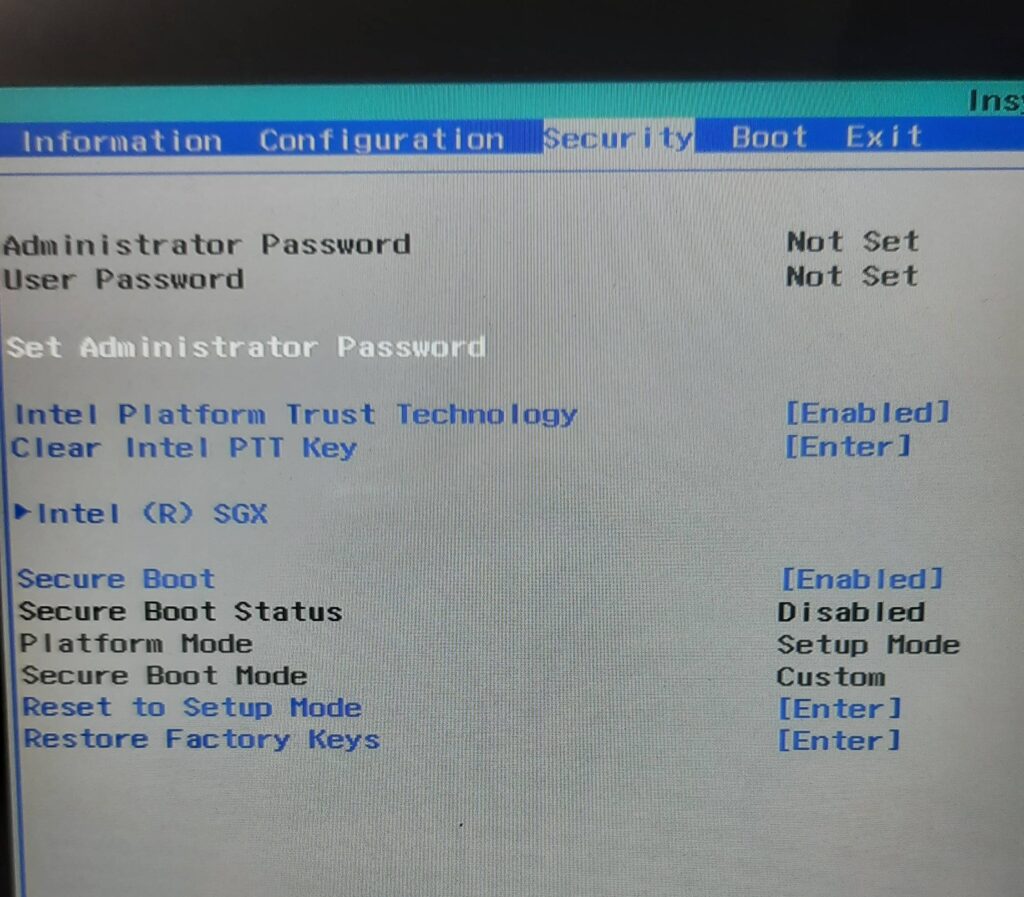
The same check should also confirm that Secure Boot and TPM are turned on in BIOS. Together, these settings help ensure the PC is in the correct hardware environment for Secure Boot support.
Windows Update history can show the trust database package
The device status can also be reviewed through Windows Update history. Open Settings with Windows Key + I, choose Windows Update, and then enter Update history.
After that, scroll to Other Updates and look for a successful entry titled Secure Boot allowed signature database (DB) update. That entry indicates the security trust package has reached the device.
Microsoft delivers this trust update through the standard monthly servicing pipeline. As a result, PCs that continue receiving routine Windows updates and show a green badge in Windows Security can let the transition continue automatically in the background.