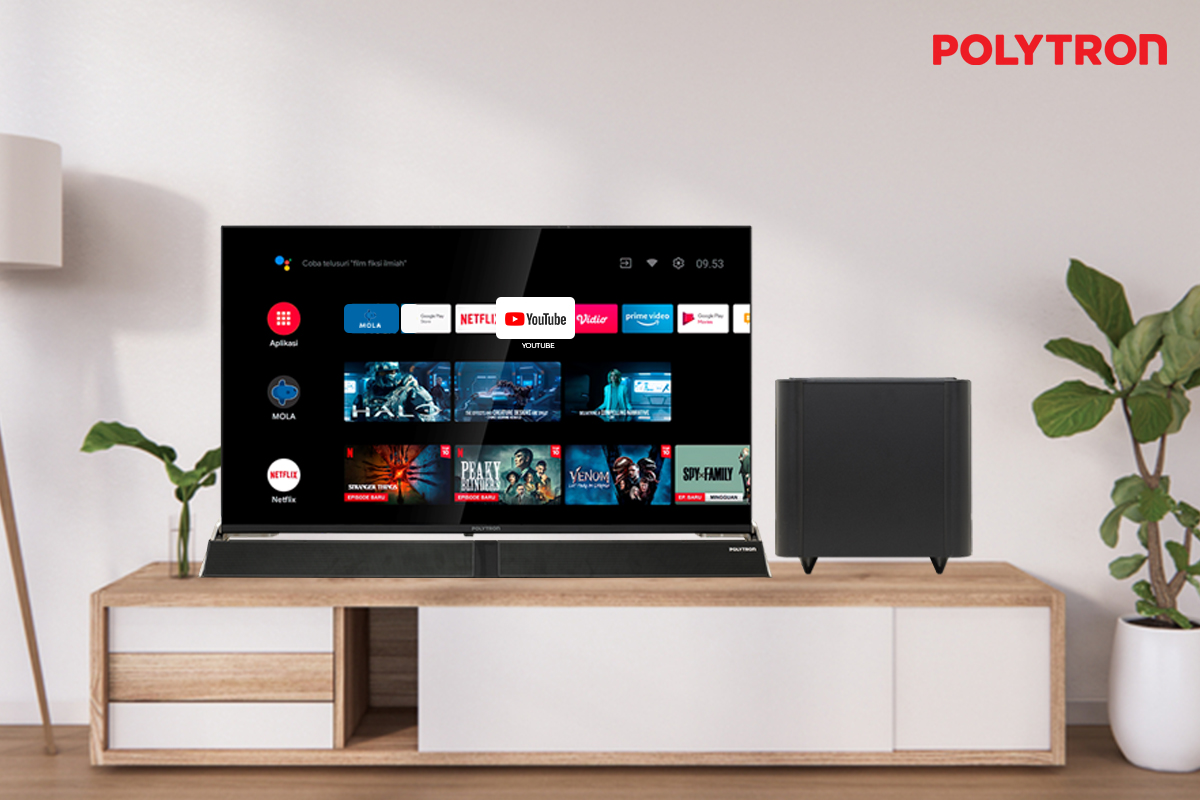
Watching YouTube on a Polytron Smart TV is now one of the most popular ways to access a wide variety of entertainment at home. The convenience of a large screen and high-quality sound enhances the viewing experience for families and individuals alike.
Smart TVs offer a simple and efficient solution for streaming, especially with platforms as diverse as YouTube. Users can enjoy videos ranging from educational tutorials, music, vlogs, gaming highlights, to animated movies without needing additional devices.
Understanding Smart TV Polytron Compatibility

The first step is to verify whether your TV is a Smart TV. Polytron provides options such as Smart TV, Android TV, and Google TV, all designed to support direct access to apps like YouTube. This means that newer Polytron TV models come pre-installed with YouTube, making streaming easier than ever.
If your Polytron TV is not a smart model, it may require an external device to stream YouTube. However, most current Polytron models already include features to download and use YouTube from the built-in app store.
Essential Internet Connection Setup
Before starting, ensure that your Smart TV is connected to a stable Wi-Fi network at home. Streaming YouTube requires a reliable internet connection to avoid lag and buffering. A minimum download speed of 5 Mbps is recommended by most streaming platforms for smooth high-definition playback.
Go to the settings menu on your TV. Choose “Network Settings,” and select your Wi-Fi from the list of available connections. Enter your Wi-Fi password, and wait for the TV to confirm a successful connection.
Step-by-Step Guide to Watching YouTube on Polytron Smart TV
Here’s a breakdown of the steps you need to follow:
-
Check the TV Type
- Confirm your device is a Smart TV, Android TV, or Google TV by checking the model label or the user manual.
-
Connect to Wi-Fi
- Access settings and ensure the TV has a stable internet connection before launching any app.
-
Locate and Open the YouTube App
- On most Polytron Smart TVs, YouTube comes pre-installed.
- If the app is not available, go to Google Play Store on your TV and download YouTube.
-
Login to Your YouTube Account
- For a personalized experience, open the navigation panel on the left of the screen.
- Select ‘Sign In’ and enter your Google account details.
- Once logged in, you can instantly access subscriptions, playlists, and personalized recommendations.
- Explore and Play Content
- Use the remote control to search and play your favorite videos using either manual input or, for certain Polytron Google TV models, via voice commands.
Benefits of Watching YouTube on Polytron Smart TV
Several key advantages come with streaming YouTube directly on a Smart TV:
- Larger, More Detailed Visuals: Polytron’s large-screen TVs allow you to enjoy crisp visuals with higher resolution, ideal for cinematic home experiences.
- Powerful Sound System: Polytron integrates high-quality speakers that deliver clear and robust audio, reducing the need for external audio devices.
- Access to Thousands of Channels: Browsing and discovering new content is simple through remote or voice assistance, providing effortless access to global YouTube libraries.
- Integrated Smart Features: Many Polytron Smart TVs support mobile screen mirroring. Users can easily cast content from a smartphone to the TV for gaming, presentations, or simply sharing mobile videos on a bigger screen.
In a statement from Polytron published on their official website, “Enjoy entertainment in a more convenient, practical, and cinematic way with the latest generation of Polytron Smart TVs.” This statement highlights Polytron’s focus on user comfort, offering ease of access to modern apps and seamless integration with home networks.
List of Recommended Polytron Smart TV Models
For the best YouTube viewing experience, consider the following Polytron Smart TV models currently available:
| Model Name | Screen Size | Resolution | Price (IDR) |
|---|---|---|---|
| POLYTRON EQLED TV PLD 100QV5925 | 100 Inch | 4K | 28,999,000 |
| POLYTRON Smart Cinemax EQLED PLD 50QG9059 | 50 Inch | 4K | 4,799,000 |
| POLYTRON Smart Cinemax EQLED PLD 55QG9059 | 55 Inch | 4K | 6,199,000 |
| POLYTRON 4K UHD Smart Google TV PLD 75UG5959 | 75 Inch | 4K | 10,499,000 |
| POLYTRON 4K UHD Smart Cinemax Soundbar Google TV PLD 50BUG5058 | 50 Inch | 4K | 4,899,000 |
| POLYTRON 4K UHD Smart Google TV PLD 43BUG5058 | 43 Inch | 4K | 3,799,000 |
| POLYTRON 4K UHD Smart Google TV PLD 50UG5059 | 50 Inch | 4K | 4,499,000 |
| POLYTRON 4K UHD Smart Google TV PLD 55UG5059 | 55 Inch | 4K | 5,599,000 |
These models are equipped with robust connectivity and support for the latest streaming apps, ensuring you’ll have the smoothest experience watching on YouTube.
Optimizing the YouTube Experience
Polytron Smart TVs also feature easy remote access and, for some versions, Google Assistant integration. This allows voice commands for searching content, controlling playback, and adjusting settings hands-free. Polytron recommends keeping your TV updated with the latest software updates. Firmware upgrades are available via the settings menu under “About” or “System Updates,” which can improve app compatibility and system stability.
There’s an additional feature for mobile users—casting phone screens to the TV. On compatible Polytron models, simply access the screen mirroring or casting function either from your TV’s input menu or your smartphone’s casting feature in the quick settings panel. This provides flexibility for presenting, streaming games, or sharing family photos on a big screen.
According to Polytron’s official documentation, connecting your phone and TV to the same Wi-Fi network guarantees the highest performance for screen mirroring and casting scenarios. Lag and disconnection can often be traced to unstable connections or having devices on separate networks.
Tips to Enhance YouTube Streaming at Home
- Always use an updated YouTube app for better security and fewer bugs.
- Create playlists or subscribe to channels for easier content management.
- Use the “Watch Later” feature to save videos you want on the big screen.
- If you have children at home, enable ‘Restricted Mode’ in YouTube settings to limit mature content.
Streaming YouTube on Polytron Smart TV combines convenience, quality, and modern features. Buyers searching for a new Smart TV can inspect devices at authorized Polytron retailers or online through the Polytron official website and major e-commerce platforms. Enhanced connectivity, clear visuals, and compelling audio make these TVs a leading choice for turning your living room into a mini-theater for YouTube and more.