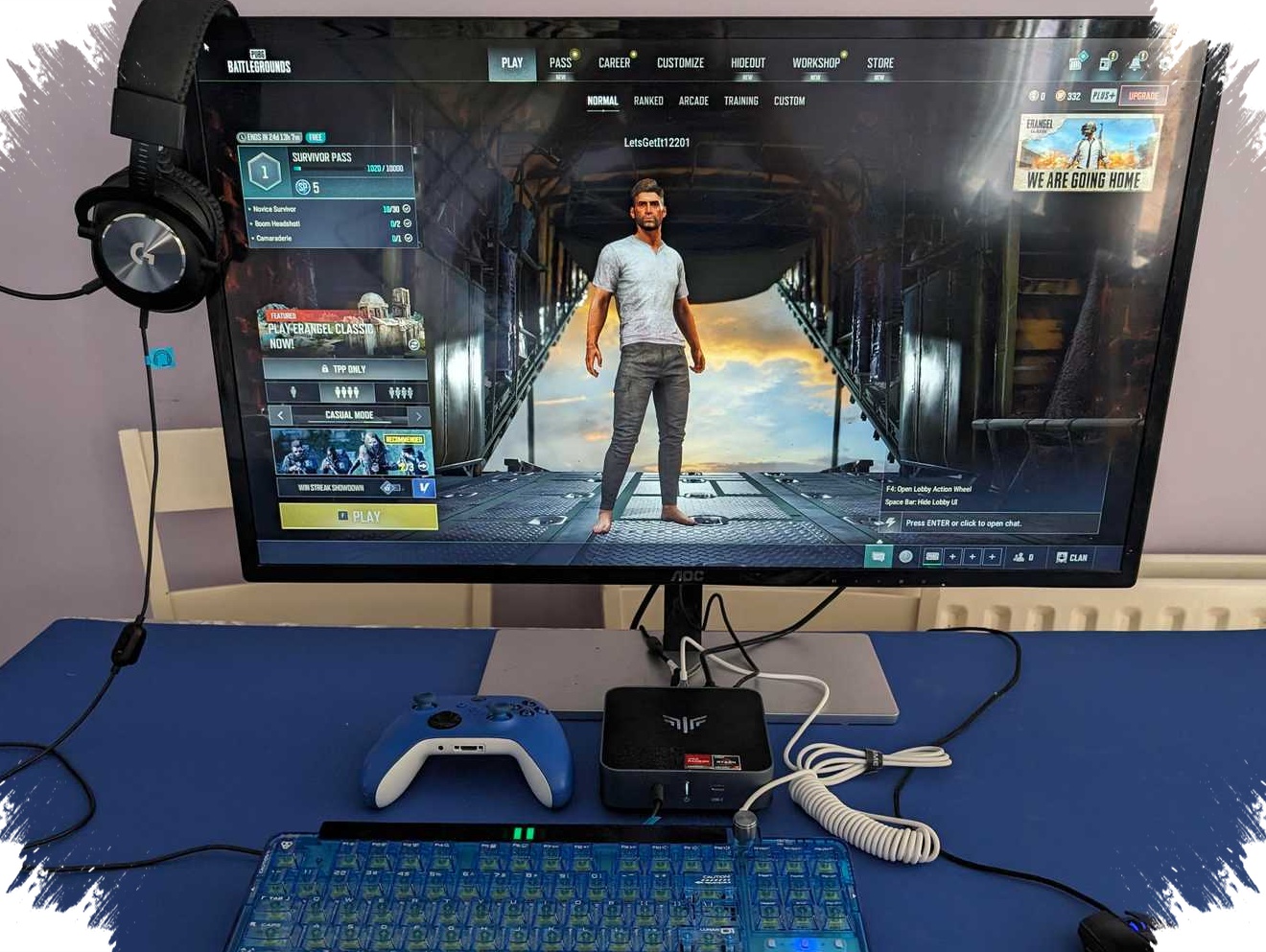
A mini PC that feels slow does not always need a hardware diagnosis. In many cases, the real issue is simpler: the device is placed in a space that traps heat and blocks airflow.
Because this type of computer packs its components into a compact body, it has far less room to release heat than a full-size desktop. When it sits too close to a wall, inside a narrow cabinet, or in a corner with limited air exchange, the temperature around the unit rises and the system has to work harder to stay stable.
Placement affects performance more than many users expect
Mini PCs are often treated like other small devices and set down neatly on shelves, inside cabinets, or behind monitors. That setup may look tidy, but it can also block ventilation and restrict the path air needs to move in and out.
The problem becomes more visible when the unit is tucked behind a display or placed under stacked items. Hot air gets trapped around the chassis, and the device may begin to respond more slowly when opening apps or handling routine tasks.
Compact design leaves little room for cooling
A mini PC is, in practical terms, closer to a laptop without a screen than to a standard desktop tower. Its parts are densely arranged, and the cooling space available to them is limited.
That is why even a small change in surroundings can matter. If the underside of the device is part of the airflow path, placing it directly on a desk surface may reduce circulation. A slightly raised stand or rubber feet that lift the unit higher can help air move more freely beneath it.
Dust can narrow the cooling path even further
Size also makes mini PCs more sensitive to dust buildup. Once vents begin to clog, the device loses part of its ability to expel heat, and a drop in performance can follow more easily.
Regular cleaning with compressed air or an electric cleaning tool can keep the ventilation openings clearer. This does not change the internal components, but it often helps maintain stable daily use, especially because the cooling space in a mini PC is much smaller than in a typical desktop.
When dust is left to accumulate, the effect is usually more noticeable. A unit that appears fine from the outside may still feel sluggish simply because airflow has been reduced.
External upgrades can ease the load
For many mini PCs, internal upgrades are limited. That makes external solutions more practical when the system begins to feel constrained.
One common option is adding an external SSD. In that setup, the internal storage remains available for the operating system and apps, while other files move to the extra drive so the main workspace stays lighter. A USB4 or Thunderbolt dock can also expand what the device can do by adding USB ports, display output, Ethernet, audio, and extra storage.
Slow performance is not always a computing problem
A mini PC that seems delayed may not be struggling because of its processor alone. An unstable Wi-Fi connection can also make the machine appear slower than it is, even when the main hardware remains in good condition.
If wireless connectivity is unreliable, Ethernet offers a more consistent alternative. For users who need stronger graphics performance, an external GPU is also available on supported models, although the cost can be high and in some cases even exceed the price of the mini PC itself.
In the end, the most effective improvement often starts with the basics: give the unit breathing room, keep the vents clean, and place it where hot air can escape instead of collecting around the chassis.
-

-

-

-