


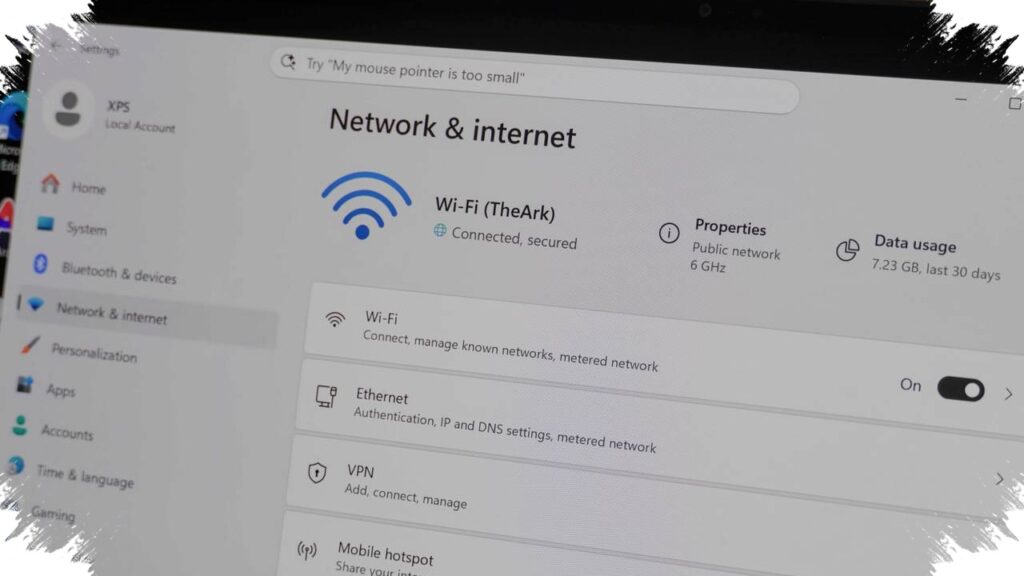
Windows 11 users who keep seeing their laptop WiFi drop and reconnect may not need to look at the home router first. In many cases, the problem starts inside the laptop, especially in power-related settings that affect the wireless adapter.
That matters because unstable WiFi can interrupt browsing, online meetings, streaming, and gaming. The good news is that several built-in settings can be checked without installing any extra app.
Power settings can quietly disrupt WiFi
One of the most overlooked causes is the power-saving feature on the WiFi adapter. It is designed to reduce battery use, but it can also make network performance less stable.
When the power mode is not set properly, the connection may become easier to interrupt. In crowded WiFi areas, the laptop can also switch networks too aggressively, which makes the connection feel like it is dropping on its own.
Start with Device Manager
A practical first step is to open Device Manager from the Start Menu. From there, go to Network Adapter and select the WiFi device currently in use.
After the Properties window opens, look for the Power Management tab. The option “Allow the computer to turn off this device to save power” should be disabled so the system does not shut down the adapter when it thinks the device is inactive.
Adjust Wireless Adapter performance
If the connection still feels unstable, the next place to check is Control Panel. Open Power Options, then enter the advanced settings for Wireless Adapter Settings.
Set the performance option to maximum performance. This helps the WiFi adapter operate more consistently and avoids system limits when a stable connection is needed.
That setting is especially useful for activities that depend on a steady network. Video conferences, streaming, and online gaming are all more likely to benefit when the adapter is allowed to run at full power.
Automatic network switching can also be the problem
Another issue comes from auto-connect behavior in areas with many available WiFi networks. When the laptop keeps trying to move to a stronger network, the connection can briefly break during the switch.
That kind of behavior often makes the WiFi look faulty even when the laptop is simply searching for another network. In that situation, connecting manually may be safer because it keeps the device on one stable network instead of letting it switch on its own.
Use network reset only if the basics do not help
If the connection remains inconsistent after those changes, a network reset may be the final option. This can be found under Network & Internet in Settings, then Advanced Network Settings, where the network reset menu is available.
The process returns the network configuration to its original state. It can help remove hidden errors that may be causing WiFi on Windows 11 to keep disconnecting and reconnecting.
Daily habits still matter
System settings are only part of the picture. WiFi stability can also be affected by everyday use, including distance from the router and how many networks the laptop tries to rely on at once.
Keeping the driver updated also helps the connection work better. When power settings, automatic network switching, and routine device habits are handled properly, the chances of repeated WiFi dropouts can be reduced significantly.