


A few quick changes in Samsung TV settings can make World Cup 2026 broadcasts feel noticeably more vivid. The biggest difference comes from disabling features that were designed for general viewing, not fast-moving sports action.
For football fans, the goal is simple: keep player movement natural, preserve stadium atmosphere, and avoid the automatic adjustments that can flatten picture quality or make audio inconsistent. Samsung TV already has the tools to do that without any extra hardware.
Motion processing is the first setting worth changing
The most important adjustment is turning off Picture Clarity, also known as motion smoothing. While it is intended to reduce blur, it can make players and the ball look unnaturally smooth during live sports.
Users can open Settings → Picture → Expert Settings → Picture Clarity Settings → Off. Once this is disabled, movement on the pitch tends to look more realistic and less processed.
Sound settings can keep commentary from getting buried
Match atmosphere is part of the appeal, but crowd noise can easily overwhelm the commentator’s voice. Samsung’s Amplify Sound Mode is designed to strengthen the frequency range associated with human speech.
The setting is available through Home → Quick Settings → Sound Mode → Amplify. With it enabled, commentary remains clearer without removing the energy of the stadium audio.
Power-saving features may hold back the picture
Some Samsung TV models include Eco Mode to reduce electricity use, but that can also lower screen brightness automatically. In practice, the image may look less vivid and colors can appear muted.
To turn it off, go to Settings → General and Privacy → Power and Energy Saving → Eco Solution → Off. After that, the field can look brighter, detail can stand out more clearly, and contrast can improve, especially during night matches.
Volume control is easier with automatic leveling
Sports broadcasts often swing from quiet commentary to loud crowd reactions in seconds. That makes manual volume adjustments frustrating during live matches.
Samsung TV’s Auto Volume feature helps stabilize sound levels throughout the broadcast. It can be found under Settings → Sound → Expert Settings → Auto Volume → On.
Brightness controls are better left in manual mode
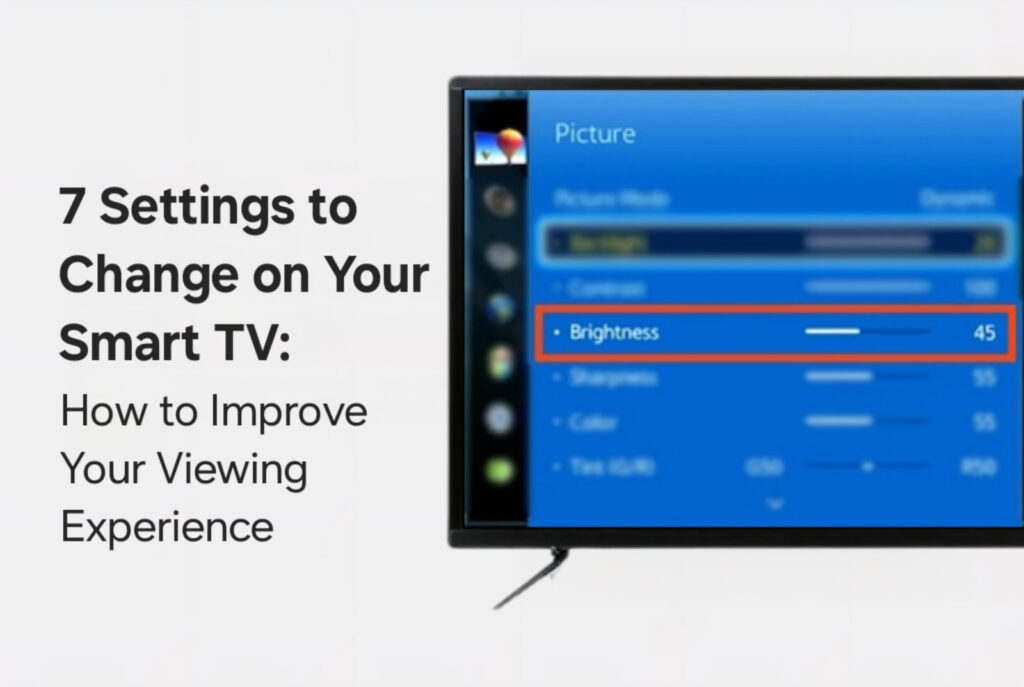
Brightness Optimization is another automatic feature that can get in the way. It changes screen brightness depending on the room, which can sometimes make the display too dim or too bright.
Users can disable it by going to Settings → General and Privacy → Power and Energy Saving → Brightness Optimization → Off. From there, brightness can be adjusted manually to suit the room and viewing distance.
The result is a cleaner and more consistent sports viewing setup that works well beyond World Cup 2026. Football competitions such as the Champions League and Premier League, along with MotoGP, can also benefit from the same adjustments.