


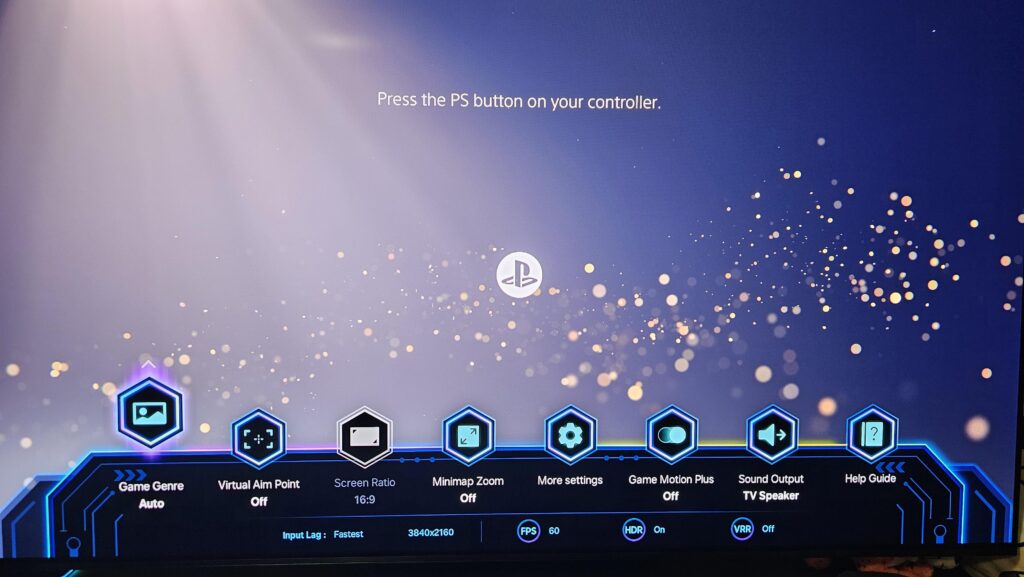
Samsung’s Game Mode is still one of the most useful features for console and PC users, but one part of its interface can become repetitive fast. The Game Bar can be set to stop appearing automatically, while the low-latency benefits of Game Mode remain intact.
For many users, that small adjustment makes a noticeable difference. The TV stays responsive for gaming or PC use, yet the screen no longer fills with a status bar every time a Game Mode source is opened.
Game Mode keeps the performance benefits
Game Mode is designed to improve how a TV responds during play. It helps reduce input lag, speeds up response time, and limits extra image processing such as noise reduction and motion smoothing.
That matters across different control methods, from a mouse to a gamepad. For that reason, Samsung recommends it for external sources connected to the TV, whether they are consoles or PCs, even if they are not used for gaming all the time.
Why the Game Bar can feel distracting
Along with picture adjustments, Game Mode also opens access to gamer-focused tools through the Game Bar. The bar usually appears when the TV switches to a PC or console source that has Game Mode enabled.
It provides quick access to details such as resolution and refresh rate. Samsung also includes extra tools, including a virtual crosshair, that can be useful in some games.
For some users, the Game Bar is also a simple confirmation that the TV has entered Game Mode correctly. Over time, though, that confirmation can feel unnecessary because the same interface appears every time the same source is selected again.
How to stop the automatic pop-up
Samsung offers a way to prevent the Game Bar from opening on its own. The TV should already be running in Game Mode before the setting is changed.
The path is Settings > All Settings > Advanced Features > Game Mode Settings > Autorun Game Bar, then switch it to OFF.
This does not remove the Game Bar entirely. It only stops the interface from appearing automatically whenever the TV switches to an input using Game Mode.
The tools are still there when needed
Turning off autorun does not hide the functions inside the Game Bar. Samsung still allows the bar to be opened manually whenever it is actually needed.
Users can do that by long-pressing the Play/Pause button on the TV remote. That opens access to extra information such as frame rate and other available Game Bar features.
The result is a cleaner start to gaming or PC use without losing access to useful technical information. For people who move often between TV apps, consoles, and PCs, the setup can make the experience feel less cluttered.
The guidance was written based on the Tizen 9 interface with a 2025 update on Samsung Neo QLED TVs. The menu names show that the option sits directly inside Game Mode settings, making it one of the easiest adjustments for users who want a less intrusive Game Bar.