
An iPhone can reveal its installed iOS version without being connected to a computer. The quickest route is found in Settings, where the software number is displayed in the device information.
Checking that number can be useful before installing an app, looking for an available feature, or investigating a system issue. A computer provides another option for users who also want to see whether the iPhone is running the latest update.
The fastest check is on the iPhone itself
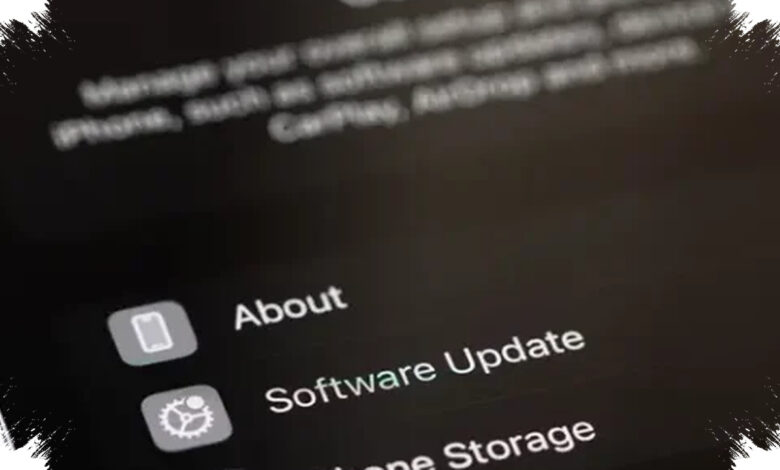
Open Settings, select General, and then choose About. The iOS version appears directly below the device name.
This page keeps key device details in one location, avoiding the need to search through multiple menus. The version information can also be tapped to view details related to the latest system update.
This method is sufficient when the only goal is to identify the software currently installed on the phone. It does not require a cable or any additional application.
Computer options depend on the device in use
Users connecting an iPhone to a computer can check its software information through different applications. The required app depends on whether the computer is a Mac or Windows PC and, on Mac, which macOS version is installed.
| Device | Application | Where to look |
|---|---|---|
| iPhone | Settings | General > About |
| Mac with macOS Catalina or later | Finder | Sidebar > Summary |
| Mac with macOS Mojave or earlier | iTunes | Device information after selecting iPhone |
| Windows | Apple Devices | Software section |
Finder, iTunes, and Apple Devices
On a Mac running macOS Catalina or later, connect the iPhone and open Finder. Select the device in the sidebar to view software information in the Summary section.
A Mac running macOS Mojave or an earlier version uses iTunes for the same task. Once the connected iPhone is selected, the application displays the device information.
Windows users can use Apple Devices, which is available to download from the Microsoft Store. After connecting the iPhone, select it in the application and check the Software section for the active iOS version.
Connection approval may be required
An iPhone may ask for approval when it is connected to a computer for the first time. Users might need to select “Trust” on the iPhone before the computer can access the device.
Mac users may also see an “Allow” prompt. This approval is needed to permit communication between the iPhone and the computer.
The computer method offers a broader look at software status and update availability. For a quick version check alone, the About section in Settings remains the most direct option.