


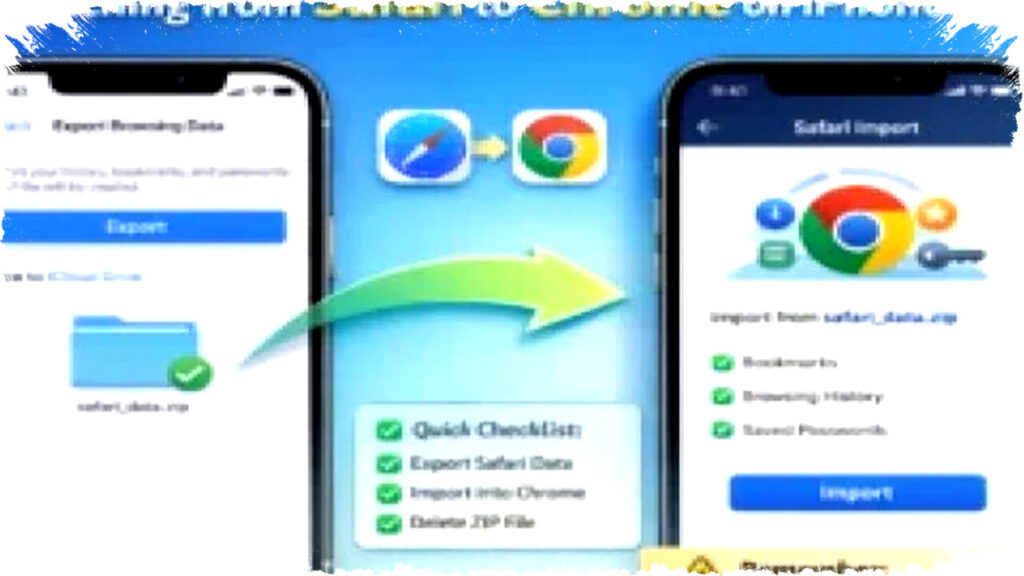
Google Chrome on iOS has made a significant leap forward by introducing a feature that enables users to import their Safari browsing data directly on iPhones and iPads. This update eliminates the need for Macs or PCs to transfer bookmarks, browsing history, and saved passwords from Safari to Chrome. The change marks a notable move to simplify browser switching within Apple’s tightly controlled ecosystem.
Previously, moving browsing data required users to rely on iCloud synchronization or export-import workflows via desktop, which felt cumbersome. Now, with the Chrome iOS 145 Beta, users can perform the entire data import process directly on their mobile devices, streamlining the migration to Google Chrome without extra hardware.
Key Features of the Safari to Chrome Data Transfer
The new Chrome iOS functionality allows safe migration of three crucial types of data:
- Bookmarks
- Browsing History
- Saved Passwords
Given Apple’s strict privacy policies, this data transfer is not automatic. Instead, users are guided through a manual process involving a ZIP file that contains the exported Safari data. This approach ensures that users maintain complete control over sensitive information during the transfer.
Manual Transfer Process to Respect Privacy
Apple’s privacy framework restricts third-party apps like Chrome from directly accessing Safari data. To comply, Google designed a step-by-step migration process where the user generates a ZIP archive from Safari on their iPhone or iPad and later imports the file through Chrome’s settings menu.
The process requires:
- Exporting browsing data from Safari into a ZIP file
- Saving the ZIP file to an accessible location such as iCloud Drive
- Importing the ZIP file within the Chrome app
- Deleting the ZIP file post-import to protect privacy
This method ensures a secure handover of data without breaching Apple’s privacy standards.
Step-by-Step Guide to Transfer Safari Data to Chrome on iOS
Users interested in switching browsers can follow these steps to migrate data:
- Update Google Chrome to version 145 Beta or later.
- Launch the iPhone’s Settings app and navigate to Safari.
- Select "Export Browsing Data" to create a ZIP archive of bookmarks, history, and passwords.
- Save the ZIP file in an easy-to-find location such as iCloud Drive’s Downloads folder.
- Open the Chrome app and go to Settings > Import Safari.
- Select the exported ZIP file and review the data to import.
- Tap "Import" to complete the process.
- Delete the ZIP file to prevent unauthorized access to sensitive data.
This sequence permits a quick, secure, and user-controlled transition from Safari to Chrome.
Implications for Browser Choice on Apple Devices
This enhancement is poised to shift the competitive landscape of mobile browsers on iOS. Historically, Safari’s deep integration with iOS, along with Apple’s privacy restrictions, kept many users tethered to the native browser. Chrome’s improved import capabilities lower the barrier to experimentation and adoption.
By facilitating easy data migration, Google strengthens Chrome’s appeal among Apple device users. This may lead to increased Chrome adoption and more competitive dynamics in the browser market, benefiting consumers through innovation and choice.
Looking Ahead
As the stable release of Chrome 145 rolls out to all iOS users, the impact of this data transfer feature will become clearer. Users who have been reluctant to switch browsers because of data migration challenges now have a viable, privacy-conscious option. This innovation reflects ongoing efforts by Google to expand its footprint within Apple’s ecosystem, while respecting its strict privacy and security requirements.