


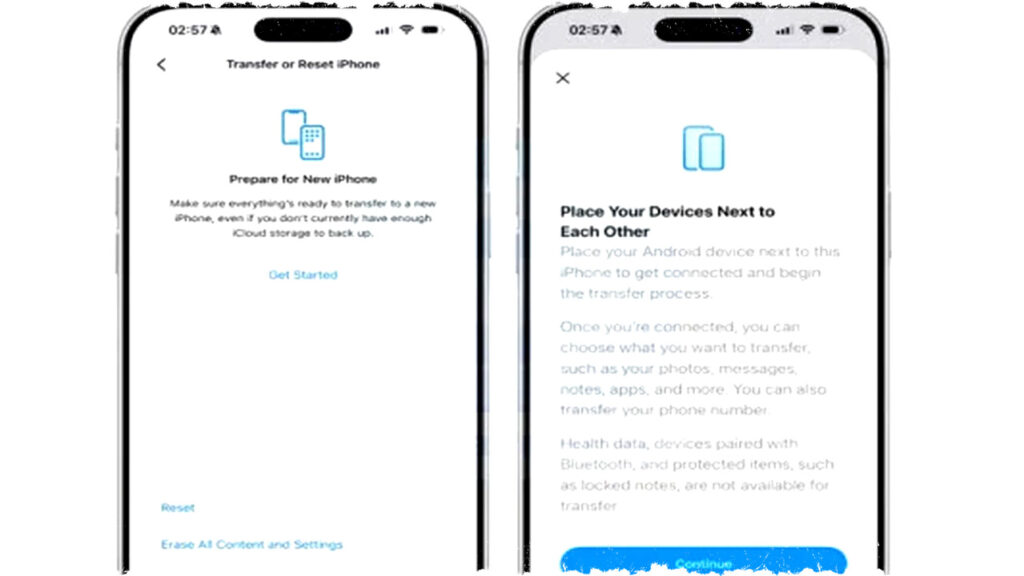
Apple has introduced a significant update with iOS 26.3, designed to drastically simplify data transfer for users switching from an iPhone to an Android device. This new version includes a built-in feature called "Transfer to Android," allowing users to move critical data such as photos, messages, contacts, and passwords without relying on third-party apps. The functionality is accessible directly through the iPhone settings, making the migration process straightforward and seamless.
The integration of this feature marks a major shift in Apple’s approach towards interoperability between its ecosystem and Android devices. By enabling easier data migration, Apple addresses long-standing challenges faced by users who want to switch platforms. According to a report by GSM Arena, this update exemplifies Apple’s increasing flexibility and responsiveness to global technology standards that emphasize consumer freedom and device compatibility.
How to Use the Transfer to Android Feature in iOS 26.3
To begin transferring data, ensure your iPhone runs the latest iOS 26.3 update. Navigate to the Settings menu, then tap General, followed by Transfer or Reset iPhone. Here, you will find the option labeled Transfer to Android. Placing your iPhone alongside your Android device initiates an automatic Wi-Fi connection, enabling immediate data migration.
This built-in feature eliminates the need for third-party applications, streamlining the process. Users can select which data to transfer, making the experience highly customizable depending on individual needs.
Types of Data Supported for Migration
The data types that can be securely transferred include:
- Photos and videos stored on the device.
- Text messages and conversation histories.
- Saved passwords and login credentials.
- Personal contacts and phone numbers.
- Notes and relevant app data.
- List of installed applications for reference.
However, some limitations remain. Sensitive health-related information stored in Apple’s Health app and app-locked items are excluded from this migration process. Additionally, any previously paired Bluetooth devices require manual reconnection on the new Android device. Users looking to transfer these specific data types may need to explore alternative methods or manual backup solutions.
Enhanced User Flexibility and Regulatory Compliance
This update signals Apple’s strategic response to increasing regulatory demands for greater ecosystem interoperability. By building a native transfer tool, Apple enhances user autonomy, allowing more fluid switching between platforms without data loss or cumbersome procedures.
Beyond the transfer feature, iOS 26.3 brings various system improvements, including enhanced security patches and greater operating stability. These refinements ensure users benefit from a reliable and safe environment when transferring their important information.
The update is available globally via the Software Update option in iPhone settings. With iOS 26.3, users gain not only a more inclusive platform experience but also a smoother transition between competing ecosystems.
Step-by-Step Quick Guide to Transfer Data with iOS 26.3
- Update your iPhone to iOS 26.3 through Settings > Software Update.
- Open Settings and go to General > Transfer or Reset iPhone.
- Select "Transfer to Android" and prepare your Android device for connection.
- Position both devices close to each other to enable Wi-Fi pairing.
- Choose the data categories you want to transfer and begin the process.
- After completion, verify the integrity of your data on the Android device.
By simplifying data migration, Apple has reduced the friction traditionally encountered when switching from iOS to Android. This functionality empowers users to manage their digital transitions more freely and efficiently.
With continued focus on interoperability and consumer choice, iOS 26.3 establishes a new standard for cross-platform compatibility. Users can now confidently move between mobile ecosystems knowing their essential data transfer is supported natively and securely.