


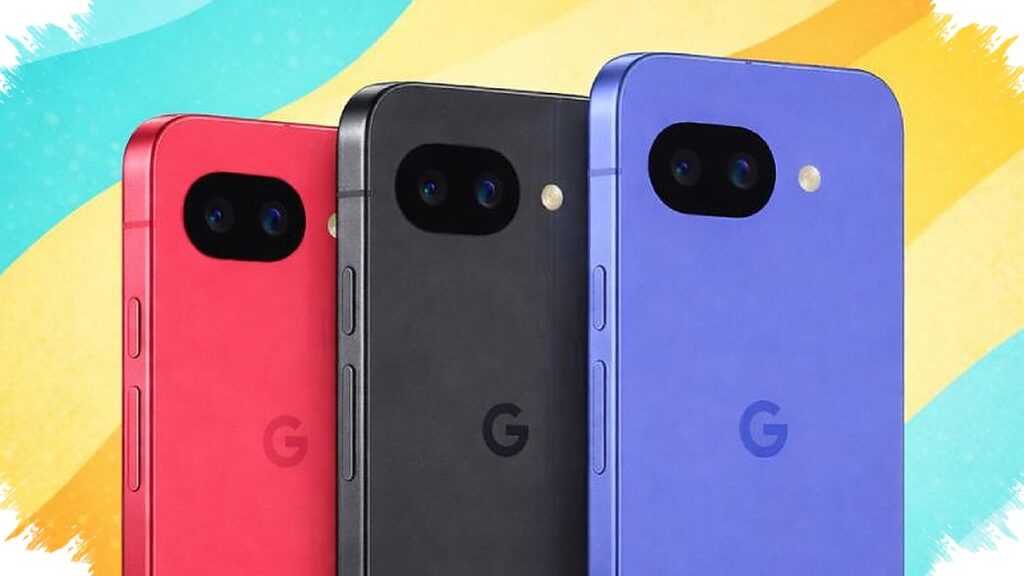
The Pixel 10a may look ready to use out of the box, but several of its most useful features still need to be switched on manually. That matters because this phone is built with a 6.3-inch OLED panel, 1080 x 2424 resolution, and a peak brightness rating of 3,000 nits, according to data cited by Android Central.
For many new owners, the first setup choices can shape the entire experience. From enabling the 120Hz display to testing emergency satellite access and trying the new camera guidance tools, a few early adjustments can make the Pixel 10a feel more capable right away.
Start with the display settings
One of the first things worth checking is Smooth Display. Google leaves this option off by default to help preserve battery life, even though the panel is capable of running at up to 120Hz.
After turning it on, scrolling through apps, moving between menus, and reading long pages should feel noticeably smoother. The setting can be found by opening Settings, then Display & touch, and switching on Smooth display.
Choose the color mode that fits daily use
Pixel 10a also gives users a choice between two screen color profiles: Natural and Adaptive. Adaptive is the default setting, and it produces richer-looking colors.
In Android Central’s testing, though, Adaptive could appear less even in some situations. Natural offers a more restrained and realistic look, which may suit everyday use better for some people. The option sits in Settings, under Display & touch, then Colors.
Test close-up shooting with Macro Focus
The camera setup on Pixel 10a takes a different approach to macro photography. Instead of relying on an ultrawide lens for close-range shots, Macro Focus uses the main 48MP camera.
That shift can help create sharper detail and a more natural focus distance when shooting very small subjects. Android Central also noted that this method works well with the 2x sensor crop, which can get surprisingly close to the look of optical zoom.
To try it, open the camera in regular photo mode and move close to an object, about an inch away. When the flower icon appears on the screen, Macro Focus has engaged.
Try Camera Coach for better framing
Another feature that is worth checking early is Camera Coach. This tool uses Gemini to analyze what appears in the viewfinder and then offers shooting suggestions.
It is not designed to generate or alter the photo with AI. Instead, it acts as a practical guide for composition, including advice on angles, distance, and how subjects are arranged inside the frame.
To use it, tap the Camera Coach icon, which appears as a camera with a sparkle effect, then follow the guidance shown on screen.
Open Satellite SOS before an emergency happens
Pixel 10a is also the first A-series model to support Satellite SOS. The feature works through the Exynos 5400 modem, the same modem used in other Pixel 10 devices.
Its purpose is clear: it can help when there is no cellular signal, especially in remote locations or urgent situations. Google provides a demo mode so users can learn how the process works before they ever need it in real life.
The demo can be found by going to Settings, then Safety & emergency, selecting Pixel Satellite SOS, and choosing Try a demo.
With these settings in place, the Pixel 10a becomes more than just a new phone on the first day. The display, color options, macro shooting, Camera Coach, and Satellite SOS all add practical value once they are activated and understood from the start.
Source: www.androidcentral.com