Knowing the exact Windows version on a laptop or PC can save time when an app refuses to install or a driver does not work as expected. The information also helps narrow down system compatibility issues before a user spends time troubleshooting.
Several built-in tools can reveal that information within seconds, and none of them require advanced technical skills. The fastest option depends on how much detail is needed, from a quick version check to a more complete system overview.
A fast route through Settings
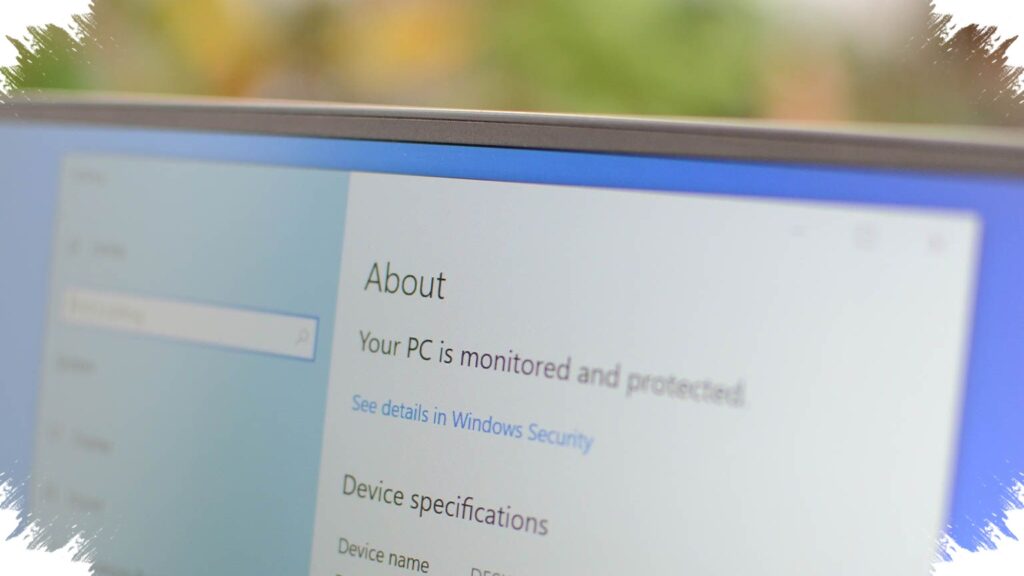
For users who prefer a clear and familiar interface, the Settings menu offers one of the easiest ways to find Windows details. The path starts from Start, then opens Settings, followed by System and then About.
On the About page, Windows shows the key system information in a tidy layout. Users can see the edition, version, and build number that are currently installed on the device.
This method works especially well on Windows 10 and Windows 11 because the menu design is more modern and the information is easy to read. On older Windows releases, the menu location may differ, but the goal remains the same: reach the section that displays full system data.
When only the version number is needed
Some users do not need a full system summary and only want the Windows version as quickly as possible. In that case, the winver command is the shortest path.
The process begins by pressing Windows + R to open the Run window. After typing winver and pressing Enter, a small window appears a few seconds later with the Windows version and OS build.
This method is useful before installing software because it goes straight to the core information. It also avoids opening several menus, which makes it practical when time matters.
A more detailed look with System Information
If the goal is to check more than the basic version details, System Information provides a broader view of the device. Users can open it by pressing Windows + R, typing msinfo32, and then pressing Enter.
A new window will appear and show a wider set of system details, including the Windows version and other device information. That makes it a strong option when troubleshooting requires more context than the Settings page provides.
Because it includes a larger amount of data, System Information is often useful for users or technicians who want a more complete picture of the system state. It can help when diagnosing the source of an error without needing to search through multiple menus.
What edition, version, and build actually mean
The three terms that usually appear during a Windows check are edition, version, and build. Each one points to a different layer of system information.
Edition shows the type of Windows installed, such as Home or Pro. Windows Home is generally suited for daily tasks like browsing, writing, and watching content, while Windows Pro includes extra features such as advanced security and virtualization.
Version refers to a major system update and is often displayed in formats such as 23H2 or 24H2. In that format, the number points to the year, while H1 or H2 indicates the first or second half.
Build is a smaller update number tied to routine system improvements. These updates are usually focused on stability and security, even when they do not introduce new features.
Why this check matters before installing software
Checking the Windows version is often one of the first steps before installing an application. It helps confirm whether the software is compatible with the device and reduces the risk of installation failure.
The same check can also be useful when a driver behaves abnormally or a device error needs faster diagnosis. A more recent build is often associated with better stability and security, which makes version awareness important during maintenance and troubleshooting.
For users who want the simplest interface, Settings is the most approachable choice. For a faster pop-up view, winver is enough, while msinfo32 remains the better option when more complete system details are needed.