


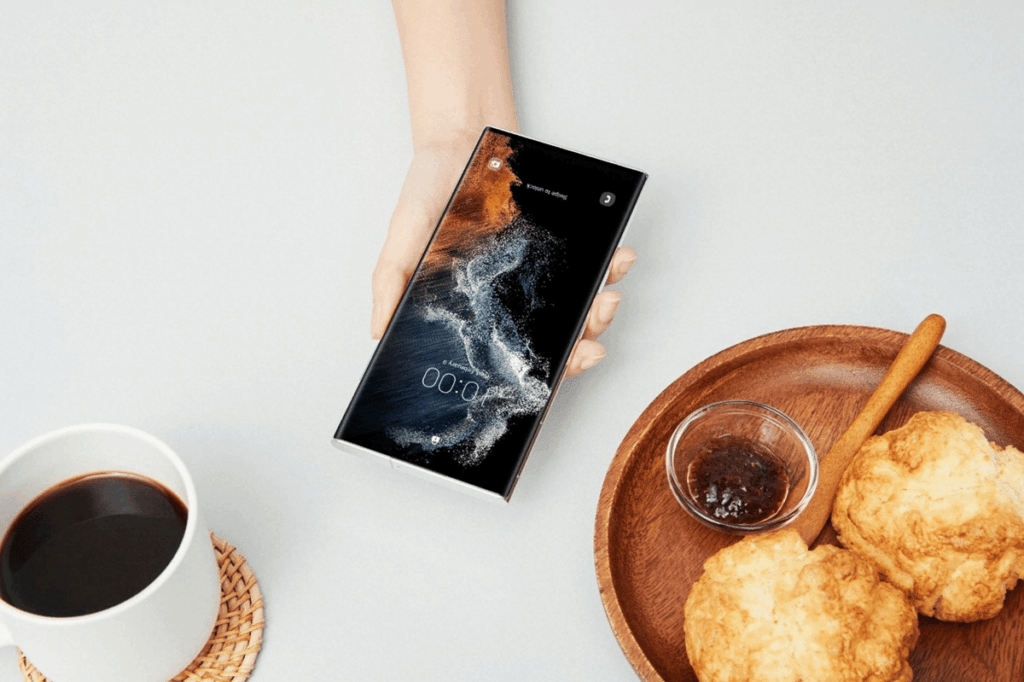
Many Samsung users experience their phone’s clock suddenly changing without warning. This issue can disrupt daily activities, cause missed alarms, or even impact time-sensitive work. If you’re searching for how to set the clock on your Samsung phone so it doesn’t change by itself, you’re in the right place.
Unintentional changes in time often occur because the device is set to adjust automatically by referencing the mobile network or time zone. By knowing the correct settings, you can keep your Samsung phone’s time accurate and stable.
Finding the Clock Settings on Samsung Phones
Accessing the correct menu is the first step. Open the device’s main menu and go to Settings. Choose General Management, then navigate to Date and Time. Here is where you can manage all clock-related options, both automatic and manual.
If your phone displays the wrong time frequently, it means you need to change the configuration here. Relying on default settings may not be enough if your geographic location or network constantly changes.
Why Automatic Time Changes Happen
Samsung devices have a built-in “Automatic Date and Time” setting. This feature refers to your SIM card and network provider. When you move between time zones or your network signal changes, the device automatically updates the time. Sometimes, this can result in the wrong clock if the network sends incorrect data or when roaming in different areas.
According to experts, system bugs may also trigger sudden changes. Keeping your operating system updated with the latest software can reduce these occurrences. If automatic clock adjustments bother you, disabling this feature is an excellent preventive step.
How to Stop Samsung Phone Clock from Changing Automatically
Follow these steps to ensure your phone time remains constant:
- Go to Settings from the home screen.
- Tap General Management.
- Select Date and Time.
- Find the option Automatic Date and Time.
- Switch off this automatic feature.
- Now, tap Set Time to manually adjust the clock to your intended hour and minute.
- If needed, modify the date as well.
Samsung allows you to personalize your time settings once the automatic feature is turned off. By handling it manually, you control when and how the device’s time changes.
Changing Time Zone Settings While Traveling
If you travel frequently and notice your phone constantly shifts hours, the automatic time zone option may be the cause. To set a specific time zone:
- Return to the Date and Time menu under Settings and General Management.
- Turn off Automatic Time Zone.
- Choose the time zone manually from the provided list (for example, select "WIB" for Western Indonesian Time or choose zones in other countries).
By selecting this, your phone will remain on your chosen time zone no matter where you are. This is particularly useful for those who travel for work or study abroad.
Displaying the Clock on your Samsung Screen
Many users want the clock visible at all times, even when the main screen is locked. Samsung’s Always On Display (AOD) function fulfills this need. Enable Always On Display through Settings, then Lock Screen, and select Always On Display.
This feature keeps a digital clock, calendar, or other widgets visible even when the phone is idle. It is helpful for keeping track of time without unlocking the device repeatedly.
Common Issues and Troubleshooting
If you have already turned off automatic options, but your phone’s time remains unstable, examine potential software issues. Outdated software or system bugs may interfere with timekeeping. Go to Settings and check for any available software updates. Installing the latest system update often resolves hidden glitches.
Consider reviewing app permissions. Some apps may have the ability to override time settings. Restrict these permissions in the App Settings menu if needed.
Summary Table: Managing Time Settings on Samsung Devices
| Option | Steps |
|---|---|
| Set time manually | Settings > General Management > Date and Time > Disable Automatic Date and Time |
| Change time zone manually | Settings > General Management > Date and Time > Disable Automatic Time Zone |
| Keep clock visible | Settings > Lock Screen > Always On Display > Enable |
| Update software for stability | Settings > Software Update > Download and Install |
What to Do If Samsung’s Clock Still Changes Automatically
Persistent clock issues may signal complications in system files or incomplete updates from previous operating system versions. Delete cache data via Device Care to clean up old system files. If your phone is enterprise-managed, check with your administrator. Sometimes IT policies enforce strict time management.
For stubborn problems, a factory reset may fix unseen issues, but always back up your data first. If none of these actions work, contact official Samsung Customer Service for in-depth support.
Controlling the clock settings on your Samsung phone not only reduces confusion but adds comfort for your daily routines. Digital accuracy is critical in professional, academic, or daily life contexts. Sticking with manual options ensures your timekeeping matches your real-world schedule, no matter the network changes or international roaming. Taking these steps can make sure your phone’s clock remains reliable at all times.