

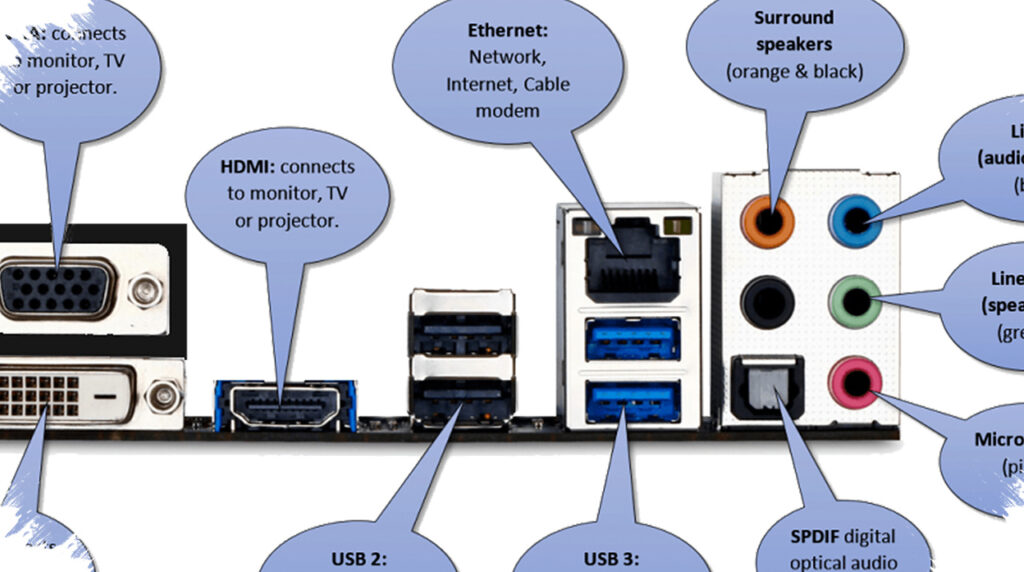
A monitor can do more than display images. On models equipped with USB hub features, it can also become the central point for connecting peripherals, helping a laptop or desktop setup stay cleaner when built-in ports start to run out.
That role depends on two labels that often appear near the back panel: upstream and downstream. These terms decide whether the monitor is simply a screen or also a usable USB extension for devices such as keyboards, mice, USB headsets, and other light peripherals.
Why the labels matter
The difference between upstream and downstream is not just technical wording. It determines the direction of the connection, and that direction decides whether the monitor’s extra USB ports will actually function.
Upstream points toward the computer, which serves as the main source of the connection. Downstream points away from the computer and toward the devices that plug into the monitor. Without the upstream link in place, the downstream ports do not work as a USB extension.
The upstream connection comes first
Upstream is the cable path that links the monitor to the computer. In practical terms, this is the first connection that must be made before the monitor’s USB hub can be used.
On many monitors, the upstream link uses a USB-B to USB-A cable, often described as a printer cable. Some newer models use USB-C instead. USB-B is usually easier to identify because the port is larger, while USB-C has a smaller, reversible shape that can be harder to distinguish at a glance.
When USB-C is used for upstream, manufacturers often add a small PC symbol near the port. That mark helps users avoid confusion, since not every USB-C connection on a monitor serves the same purpose.
What downstream ports are for
Once upstream is connected, the downstream ports become useful for accessories. These ports are where keyboards, mice, USB headsets, cameras, and similar devices are plugged in.
Most monitor downstream ports are offered in USB-A or USB-C formats so they can support a wider range of peripherals. In daily use, this helps reduce cable clutter by moving multiple devices to one central connection point on the monitor instead of filling limited laptop or desktop ports.
That setup is especially practical for workstations and home desks. A monitor with downstream USB can act as a compact hub, while the main cable to the computer stays as short as possible.
How to avoid confusion at the back of a monitor
The rear panel of a monitor can present several ports that look similar if they are not checked carefully. For that reason, manufacturers often rely on labels, symbols, or port size to separate upstream from downstream.
The simplest rule is to connect the computer to the upstream port first, then attach peripherals to the downstream ports. That arrangement ensures the monitor works as intended as part of the system rather than as a passive display with unused connectors.
How monitor USB hubs have evolved
USB hubs on monitors have changed over time. Older products once included interfaces such as FireWire and USB 2.0, as seen in the 2004 update to Apple Cinema Display.
Modern monitors generally offer USB 3.0 or higher, which brings faster data transfer and more stable power delivery. Thunderbolt is another major step, with transfer speeds of 40Gbps, described as four times faster than USB 3.1 Gen 2.
Not every USB connection handles display signals in the same way. USB-C supports DisplayPort Alt Mode for sending video output, while USB 3.0 and later standards, including USB4, do not support that technology. Even so, downstream ports based on USB 3.0 or newer remain useful because they offer much better transfer speeds when used as a hub.
What users should check before plugging in
Because several ports on a monitor can look similar, it helps to confirm each function before connecting devices. The upstream cable should always go to the port marked for the computer, while accessories belong in the downstream ports.
Some modern monitors also include Thunderbolt support or cross-compatibility with USB-C and USB4. In certain cases, that setup can still deliver power to the hub through the upstream path, although some Thunderbolt advantages may be reduced if the cable is not fully equivalent.