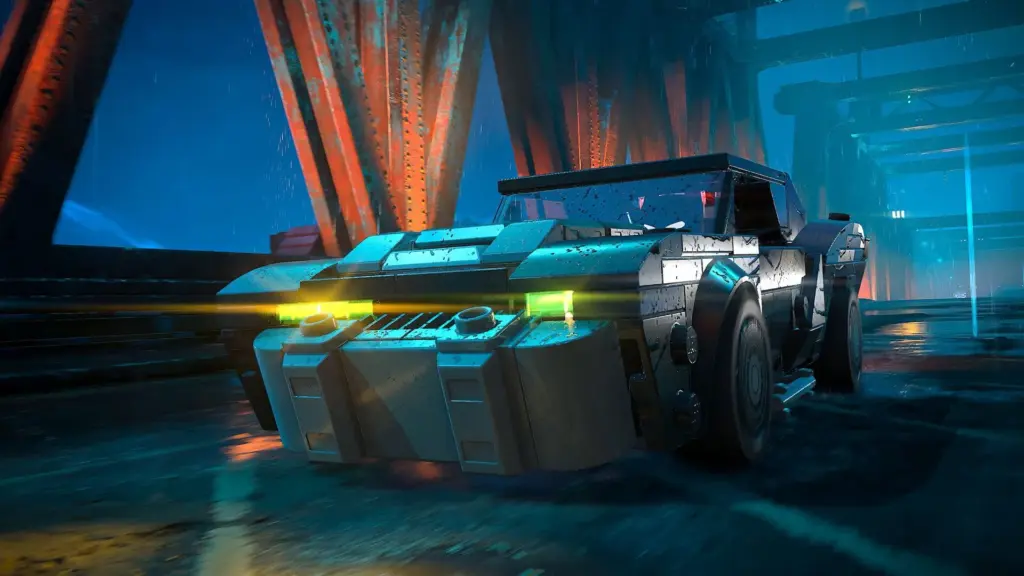
PC players reporting crashes in Lego Batman Legacy of the Dark Knight are facing a problem that often points first to the system around the game, not only the game itself. The title’s sudden exits on desktop have become one of the earliest complaints after its global launch, and three likely culprits stand out before anything else.
The most common suspects are an outdated GPU driver, damaged game files, and an old BIOS. Each of these can affect stability in a different way, which is why the first fix is usually a process of elimination rather than a single universal solution.
Why the PC side is the first place to look
When a newly released game starts crashing on multiple PCs, the issue often comes from compatibility gaps. That matters here because fresh releases usually depend on the latest support from AMD and Nvidia to run smoothly on a wide range of hardware.
An older graphics driver can leave a new game without the stability improvements it needs. On the other hand, a clean but incomplete installation can also trigger sudden shutdowns if some files are missing or corrupted.
The three most likely causes
The first likely trigger is a GPU driver that has not been updated. New games frequently depend on recent driver releases, and those updates often arrive specifically to improve stability and compatibility.
The second is corrupted game data. If the download or installation was interrupted, the game may contain broken or incomplete files that cause it to close without warning.
The third is an outdated BIOS. In some cases, older BIOS versions can affect the stability of demanding software and lead to unexpected crashes during gameplay.
The safest order to try fixes
The most practical first step is to update the GPU driver to the latest version. Players using AMD or Nvidia hardware can look for the matching driver on the official website for their graphics card.
If the crash continues, the next step is to verify the integrity of the game files. On Steam, this can be done through the launcher itself, which will scan for problematic files and replace corrupted ones with working versions.
When BIOS becomes part of the discussion
If the first two steps do not help, a BIOS update becomes a reasonable next move. A BIOS that is too old can contribute to system instability, and that instability may show up most clearly in heavy applications such as games.
Any BIOS update should come only from the motherboard or device maker’s official website. It also needs to follow the manufacturer’s instructions carefully, since this is a more sensitive process than updating drivers or checking game files.
Why the problem does not look the same for everyone
Newly released PC games often behave differently from one machine to another because no two systems are exactly alike. Driver versions, file conditions, and firmware status can all change how a game responds at launch.
That is why one player may solve the problem simply by updating the GPU driver, while another may need a file verification step or a BIOS update before the crashes stop. The reports that surfaced soon after launch also suggest that this is not a single isolated case.
For players trying to reduce the chance of repeated crashes, the clearest path is straightforward: update the GPU driver first, verify the game files next, and only then consider a BIOS update if the problem remains. That sequence keeps the lower-risk fixes at the front while still covering the most likely technical causes behind the PC crashes.
Source: tech.sportskeeda.com