Ads that appear suddenly on Android phones are more than a minor annoyance. They can disrupt daily use, slow down the device, and drain mobile data when they show up as pop-ups, banners, or full-screen promotions.
The problem is rarely limited to a single source. Ads can come from free apps, Google services, and even preinstalled apps that are rarely used, which is why reducing them usually requires several settings rather than one quick fix.
1. Limit Ad Personalization in Your Google Account
One of the simplest steps is to reduce personalized advertising through Google settings. Users can open Settings, go to Google, then choose Ads and activate the option to opt out of ad personalization.
This does not remove every ad, but it can reduce the amount of advertising tailored to browsing history and user preferences. Resetting the Advertising ID from time to time can also make it harder for the system to keep tracking interests used for ad targeting.
2. Use a Trusted Ad Blocker
Dedicated ad-blocking apps are another practical option, especially for users who want broader protection across browsers and many apps. Well-known choices include AdGuard, Blokada, and DNS-based blockers such as NextDNS.
Apps like AdGuard filter data traffic so ads in browsers and many applications can be blocked. During setup, users typically need to allow a local VPN so the filtering process can work across the device.
3. Switch to a Browser With Built-In Protection
Browser choice matters because many ads appear during web browsing. Brave, Firefox with the uBlock Origin extension, and Kiwi Browser are among the options noted for stronger ad-control features.
Brave can block ads and trackers automatically, which may make browsing feel faster and more battery-friendly. For users who want a more consistent result, ad blockers can also be paired with Battery Optimization so they keep running in the background.
4. Tackle Bloatware and Aggressive Free Apps
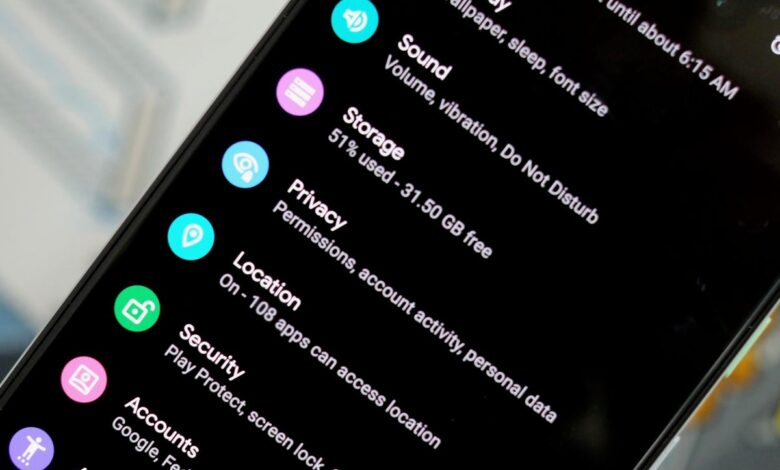
Some of the most disruptive ads come from bloatware or free apps that push promotions too aggressively. Users can go to Settings, then Apps, and identify the apps that most often trigger pop-ups or repeated ads.
If an app is not important, it can be disabled or its updates removed. Notifications from that app should also be turned off so ads no longer appear in the notification panel.
For users who want to contain a problematic app without deleting it immediately, Digital Wellbeing or third-party tools such as Ice Box can be used to freeze it temporarily.
5. Change the DNS and Clean Up the Home Screen
Private DNS can be enabled through Network & Internet settings and used with services such as Cloudflare 1.1.1.1 or AdGuard DNS. At the system level, DNS filtering can block ad domains before they reach the device.
A custom launcher such as Nova Launcher or Lawnchair can also help tidy the interface by hiding icons for apps that frequently display ads or clutter the home screen. While it does not block every ad directly, it makes Android feel more controlled and easier to use.
These steps can generally be applied without rooting, which makes them accessible to most users who want a cleaner experience without replacing their phone. It is also important to download apps only from the official Play Store and review permissions carefully so privacy improvements do not create new security risks.
If ads still keep appearing after these changes, updating Android may help. Newer system versions often include privacy and app-management improvements that can reduce the chances of overly aggressive ad behavior.
When used together, these settings can significantly reduce distractions and make an Android screen feel cleaner, more private, and easier to manage.