Many Android users open Developer Options only out of curiosity, but several of its controls can change how a phone feels in daily use. The biggest gains come from faster transitions, tighter background limits, and a few power-saving tweaks that reduce unnecessary system work.
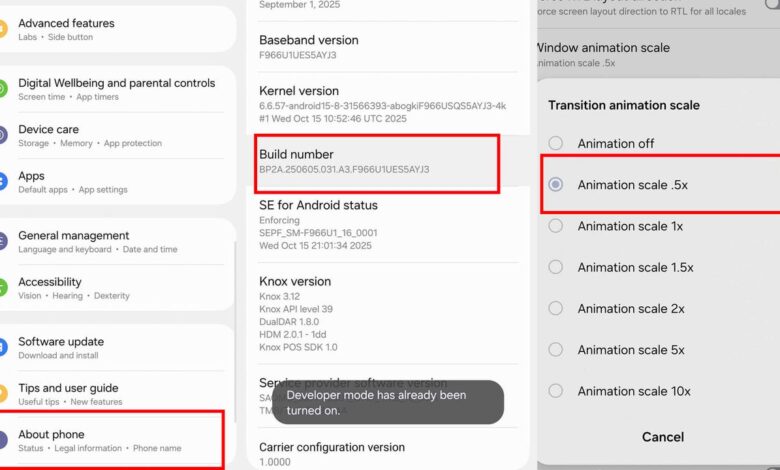
Developer Options is not hidden for long. It can be enabled by opening Settings, going to About Phone, tapping Build Number seven times in a row until a countdown appears, entering the PIN, and then finding Developer Options in Settings, usually under System.
Faster feel starts with animation
The most noticeable change often comes from animation scaling. In the Drawing section, Android users can adjust Window Animation Scale, Transition Animation Scale, and Animator Duration Scale, all of which usually sit at 1x by default.
Lowering those values to 0.5x makes motion finish twice as fast, while turning them off makes screen changes feel almost instant. The phone does not gain more processing power, but the interface becomes more responsive because less time is spent on visual effects.
For devices with high refresh-rate displays, Force Peak Refresh Rate is another option that keeps the screen running at its highest capability. That can make scrolling social feeds, gesture navigation, and fast games feel smoother, although battery use will rise.
Background control can free up resources
Android keeps some apps cached so they open faster, but a few of them can still use CPU resources in the background. Suspend execution for cached apps limits that activity, which can improve battery life and help the system stay smoother.
Users who want to see what is happening behind the scenes can open Memory monitor, which shows average RAM usage over the last 3, 6, or 12 hours, plus RAM use by app and system service. Running Services adds a real-time view of active processes and their memory consumption.
On phones with limited memory, Background Process Limit can make a clear difference. The default setting is Standard limit, but it can be changed to At most 4 processes to keep fewer apps active in the background.
Useful power-saving options without too much compromise
Wi-Fi Scan Throttling reduces how often apps scan nearby wireless networks. Turning it off can help location-based features and smart-home automation that depend on more frequent checks.
Mobile Data Always Active is the opposite kind of trade-off. It keeps mobile data active even when the phone is connected to Wi-Fi, allowing quicker switching if the Wi-Fi connection drops or becomes unstable.
For users who stay on Wi-Fi most of the time, that setting may be unnecessary battery drain. Override force-dark is another practical option, since it can force dark mode on apps that do not support it natively.
That can help in dim environments and may save power on OLED or AMOLED screens. In several studies, dark mode on those display types has been associated with 30 to 40 percent battery savings at high brightness levels.
Audio, gaming, and display tweaks for specific needs
Bluetooth Audio Codec gives more control over wireless sound quality, especially when a device supports options beyond the default SBC codec. Users may be able to choose AAC or LDAC for better audio performance if both the phone and accessory support them.
Disable Absolute Volume is also useful for some Bluetooth setups. It separates the volume levels of the phone and the accessory, which can make adjustment more precise and help fix volume issues on wireless devices.
Gamers may look at Force 4x MSAA for OpenGL ES 2.0, which enables multisample anti-aliasing to smooth edges and make 3D graphics appear cleaner. Another display-related option is Force Activities to be Resizable, which can push more apps into multi-window or split-screen mode even if the developer did not intend it.
For users who connect to computers and other devices often
USB Debugging opens access to Android Debug Bridge, or ADB, a command-line tool that lets a computer communicate directly with the device at the operating-system level. It is commonly used for sideloading apps, reading crash logs, removing unwanted preinstalled apps, recovering files, and mirroring the phone screen to a PC.
Wireless debugging offers similar control without a cable. Default USB Configuration can also save time by setting a preferred connection mode automatically, such as file transfer, no data, MIDI, or tethering, whenever a USB cable is plugged in.
Force GPU Rendering and Disable HW Overlays are often used on devices that need extra help with display behavior. Force GPU Rendering pushes older apps to use the GPU for visual tasks, while Disable HW Overlays can route more display work through the GPU and may reduce screen tearing or stutter on some phones.