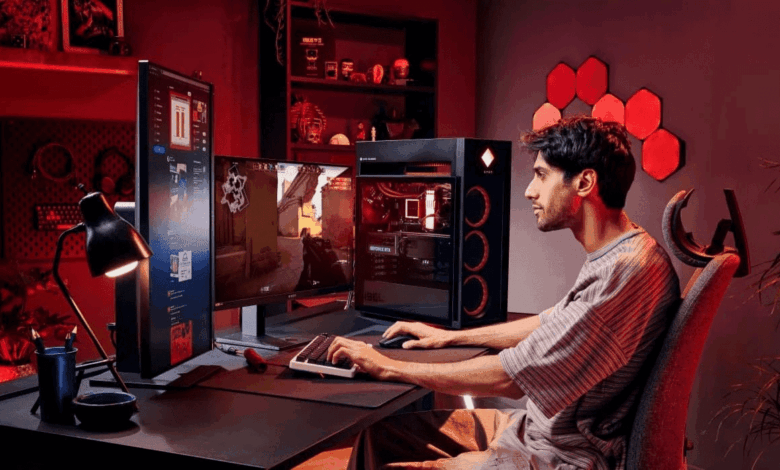
Mobile Legends can now be played on a laptop with far less friction than many players expect. For those who want tighter control and a larger screen, the setup can deliver a more comfortable experience without forcing a complicated installation process.
The biggest appeal is simple: better visibility, more precise movement, and smoother control during fast team fights. On a capable Windows machine, the game can also feel more stable than on some mobile setups, especially when the hardware is matched with the right settings.
A direct route through Google Play Games for PC
The easiest official path is Google Play Games for PC, which lets Android games run on Windows without a third-party emulator. That makes it a practical option for users who want a lighter setup with minimal configuration.
The process is straightforward. Download Google Play Games for PC from the official site, install it, and sign in with a Google account.
After that, search for Mobile Legends, install the game, and launch it once the download is complete. Players can then log in with their existing MLBB account and start playing on the laptop.
This method is especially useful for users who prefer an official platform with fewer compatibility concerns. Updates are also handled in a way that tends to be more consistent across Windows devices.
Android emulators remain the flexible alternative
For players who want deeper control over settings, Android emulators are still widely used. Popular options among Mobile Legends players on PC include BlueStacks, LDPlayer, and NoxPlayer.
Installation is similar in principle. Download the chosen emulator, install it on the laptop, then open Google Play Store inside the emulator to find and install Mobile Legends.
Once installed, the game runs much like it does on a phone, but with broader customization. Keymapping can be adjusted to match personal playstyle, while resolution and performance settings can be tuned to suit the laptop.
LDPlayer is often considered a lighter choice for mid-range devices. BlueStacks, on the other hand, is commonly described as a stronger fit for high-spec laptops.
What helps maintain 60FPS
Control setup plays a major role in the overall experience. Keymapping can be used to assign movement, skills, and item shortcuts so actions feel faster and more intuitive.
Hardware still matters, especially when the game gets busy. A laptop with at least an Intel Core i3 processor, 4GB of RAM, and around 10GB of free storage is enough to run the game.
For a more stable result, 8GB of RAM and an SSD can make gameplay feel smoother and reduce noticeable lag. That combination is especially helpful during crowded fights where frame stability matters most.
There are also a few maintenance steps that can help performance stay steady. Closing unused apps, keeping the internet connection stable, and updating graphics drivers regularly can all support better gameplay.
If frame drops appear, lowering the graphics setting can keep the session stable. Laptop temperature also needs attention, since overheating can affect long gaming sessions.
With the right setup, Mobile Legends on a laptop can feel more precise, more spacious, and easier to follow in the middle of a match. For players who value control and visibility, the format offers a clear advantage over a smaller screen.