


An OPPO phone that will not respond to the power button is not necessarily unusable. Several built-in methods can help bring the device back to life, even when the physical key is damaged, unresponsive, or affected by internal hardware issues.
The most immediate option is often the simplest: connect the phone to a charger or computer. In many cases, the device will start automatically once it receives power, especially if the battery has been fully drained.
Start with the charger or a computer
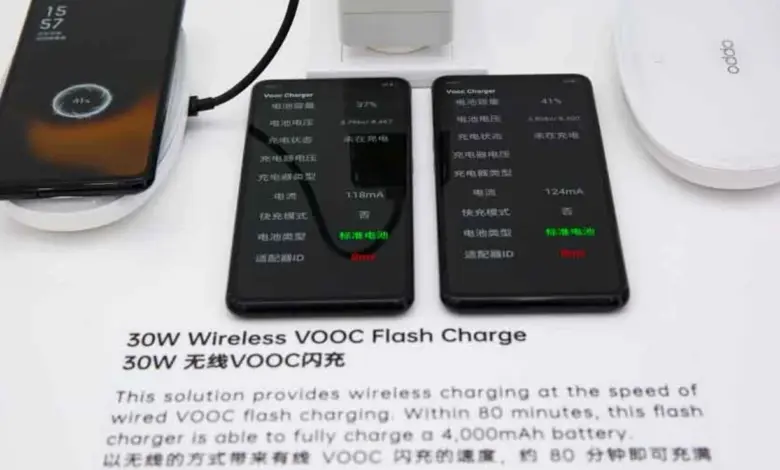
Use a charger and cable that match the phone’s specifications. If the device supports VOOC or SuperVOOC, a compatible charger can help the charging process run more smoothly and steadily.
After plugging it in, wait a few minutes and watch for signs such as a battery icon, LED indicator, charging animation, or vibration. A phone with a completely empty battery may take longer before showing any reaction.
Connecting the phone to a laptop or desktop computer can also help. Besides possibly waking the screen, it can confirm whether the phone still responds when power is supplied.
Use Recovery Mode when the system freezes
If charging alone does not work, Recovery Mode can be used to restart the phone without pressing the power button. This option is useful when the system is stuck, the boot process fails, or the touchscreen does not respond properly.
Before trying it, make sure the battery has at least a little power or has been charged for a few minutes. Then press and hold Volume Up and Volume Down together while the phone remains connected to a charger, and wait for the Recovery menu to appear.
Choose reboot carefully
Inside Recovery Mode, the safest option is Reboot system now. On some models, navigation is done with the volume buttons, while confirmation may use the home button.
Options such as Wipe Data, Factory Reset, or Clear Data should be avoided if important files have not been backed up. These menus can erase photos, videos, contacts, and apps stored on the device.
| Method | Best Use | Main Note |
|---|---|---|
| Charger or computer | Battery is empty or the phone is off | May start automatically when power is supplied |
| Recovery Mode | System is frozen or not booting | Use Reboot system now, avoid data wipe options |
| Schedule power on/off | Power button cannot be relied on | Allows automatic startup at a set time |
| Accessibility menu | A virtual power control is needed | Adds an on-screen power option |
Use built-in features to make daily use easier
Once the phone is running again, features such as Double Tap to Wake, Raise to Wake, and fingerprint unlock can make the device easier to use without the power button. Double Tap to Wake turns the screen on with two taps, while Raise to Wake activates the display when the phone is lifted.
Fingerprint recognition and face unlock can also reduce dependence on the physical key. On many OPPO models, the fingerprint sensor is placed under the display, so a simple touch can wake the phone and bring up the lock screen.
Extra options if the button is no longer dependable
OPPO phones can also be set to power on and off automatically through the Schedule power on/off menu. This is useful when the power button is unreliable because the user can choose an automatic startup time from the system settings.
The Accessibility menu can provide an on-screen power button as well. After it is enabled, a small icon appears on the screen, allowing the user to open the Power menu and restart or shut down the phone.
Emergency and technical alternatives
If the screen stays dark but the phone is still on, another person can call the number. When an incoming call arrives, the screen usually lights up and the device can be accessed from the lock screen.
More technical methods such as ADB commands are also possible, but only if USB debugging was enabled earlier. With a computer, the device can be checked through adb devices and restarted with adb reboot.
Keeping the power button from wearing out faster
Power button damage is often caused by daily use, dust, excessive pressure, or impact after a drop. For that reason, screen-wake features and fingerprint unlock can help reduce the number of physical presses needed each day.
A proper case, regular cleaning with a soft brush or isopropyl alcohol cotton swab, and avoiding extreme temperatures are also important. If the button begins to fail, repairs should be handled quickly so the problem does not spread to other components.