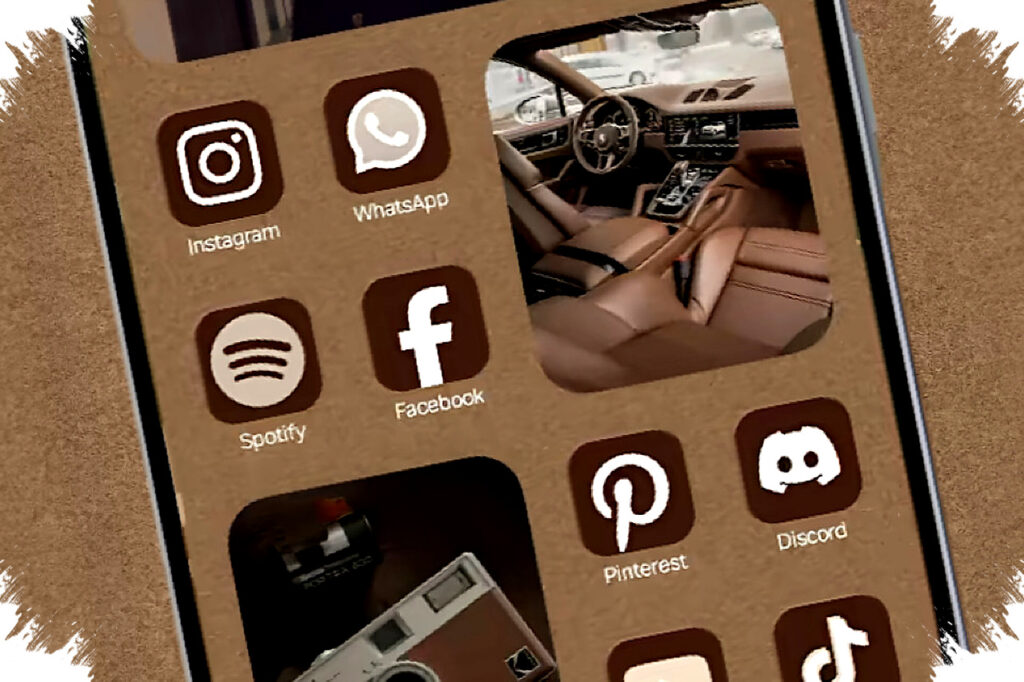
Samsung users often want a cleaner screen and a more modern feel without installing extra apps or changing the phone’s core look. The fastest way to get there is by adjusting display-related settings and switching the navigation style from classic buttons to swipe gestures.
This approach matters because the phone interface is one of the first things people notice every time they unlock the device. A more minimal layout can make a Samsung phone feel less crowded, more premium, and easier to use with one hand.
Why a cleaner Samsung interface looks more aesthetic
Samsung’s One UI already focuses on large touch targets and a balanced layout, but the default navigation bar can still make the bottom of the screen feel busy. For users who prefer a modern visual style, swipe gestures usually create a more seamless appearance because they remove the visible button row.
The change is not only about appearance. Gestures can also make the screen feel wider, especially on phones with tall displays like many Galaxy A and Galaxy S models.
A cleaner interface often helps users focus better on content, whether they are scrolling social media, reading news, or watching videos. That is why many Samsung owners now prefer gesture navigation as part of a more aesthetic setup.
How to change Samsung navigation into swipe gestures
Samsung places this option inside the system settings, and the path is simple enough for most users to follow. The exact menu name can differ slightly depending on the One UI version, but the steps are generally the same.
- Open Settings.
- Scroll down and tap Display.
- Find Navigation bar.
- Select Swipe gestures.
- Adjust the gesture sensitivity if needed.
After that, the three-button navigation bar disappears, and the phone uses gesture-based controls instead. On many Samsung devices, this instantly makes the screen look cleaner and more streamlined.
Samsung also lets users fine-tune gesture sensitivity. The available levels commonly include lower, low, high, and higher sensitivities, so people can choose a setting that feels natural for their hand movement.
What gesture sensitivity changes in daily use
Gesture sensitivity affects how easily the phone recognizes swipes from the edge of the screen. If the setting feels too low, the phone may ignore some swipes, while a setting that is too high can make accidental gestures more likely.
That is why users should test the setting while returning to the home screen, switching apps, and going back in menus. Small adjustments can make a big difference in comfort, particularly for people who use their phone heavily throughout the day.
A balanced sensitivity setting usually feels more responsive without creating mistakes. For many users, this is the key to making swipe navigation feel both modern and practical.
A simple adjustment can change the whole look
One of the reasons this trick is popular is because it gives an immediate visual result. The screen looks more open as soon as the button bar is removed, and the phone starts to feel closer to the interface style used on newer premium devices.
Samsung has kept improving One UI to support cleaner visual design, and gesture navigation fits that direction well. It does not change the hardware, but it can make the device feel newer and more elegant.
For people who care about aesthetics, this is a low-effort change with a noticeable impact. It is also reversible, so users can switch back to button navigation anytime if they prefer that style.
Tips to make the Samsung screen look even cleaner
Aesthetic display changes work best when the home screen and navigation style support each other. Samsung users can combine swipe gestures with a more minimal setup to make the interface feel more modern.
Here are a few practical adjustments that usually help:
| Setting | Effect on appearance |
|---|---|
| Swipe gestures | Removes the bottom navigation buttons |
| Dark mode | Makes the display look more elegant on AMOLED screens |
| Minimal wallpaper | Reduces visual clutter |
| Simple widget layout | Keeps the home screen balanced |
| Consistent icon pack | Creates a more unified look |
These changes do not require advanced customization. They only need a few minutes in the phone settings and home screen options.
Why this works especially well on Samsung phones
Samsung devices often have bright, high-quality displays, including Super AMOLED and Dynamic AMOLED panels on many models. That makes visual changes easier to notice because colors, contrast, and spacing stand out more clearly.
On phones with large screens, swipe gestures also make navigation feel more natural. Users can move across menus without relying on fixed buttons that reduce usable screen space.
This is one reason Galaxy owners often look for interface tweaks after buying a new device or after updating One UI. A small change in navigation style can influence the overall user experience more than many people expect.
When to keep the button navigation
Swipe gestures may look cleaner, but they are not always the best choice for every user. People who are used to three-button navigation may need time to adapt, and some may still find buttons easier for precise control.
Users with accessibility needs may also prefer the predictability of button navigation. Samsung provides both options for that reason, allowing people to choose what feels most comfortable.
If the goal is aesthetic and modern design, gestures are usually the better fit. If the goal is maximum familiarity and consistency, button navigation still remains a valid choice.
Quick guide for users who want the modern look
The fastest way to make a Samsung phone look more aesthetic is to reduce on-screen clutter and rely on gestures instead of visible navigation buttons. Once that is done, the phone feels cleaner, less dated, and more aligned with current mobile design trends.
The result is a sharper visual experience that is easy to maintain, easy to reverse, and available on most Samsung devices through the standard Settings menu.