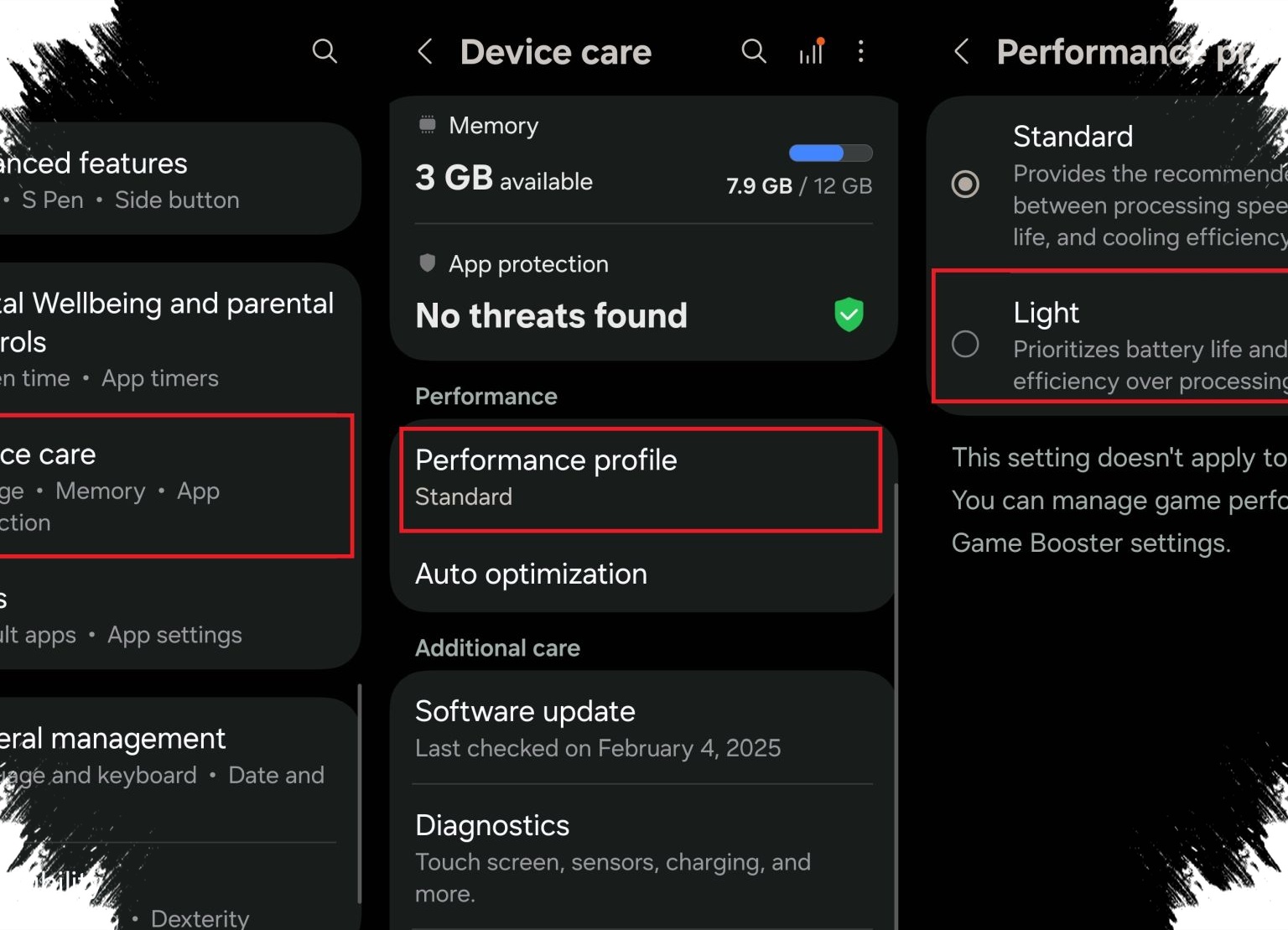
Samsung Galaxy users often notice that performance slows down not because the hardware is weak, but because the device keeps too many background processes active. Samsung already provides several built-in settings in One UI that can help the phone feel faster, smoother, and more stable without installing extra apps.
These options sit inside Device Care or Battery and Device Care, where users can manage memory, storage, battery use, and app activity in one place. When adjusted properly, they can improve daily responsiveness, reduce lag, and help the phone maintain performance during multitasking, streaming, or gaming.
1. Check Device Care First
Device Care works as Samsung’s main performance dashboard. It shows storage status, memory use, battery health, and system optimization tools in real time.
Samsung designs this menu so users can spot bottlenecks quickly, especially when an app starts freezing or the phone becomes less responsive. Regular checks help users keep the system clean before minor slowdowns turn into daily frustration.
2. Limit Background Apps
Android allows many apps to keep running even after users close them. That can consume RAM, battery, and processing power in the background.
Samsung lets users restrict specific apps so they do not drain resources unnecessarily. This setting is useful for apps that are rarely used but still wake up often to refresh data, send notifications, or track location.
3. Choose the Right Performance Mode
Samsung Galaxy devices often include power profiles that balance speed and battery life. In the source article, these options are described as standard, power saving, and high performance.
High performance can help when gaming or editing media, while standard mode usually gives a more balanced daily experience. Power saving is useful when battery life matters more than speed, but it may reduce responsiveness in heavy tasks.
4. Adjust the Refresh Rate
Many Galaxy phones support a high refresh rate, with some models reaching 120Hz. A higher refresh rate makes scrolling, animations, and transitions look smoother.
The trade-off is power use, since the display refreshes more often. Switching to 60Hz can help stabilize battery consumption and, on some devices, make overall system behavior feel more controlled during long use.
5. Clear Cache and Free Storage
A phone can slow down when temporary files and cached data build up over time. This extra clutter can affect app loading speed and overall system responsiveness.
Samsung’s Device Care includes tools to clean storage and remove unnecessary files. Clearing cache regularly can help the phone stay efficient, especially for users who install many apps or use social media, messaging, and video platforms every day.
6. Use RAM Plus Wisely
Samsung also offers RAM Plus, a feature that uses part of the internal storage as virtual memory. This can help the phone handle multitasking better on devices with limited physical RAM.
The benefit is more room for apps to stay active in the background. Still, the feature works best as a support tool, not a replacement for proper memory management, so users should still close heavy apps when needed.
7. Turn Off Unused Connectivity Features
Bluetooth, GPS, NFC, and other wireless tools continue to consume system resources when they stay on. If users do not need them, turning them off can reduce background load and save battery.
This does not only help power efficiency. Lower battery drain can also support better long-term performance, because the system does not need to work as hard to maintain active services.
8. Keep Software Updated
Samsung regularly releases One UI and security updates that include bug fixes, stability improvements, and performance patches. These updates often solve issues users may not notice until apps become laggy or system animations stutter.
Keeping the phone updated helps ensure the software runs on the latest optimizations. It also adds an important security layer, which matters because a secure device tends to run more reliably over time.
| Quick Settings to Review | Setting | What It Does | Why It Matters |
|---|---|---|---|
| Device Care | Monitors memory, storage, and battery | Helps find performance issues early | |
| Background app limits | Restricts unused apps | Saves RAM and battery | |
| Performance mode | Changes system behavior | Matches speed to user needs | |
| Refresh rate | Controls screen smoothness | Balances fluidity and power use | |
| Cache cleanup | Removes temporary files | Reduces storage clutter | |
| RAM Plus | Adds virtual memory support | Improves multitasking | |
| Connectivity toggle | Turns off unused radios | Lowers system load | |
| Software update | Installs fixes and patches | Improves stability and security |
Samsung’s own software features show that performance optimization is not only about processor speed or memory size. It also depends on how users manage background activity, display settings, storage, and updates through One UI’s built-in tools.
For everyday Galaxy users, the most effective approach is simple: check Device Care regularly, keep only the needed features active, and let the latest software updates do their part in maintaining a smoother phone experience.
-

-

-

-