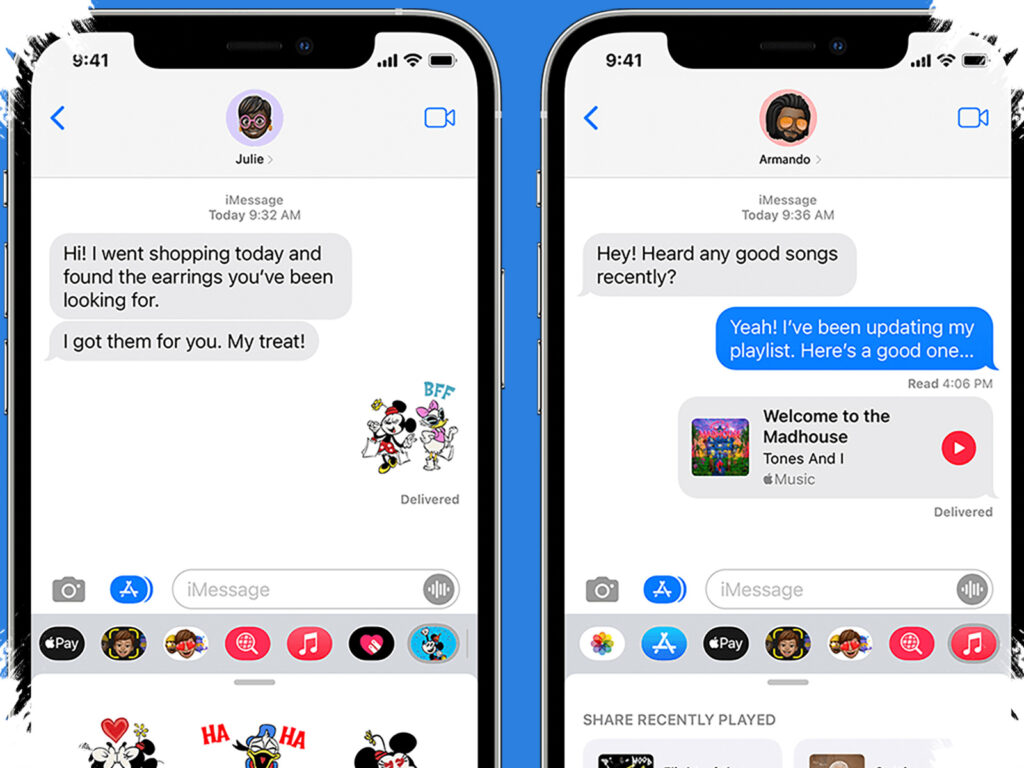
iPhone Messages can do more than deliver plain text, and the most useful options are often the ones that stay hidden in everyday use. From styling a message to sending money in a group chat, Apple has packed the app with tools that can make conversations faster, clearer, and more expressive.
Many users already rely on Messages for tapbacks, GIFs, voice recordings, documents, and location sharing. What tends to get overlooked is that the app also includes features that help with writing, drawing, splitting costs, and keeping a crowded inbox under control.
Turn plain text into a more expressive message
One of the most flexible tools in Messages is Text Effects. It allows users to format selected text as bold, italic, underlined, or strikethrough, then add animated effects such as big, small, shake, nod, explode, ripple, bloom, or jitter.
Using it is straightforward. After opening a conversation and typing a message, a user can highlight the part that needs an effect and choose Text Effects from the menu that appears. A single message can contain several effects at once as long as they are applied to different sections.
There is one important limitation. The feature works only for iMessages on both sides, so it will not appear when messaging an Android device.
Handwritten notes are still supported
Messages also lets users send handwritten text or hand-drawn images directly inside a conversation. This can be useful when typing feels inconvenient or when a message needs a more personal touch.
To do that, Lock Orientation must be turned off if it is active, then Messages should be opened in landscape mode. After that, the drawing button next to the microphone icon opens a canvas where users can write or sketch with a finger.
The canvas includes preset drawings along the bottom. For longer messages, there is an arrow button on the right, while Undo removes the last stroke.
Games can live inside the chat window
Messages is not limited to communication alone. Through a third-party iMessage app called GamePigeon, the chat window can also become a place to play.
GamePigeon offers more than 20 games that can only be played from an iMessage conversation. The lineup includes classic options such as darts and four-in-a-row, along with board games like chess and checkers.
To use it, a user installs GamePigeon from the App Store, opens a conversation, and chooses the game to send. Some games require the other player to be online first, and a few ask players to select a mode or difficulty level.
Apple Cash helps in group chats
For people who often split restaurant bills or share other costs with friends, Apple Cash in Messages offers a faster way to handle payments. The integration allows users to send, request, and receive money without leaving the conversation.
The process starts by tapping the plus icon at the bottom and selecting Apple Cash. The amount can then be adjusted with the plus or minus buttons, or entered manually with Show Keypad.
From there, users can choose Request to ask for payment or Send to transfer money. In group chats, the relevant members can be selected, and an optional comment can be added as a note. When money is sent, the system prompts for authentication to verify the transaction. A payment request appears as a chat bubble with a Pay button.
Old messages can be cleared automatically
A crowded inbox can slow down the search for important conversations. Messages includes a setting that removes old messages automatically so storage stays tidier and space does not fill up too quickly.
The option is found in Settings, then Apps, then Keep Messages under Message History. From there, the setting can be changed from Forever to 30 Days or 1 Year, followed by Delete Older Messages to confirm the change.
Once enabled, messages and attachments older than the selected limit are removed. The deletion is permanent and does not go to Recently Deleted, so important chats should be backed up first. The setting also applies only to the selected device, which means it does not automatically change messages on other devices signed in with the same Apple account.