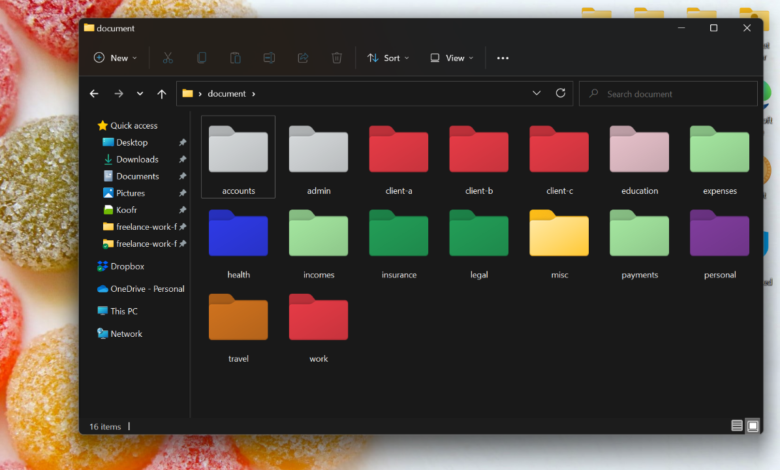
Windows 11 users who rely on custom folder icons may have noticed an unwelcome change after the June update. Microsoft has quietly tightened how the system handles those customizations, and the result is that some folders now fall back to the default icon.
This is not being treated as a bug. Microsoft says the behavior is intentional and part of its ongoing security hardening effort, aimed at reducing the risk of loading visual changes from files that the system does not trust.
What Windows 11 is blocking
The main target of the change is desktop.ini, the file that can control folder icons and naming behavior. When Windows decides that the file came from an untrusted source, it simply ignores the customization instructions and restores the standard appearance.
For users, that can look like a broken or missing folder icon. In practice, Windows 11 is rejecting the customization because the file behind it did not pass the system’s trust check.
Sources that can trigger the fallback
Microsoft says files downloaded from the internet can be affected if they still carry the Mark-of-the-Web, or MOTW, marker. Files copied from certain remote locations may also be treated as unsafe, including some WebDAV- and HTTP-based paths.
Network locations are another factor. If a path is not classified as intranet or is not trusted under the system’s zone policy, Windows 11 may refuse to apply the custom icon settings stored in the file.
| Source type | How Windows 11 may treat it |
|---|---|
| Internet downloads with MOTW | May ignore the custom folder icon |
| Remote WebDAV or HTTP locations | May be treated as untrusted |
| Untrusted network paths | May fall back to the default icon |
Why Microsoft is doing this
The change reflects a broader shift in how Windows 11 evaluates external files that influence the interface. Even a small visual tweak, such as a folder icon, can depend on a file that the system now scrutinizes more carefully.
That means Windows no longer automatically honors every instruction inside desktop.ini. If the file originates from a location that appears risky, the safer option is to ignore it and keep the default look.
How custom icons can be restored
Microsoft says there are a few ways to bring back custom folder icons when the file is being blocked. One option is to add the source location to Trusted Sites so Windows recognizes it as trusted.
Another is to enable the policy Allow the use of remote paths in file shortcut icons, which can help Windows accept remote paths in the right cases. A third option is to remove the Mark-of-the-Web tag from the related file.
Once the file is treated as trusted again, the customization in desktop.ini can work normally. That restores the folder’s custom appearance without changing the folder itself.
What users should expect
The change matters most to people who move customized folders from the internet, remote servers, or network shares. If an icon has suddenly returned to the default look after an update, the likely cause is Microsoft’s new security handling rather than a damaged file.
For users who organize folders visually, the update may feel restrictive. Still, Microsoft’s approach shows that Windows 11 is increasingly prioritizing trust checks before it loads file-based customizations.