


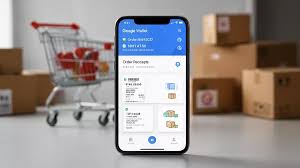
Google Wallet is no longer limited to storing cards, tickets, and digital passes. The app can now also help users check and track package orders, putting delivery updates in one place.
The change makes Wallet more useful for online shoppers who want a quick status check without switching between apps. In the United States, the feature is already available and appears alongside the passes already saved in the app.
How package tracking appears in Wallet
When Google Wallet is opened, upcoming orders can show up next to existing passes. Users can then tap View more to see the full list of orders and open detailed information.
Those details include receipts, tracking numbers, and delivery status. Google is positioning Wallet as a fast overview screen, while the more complete shipment details remain available when needed.
| Wallet Feature | What It Shows | Where It Helps |
|---|---|---|
| Upcoming Orders | Orders that are due to arrive soon | Quick glance in the app |
| View More | Full list of orders | More complete order overview |
| Order Details | Receipts, tracking numbers, delivery status | Shipment monitoring |
Not every purchase will appear automatically
The feature depends on several conditions before an order can be shown in Wallet. The purchase must be connected to the user’s Gmail account, package tracking in Gmail must be enabled, and the merchant must be supported.
That means the experience is tied closely to Google’s ecosystem. If one of those requirements is missing, the order may not appear in Wallet even if the purchase itself is valid.
Google also notes that support is not universal across merchants. Many large merchants in the United States are supported, but smaller sellers or merchants outside the country may not be included.
Turning on package tracking in Gmail
Android users can enable package tracking directly from the Gmail app. The path is through Menu, then Settings, followed by the account name and the General section.
There, users will find the Package tracking option, which can be turned on or off. This setting is the foundation that allows delivery information from email to be recognized by Google services.
On a computer, the same setting is available in Gmail on the web. Users need to open Settings, select See all settings, then go to the General tab and find Package Tracking.
After selecting Turn on package tracking, the change must be saved by clicking Save Changes at the bottom of the page. Once enabled, Gmail can begin processing delivery details from order-related emails.
How to use tracking inside Google Wallet
After Gmail tracking is activated, users still need to access the feature inside Google Wallet. In the app, the process starts with View more and then View more transactions.
From there, users can search for the relevant order, select it, and tap Track package. Wallet will then surface the order for tracking and make it easier to monitor its progress.
If the tracking number or order number is pressed and held, Google directs users to the courier’s website for more detailed shipment information. On desktop, the process works through the Google Wallet website by choosing Transactions on the left side, finding the order, and clicking Track package.
A broader role for Google Wallet
The addition shows Google Wallet expanding beyond payments and pass storage into a more active daily utility. For frequent online shoppers, having package status inside the same app can reduce friction and save time.
Even so, the feature still depends on merchant support and Gmail linkage. As long as the order comes from a supported seller and package tracking is enabled, Google Wallet can now serve as a practical place to monitor deliveries in progress.