


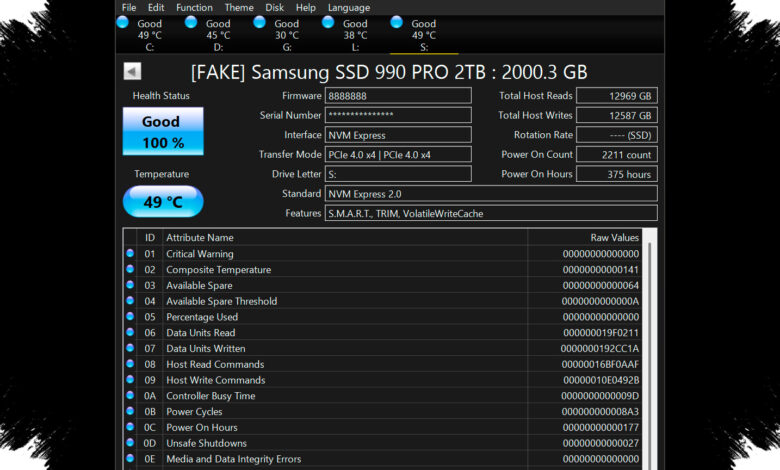
At first glance, the SSD in question appeared to be in acceptable condition. Windows reported a simple “Healthy” status, but that answer left out the details that matter when a drive is several years into service.
The drive had already been in use for around four years, and it was an NVMe model installed in a dual-boot Windows and Linux setup. With storage prices still high, the question was not whether the drive still powered on, but whether its wear level justified an early replacement.
Windows showed only the surface
Windows’ built-in health view offered only a binary result, which made the drive seem fine without explaining how much endurance had actually been used. CrystalDiskInfo filled in more of the picture by exposing detailed S.M.A.R.T. data.
That included total bytes written, total bytes read, power-on hours, available spare capacity, and a Percentage Used figure tied to the manufacturer’s TBW rating. In that readout, the Crucial P3 500GB NVMe used as the Windows drive sat at 77% health.
| Metric | Windows Readout | What It Showed |
|---|---|---|
| Health status | Healthy | Only a basic pass-or-fail result |
| Percentage Used | 23% | About 77% health remaining |
| Power-on hours | About 4 years of use | Enough age to justify closer inspection |
| Error log entries | 6,605 | An anomaly that Windows did not explain |
That figure still suggested some usable life left, possibly another one to one and a half years before the drive dropped below 70%. Even so, SSD wear does not always follow a clean linear path, and a drive can behave normally until it suddenly does not.
Linux provided the missing context
The deeper check came through Linux, where nvme-cli can communicate directly with the NVMe protocol. That made it possible to read logs and test results that are much harder to interpret through a generic health app on Windows.
The nvme smart-log command confirmed the same core data while adding context that mattered. Available spare remained at 100%, media errors were 0, percentage used was 23%, and the error log entry count matched the Windows reading at 6,605.
| Metric | nvme smart-log Result | Meaning |
|---|---|---|
| Available spare | 100% | No spare capacity depletion |
| Media errors | 0 | No sign of NAND media failure |
| Percentage used | 23% | Wear remained moderate |
| Error log entries | 6,605 | Needed a closer look at the log itself |
That log inspection changed the interpretation of the problem. Instead of a vague warning about “errors,” Linux showed that the first entry carried all 6,605 counts, while the remaining entries were clean.
The error was not physical damage
Entry 0 reported status 0x2002, which means Invalid Field in Command. In practical terms, that points to an unsupported or reserved field value rather than a failing SSD.
Entries 1 through 15 each showed an error count of 0 and a status of Successful Completion. Taken together, those results pointed away from physical wear and toward a command-level issue that did not indicate NAND damage or data integrity problems.
The drive also passed a self-test
Linux went a step further by allowing a built-in short self-test on the drive. The result came back as Operation Result: 0, meaning the SSD completed the test without any internal fault being detected.
For users who only run Windows, the same tools can still be used without installing Linux permanently. A bootable USB drive with Ubuntu or another Linux distribution can be launched as a live environment, nvme-cli can be installed, and the SSD can be checked before rebooting back into Windows.
In this case, the drive did not show signs of media failure or hardware breakdown. What looked like a worrisome error count in Windows turned out, after a deeper NVMe-level check in Linux, to be a command-related log entry rather than a failing SSD.