
WhatsApp is tightening account security with a new warning system designed to catch suspicious device-linking attempts before an account is compromised. The feature alerts users when the platform detects a request to connect an unknown device to their account.
The move is aimed at helping people spot unusual activity faster, especially as digital scams increasingly target private messages and account access. Meta says the update is part of a broader effort to strengthen protection against account theft.
When an unfamiliar device tries to link to WhatsApp, the user now receives a notification that includes the device’s location. That extra detail gives users more context before they decide whether to approve or block the request.
If the new device is actually owned by the account holder, the process can continue normally. If the request looks suspicious or the location does not make sense, WhatsApp recommends choosing “Don’t Link.”
| Security Check | What the User Sees | What to Do |
|---|---|---|
| Unknown device request | Warning notification with the device location | Approve only if the device is recognized |
| Suspicious link attempt | Signals that the device is not known | Select “Don’t Link” |
The warning matters because WhatsApp supports use across multiple devices at once. A single primary account can be connected to up to four additional devices without requiring the main phone to stay active all the time.
How the linked-device warning works
When a linking attempt begins, the system flags whether the device has already been recognized. Users can then decide immediately whether to continue or cancel the process.
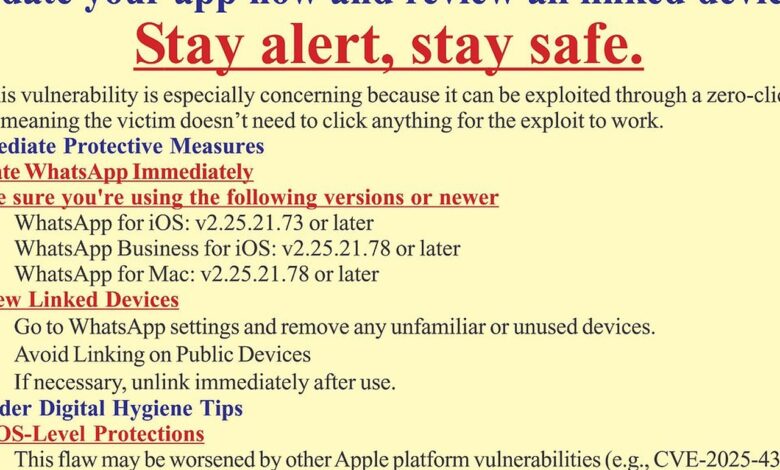
WhatsApp also keeps an additional security rule in place for linked devices. Users must log in through the primary phone at least once every 14 days for all connected devices to remain active.
This approach keeps multi-device access convenient while preserving user control over the account. Every new linking attempt still passes through a check that creates another opportunity to stop misuse.
How to link a device on Android
On an Android primary phone, users open WhatsApp, tap the More menu with the three vertical dots, then select Linked Devices and Link a Device. The process then asks for identity verification using biometrics such as a fingerprint or face unlock, or by using the phone’s PIN or lock code.
After that, the camera is pointed at the target device to scan the QR code. If the warning appears and the device is not trusted, users can stop the process by choosing “Don’t Link.”
How the same process works on iPhone
On an iPhone, users open WhatsApp Settings or tap the profile photo, then go to Linked Devices and choose Link Device. On iOS 14 or later, the device must first be unlocked with Touch ID or Face ID, or with the iPhone PIN if biometrics are not enabled.
Once the camera is aimed at the device to be linked, the QR code is scanned to complete the setup. If WhatsApp flags the device as unfamiliar, “Don’t Link” cancels the request, while “Link Device” continues the pairing if it is safe.
With this added warning layer, WhatsApp is trying to make multi-device use both practical and harder for unauthorized parties to exploit. For users, a small notification may now make the difference between a secure account and one at risk of takeover.