


A PDF file can help keep a Word document looking consistent when it is opened on a different device or in another application. The format preserves the document’s text, images, tables, and layout.
There are four available routes for creating a PDF, depending on where the document is stored and which device is being used. Microsoft Word on a computer, the mobile Word app, and Google Docs each provide their own conversion path.
| Method | Device or Service | Main Menu Path |
|---|---|---|
| 1 | Microsoft Word on a computer | File > Save As |
| 2 | Microsoft Word on a computer | File > Export |
| 3 | Microsoft Word on a phone | Share or Export |
| 4 | Google Drive or Google Docs | File > Download |
1. Download a PDF from Google Docs
Google Drive users can convert a Word document after opening it in Google Docs. If the document is not already in Drive, it must first be uploaded to the service.
With the file open in Google Docs, select File, then Download, and choose PDF Document. The converted file will be downloaded and saved as a PDF.
2. Export a file from the Word mobile app
The Microsoft Word app on a phone also offers a way to create a PDF without moving the document to a computer. Open the required document and tap the three-dot icon or access the File menu.
Choose Share or Export, then select the PDF format. The resulting file can be saved to the phone’s storage.
3. Use Save As in Microsoft Word
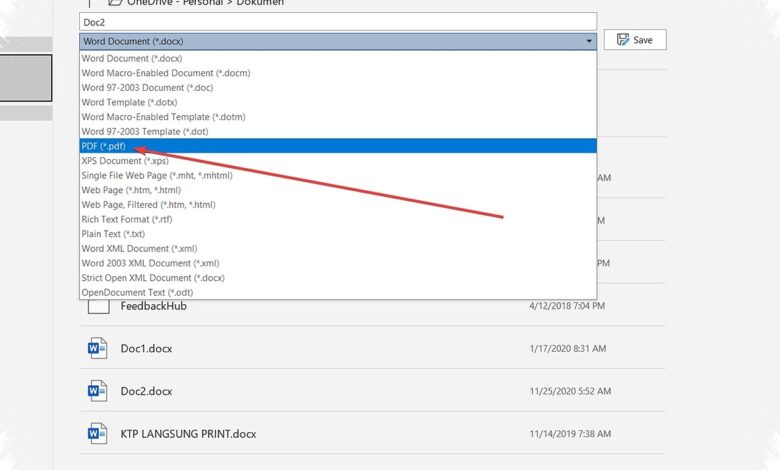
On a laptop or PC, the direct method begins by opening the completed Word document. Select File in the upper-left corner, then choose Save As.
Select a destination folder and set Save as type to PDF. Press Save to store the document as a PDF in the selected location.
4. Create a PDF through Word’s Export menu
Microsoft Word provides a separate export route for users who prefer not to use Save As. Open File, select Export, and choose Create PDF/XPS Document.
The storage location can be selected before pressing Publish. Word will then create the PDF version of the document.
Before saving or downloading, users should confirm that the open document is the intended version. This avoids converting an earlier draft instead of the file that is ready to share.
The choice of method depends on the device and service in use. Each option ends with a PDF file designed to maintain the document’s appearance across different devices and applications.