
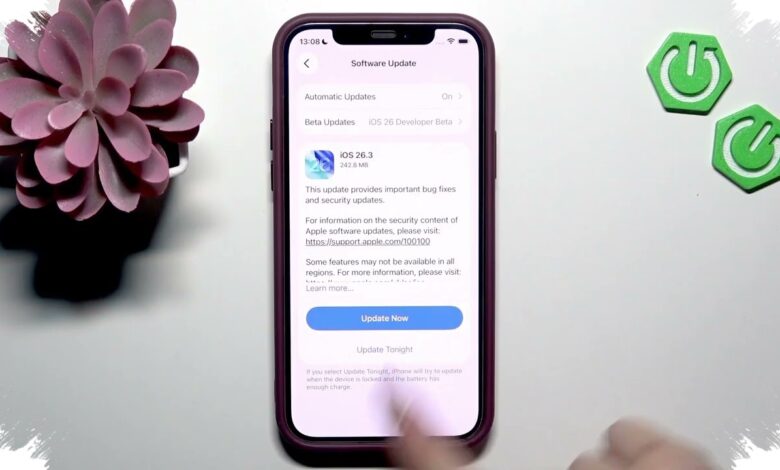
An iPhone’s installed iOS version can affect whether certain apps remain available for installation. It can also help users assess software update availability and support for security improvements and newer features.
This makes the version number useful before downloading a new app or troubleshooting an installation problem. The information is available directly on the phone, without requiring an additional app.
Check the iPhone First
The quickest method is to open Settings on the iPhone and select General. From there, users can open About to find the iOS Version entry.
The page identifies the operating system currently running on the device. It can be checked at any time, with no cable or computer connection required.
Knowing this number can clarify why an App Store app may require a software update before it can be installed. It also gives users a starting point when reviewing the software condition of their iPhone.
Computer Options Depend on the Device
Users who already connect an iPhone to a computer can check the same information there. The correct application differs between a Mac and a Windows PC, as well as between versions of macOS.
| Device | App or Menu | Where to Find It |
|---|---|---|
| iPhone | Settings | General > About |
| Mac | Finder or iTunes | Device summary page |
| Windows PC | Apple Devices | Software section |
On Macs running macOS Catalina or later, the iPhone should be connected by cable before opening Finder. Users can select the iPhone in the left-side panel and view the iOS version on the Summary page.
Macs running macOS Mojave or earlier use iTunes instead. Once the connected iPhone is selected in iTunes, the device information page shows the iOS version.
Windows Requires Apple Devices
Windows users can view the installed version through Apple Devices after connecting the iPhone with a data cable. The number appears in the Software section once the device is recognized.
The first connection may require approval on both devices. The iPhone generally asks the user to tap Trust, while the computer requires an Allow selection before the connection can proceed.
Without that approval, the iPhone may not appear as a selectable device. The same connection issue can prevent access through Finder, iTunes, or Apple Devices.
A Useful Detail for Everyday Support
Medcom.id notes that the available route depends on the device being used and, on Mac, the version of macOS. Finder and iTunes provide similar device details, but they serve different generations of Apple’s desktop operating system.
The iOS version is more than an identification number. Regular checks can help users understand app compatibility, review available software updates, and address device-related issues with clearer context.