


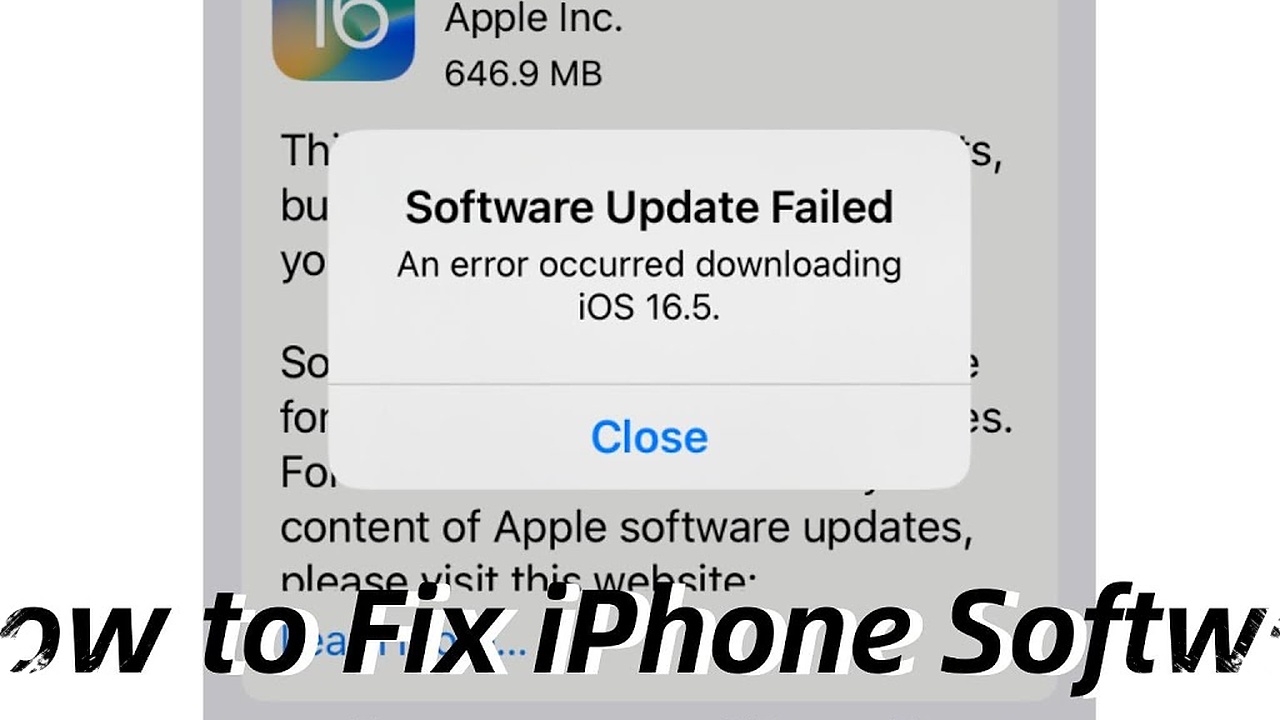
When an iPhone fails to complete an iOS update, the problem is often less serious than it first appears. In many cases, the blockage comes from three basic conditions: an unstable internet connection, storage that is nearly full, or battery power that is too low.
Those issues can interrupt the download or installation before the process finishes. That is why the first fixes usually focus on checking the connection, freeing space, and making sure the device has enough power.
Start with the connection and storage
A stable Wi‑Fi connection is one of the most important factors in a successful iOS update. The system file needs to download smoothly, and weak or unstable internet can cause the process to stop midway.
If the download keeps freezing or failing repeatedly, restarting the router or switching to another network can help. These steps make it easier to rule out connection problems before moving to other solutions.
Available storage is just as important. An iPhone with nearly full memory may not have enough room to download and install the new system properly.
Users can check storage in Settings and remove files or apps that are no longer needed. This is often one of the fastest ways to clear the path for an update that keeps failing.
Do not ignore battery power
An iOS update also needs enough battery to run to completion. The device should have at least 50 percent battery, or it should stay connected to a charger during the process.
This matters because the iPhone must not shut down while the installation is underway. If power runs out in the middle of an update, the risk of an error becomes much higher.
Simple fixes when the process gets stuck
A restart can help when the update fails without a clear reason. Rebooting the iPhone may clear a temporary system issue and give the update another chance to run normally.
If the device still struggles, an old update file may be part of the problem. A failed download can leave corrupted update data behind, and that file may interfere with the next attempt.
Deleting the failed update from storage and downloading the latest iOS file again can solve that issue. This step is especially useful when the phone keeps stopping at the same point every time.
When the iPhone still will not update
If the standard update process continues to fail, a computer can offer a more stable route. Updating through iTunes or Finder does not depend on wireless conditions in the same way as an on-device update.
A backup should be made before starting this method. That helps protect important files if anything goes wrong during the update process.
For more serious cases, Recovery Mode can be used as a last option. The iPhone must first be connected to a computer, after which the “Update” choice can be selected.
This method allows the system to be refreshed without erasing data. For that reason, Recovery Mode is often used when normal update methods are no longer enough.
The main factors that determine whether an iOS update succeeds remain the same: a stable internet connection, enough storage, and sufficient battery power. When those conditions are met but the update still fails, a computer or Recovery Mode usually becomes the most practical next step.