A weak PC or laptop is not necessarily stuck with poor gaming performance. A series of small adjustments can trim system load, ease pressure on graphics hardware, and reduce the background tasks that often trigger stutter.
For systems with 4 GB or 8 GB of RAM, every frame matters. When modern games begin to feel jerky, laggy, or uneven, the right settings can make a noticeable difference before any hardware upgrade enters the picture.
Start with the game’s own graphics menu
The biggest gains usually come from the in-game graphics settings. Dropping the preset to Low helps, but more effective results often come from manually adjusting the heaviest options.
Internal resolution is one of the first settings worth changing. Reducing output from 1080p to 720p cuts the number of pixels by about 55%, which can significantly reduce GPU load.
If the game includes a resolution scale slider, a range of 70% to 80% can be a practical compromise. The image may look softer, but frame rate often improves in a way that is easy to feel.
Shadows are also among the most demanding effects on older graphics hardware. They should be set to Low or turned off, while Ambient Occlusion should be disabled entirely.
V-Sync deserves close attention on lower-end systems. On hardware that struggles to hold stable frame rates, synchronization can worsen stuttering and make input lag feel more severe.
Anti-aliasing should not be left on aggressive settings. Options such as MSAA or TAA place a heavier burden on the system, while FXAA is generally less demanding for players who still want to soften jagged edges.
Upscaling can rescue a weak GPU
When a graphics chip begins to run out of headroom, upscaling can play an important role. If a game supports a built-in upscaler, Performance or Ultra Performance mode is worth trying first.
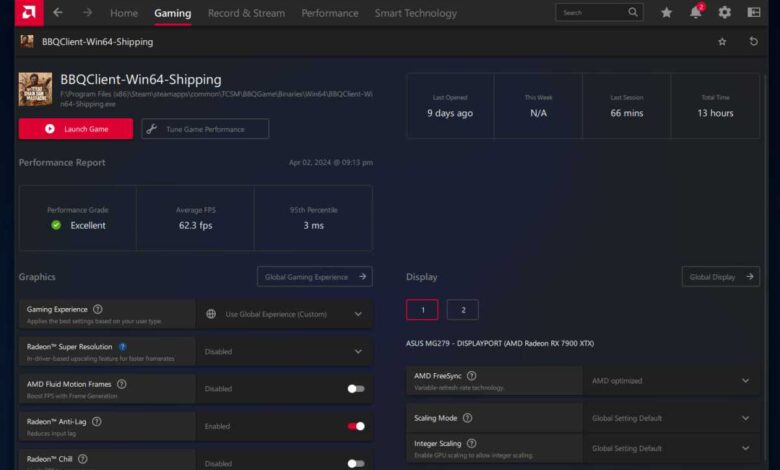
If that is not available, graphics drivers can still help. Nvidia Image Scaling, or NIS, on Nvidia hardware, and Radeon Super Resolution, or RSR, on AMD hardware, can render the game at a lower resolution and then expand it to fit the screen.
This approach shifts the priority away from maximum sharpness and toward smoother play. On older machines, that tradeoff is often more useful than forcing a high resolution that drags FPS down.
Windows also needs to be lighter
The operating system consumes resources too, especially on machines with limited hardware. Visual effects that make Windows look polished can take CPU and RAM away from the game.
One recommended step is to open the performance menu through the sysdm.cpl command. There, the “Adjust for best performance” option can be selected to remove nonessential visual effects.
Game Mode in Windows should also be enabled. The feature helps limit background updates and notifications while a game is running, reducing interference from other processes.
In the System, Display, and Graphics menu, Hardware-accelerated GPU scheduling can also be turned on. It is another setting worth trying to help graphics performance.
Power Options should not be ignored, especially on laptops. High Performance mode is preferable so the system does not reduce power too aggressively at the cost of speed.
For laptops, gaming while plugged into the charger is also important. Many devices automatically lower performance on battery power, which can send FPS much lower than expected.
Background apps often create the biggest drag
On systems with limited RAM, background apps can consume memory that games urgently need. Discord, Steam helper processes, browser helpers, and other startup apps often begin running quietly as soon as the computer turns on.
That is why the Startup Apps tab in Task Manager should be checked. Any app that is not truly necessary should be disabled so it stops using memory and processor resources.
Temporary files can also contribute to micro-stutter on a weak PC. The %temp% folder can be opened through Win + R, and its contents can be removed, except for files that Windows is actively using.
Overlays are another factor that is easy to overlook, even though the impact can be real on weaker systems. Discord, Steam, and Windows Game Bar overlays add an extra layer on screen while also consuming processing power.
Turning those overlays off can free a small but valuable amount of resources. On entry-level hardware, the combination of many small reductions is often what produces the smoothest result.
The most effective approach is not a single magic switch, but a leaner gaming setup overall. When resolution is lowered, heavy effects are cut, upscaling is enabled, Windows is trimmed down, and background apps are cleared away, a weak PC or laptop has a better chance of delivering its highest realistic FPS.