Android already includes a privacy feature that many users never turn on, even though it can keep sensitive apps and data away from the main phone profile. On compatible devices, it appears as Private Space on Pixel and some other phones, while Samsung offers a similar option called Secure Folder.
The idea is simple but powerful. The phone creates a separate area inside the core system, with its own lock, so apps and files placed there do not mix with the user’s primary data.
A separate area that behaves like a phone within a phone
Private Space and Secure Folder work as isolated environments, which means apps stored there cannot access the main profile’s data. That separation makes them useful for banking apps, messaging apps, or accounts that need to stay apart from everyday use.
Private Space can also support a second-user-style experience, allowing people to keep a distinct set of apps and data in one hidden place. Users can store files there as well, then lock the space again when they are done.
Why the feature matters for everyday privacy
Android has grown more careful about app permissions, but risk still remains when new apps ask for access to the camera, storage, microphone, contacts, messages, and other parts of the device. Some apps also request broader access than they actually need.
Putting a suspicious or overly demanding app into a private area limits how far it can reach into the main phone profile. It also helps reduce data mixing, which can be important for people who want to separate sensitive activity from regular use.
That separation is one of the clearest advantages of the feature. Data stored inside the private area stays behind its own lock, and communication back and forth with the main profile is not open by default.
How it is enabled on Android and Samsung devices
On compatible Android devices, users can open Settings > Security and Privacy > Private Space. They then sign in with a Google Account and create a new lock that should be different from the device’s main one.
On Samsung devices, the process is different. Users go to Settings > Security and Privacy > More Security Settings > Secure Folder, then set it up with a Samsung account and email.
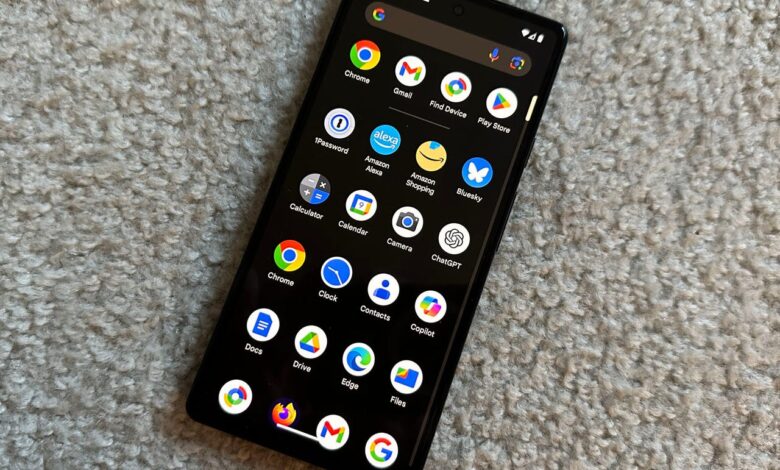
After activation, the icon usually appears at the bottom of the app drawer. It can be opened with a PIN, pattern, or password that is separate from the main device lock.
What users should know before using it
The feature is not available in every scenario. Private Space cannot be used on managed devices or on devices with supervised accounts.
It can also only be created and managed by the primary user of the device. Secondary or guest profiles do not get the same control over this area.
For people who want extra discretion, the space can also be hidden from view. On Pixel devices, users can open the app drawer, tap Private Space, unlock it, and then use the gear icon to choose Hide private space when locked.
Samsung offers a similar option through Settings > Security and Privacy > More Security Settings > Secure Folder, where users can turn off Add Secure Folder to Apps Screen after confirming the change.
Even when hidden, the space still requires the correct security details to open. That makes it a practical layer for keeping selected apps and files more private without removing them from the phone entirely.