


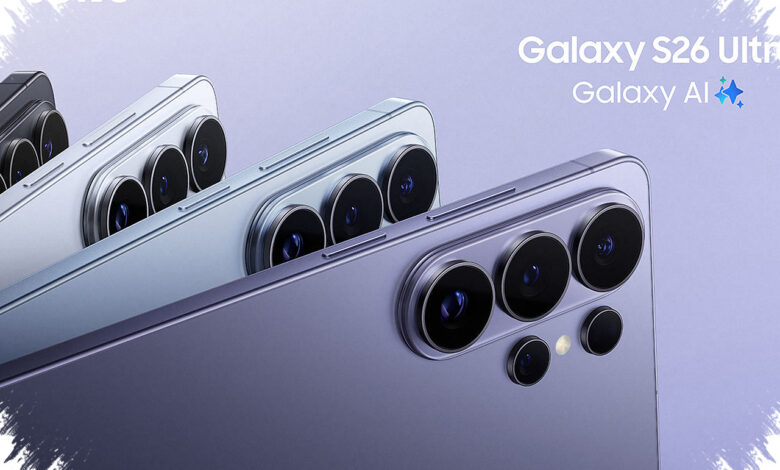
The Galaxy S26 Ultra is not built to stand out only through premium hardware. Its real strength emerges when it is used with other Samsung devices, turning the phone into a central hub for work, entertainment, communication, and home control.
For users who already own a Galaxy Watch, Galaxy Buds, a tablet, or a Galaxy Book, that integration can make everyday tasks feel smoother. Samsung’s ecosystem is designed so that devices share files, audio, notifications, health data, and ongoing tasks under one Samsung account.
Desktop-style work from a phone
One of the most practical tools is Samsung DeX, which gives the Galaxy S26 Ultra a desktop-like interface on an external monitor or TV. It includes resizable windows, a taskbar, and full multitasking, making the phone behave more like a PC.
That is different from simple screen mirroring. Apps run in separate windows, and users can add a Bluetooth keyboard and mouse to handle documents, email, and multiple apps on a larger screen.
Samsung says the phone can still be used normally for calls and messages while DeX is active on the external display. Wireless DeX is supported on TVs and monitors that work with Miracast-based Android screen mirroring, although performance can vary depending on the display and Wi‑Fi conditions.
Sharing tasks without friction
Multi Control adds another layer of convenience across Samsung devices. With it, a single keyboard and mouse from a Galaxy Book or Galaxy Tab can control the Galaxy S26 Ultra and other Galaxy devices.
Each device keeps its own screen and apps, while the cursor moves across them as if they were connected together. Users can type on the currently selected device and drag files directly between screens.
Samsung notes that Multi Control is not a screen-mirroring feature. It requires a Galaxy Book with One UI Book 6.0 or later, or a Galaxy phone and tablet running One UI 5.1.1 or later.
| Feature | What It Does | Key Requirement |
|---|---|---|
| Samsung DeX | Turns the phone into a desktop-style workspace on an external screen | External monitor or TV, optional keyboard and mouse |
| Multi Control | Lets one keyboard and mouse control multiple Galaxy devices | Compatible Galaxy Book or Galaxy device with supported One UI version |
| Quick Share | Sends files directly to nearby Galaxy, Android, Windows, or Chromebook devices | Supported device and, if needed, internet connection |
Files, continuity, and synced work
Quick Share handles fast file transfers for photos, videos, documents, and other files without cables. It can send directly to nearby Galaxy devices, and it also supports sharing through links for larger files or when the recipient is not close by.
Samsung adds a “Who can share with you” setting to limit access to contacts or expand it more broadly. If a direct connection is not available, transfers can continue over Wi‑Fi or mobile data.
The feature is also compatible with Android 6 or later, Chromebook, and certain Windows devices, while Galaxy-to-Galaxy sharing requires One UI 2.1 or later and PC support requires Windows 10 or later.
Continue apps on other devices extends the same idea to ongoing work. Users can start on the Galaxy S26 Ultra and continue on another Galaxy device signed into the same Samsung account.
Apps such as Samsung Notes and Samsung Internet can be handed off through the Recents screen, and the clipboard stays synced as well. That means text, images, files, and even video copied on the phone can be pasted on a Galaxy Tab or Galaxy Book.
Samsung also includes Wi‑Fi network sync, so saved networks on the Galaxy S26 Ultra can appear automatically on other Galaxy devices. A related continuity camera function lets users capture or scan documents on the phone and continue the work in apps such as Samsung Notes on a computer.
For those functions to work properly, the devices must be on the same Wi‑Fi network with Bluetooth enabled.
Audio, health, and wrist-based control
The Galaxy Buds4 and Galaxy Buds4 Pro are built to fit into the same ecosystem. After a one-time pairing and Samsung account login, they can switch automatically between devices through Auto Switch.
That means audio playing on the phone can move to a Galaxy Tab when video playback starts there. Controls for noise mode, sound settings, and earbud features are also available from the Bluetooth menu on the Galaxy S26 Ultra without a separate app.
The Buds4 series also supports Live Translate. The Galaxy S26 Ultra handles the translation in real time and sends the result to the earbuds, with account login, network access, and supported languages required.
The Galaxy Watch expands that same connection to the wrist. Notifications, calls, and messages can arrive on the watch, and some can be answered without reaching for the phone.
Health and fitness data recorded on the watch syncs to Samsung Health on the Galaxy S26 Ultra, including sleep data. That creates a more connected view of daily activity and rest.
The watch can also work as a Camera Controller, acting as a remote viewfinder for the Galaxy S26 Ultra’s camera. Users can frame a shot from the wrist and trigger the shutter from a distance.
Home control from one app
The Galaxy S26 Ultra’s role does not stop with personal devices. Through SmartThings, it also becomes a central controller for compatible smart home products from a single app.
SmartThings supports lights, plugs, thermostats, appliances, and cameras, and those devices can be grouped into routines based on time, location, or other triggers. Because the control sits inside the phone itself, users can check status, adjust settings remotely, and manage automation without switching between separate brand apps.
That consistency also carries across other Galaxy devices signed into the same account. For users already invested in Samsung hardware, the ecosystem is what makes the Galaxy S26 Ultra feel more useful than a typical flagship phone.