
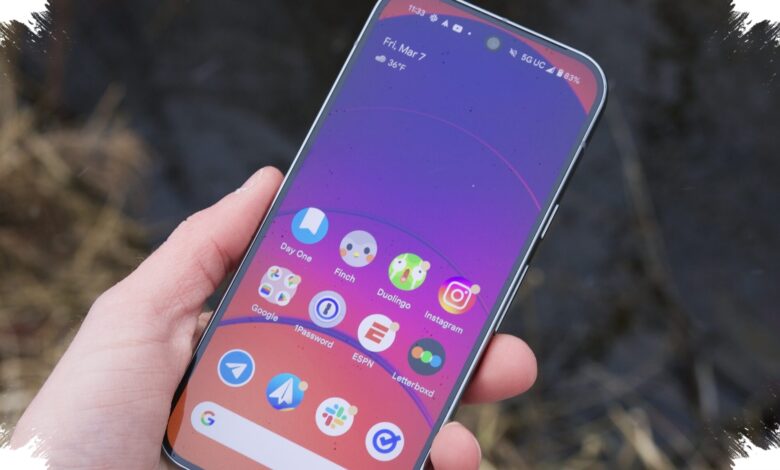
Google Pixel phones can already reach very high brightness levels, with some models such as the Google Pixel 10 Pro XL rated as high as 3,300 nits. Yet many users still do not see that peak outdoors, and the reason often comes down to one default setting that quietly limits the screen.
The setting is adaptive brightness, which uses an ambient light sensor to adjust the display automatically. It is designed to improve comfort, but some users find that it lowers brightness too aggressively when they need the screen to stay visible in strong sunlight.
Taking manual control of brightness
Turning off adaptive brightness takes only a few steps. Users can open Quick Settings by swiping down from the top of the screen twice, then tap the gear icon to enter the main Settings menu.
From there, the path leads to Display & touch, where the Adaptive Brightness toggle can be switched off. Once disabled, the brightness slider in the notification tray can be managed manually without the system automatically overriding it.
That change matters most when the phone is used outdoors. In situations such as checking a map in daylight or reading information under direct sun, the display can be pushed to its maximum level when it is truly needed.
Why Google leaves it on by default
Google includes adaptive brightness for practical reasons, especially battery life and panel protection. Running a screen at very high brightness consumes more power, since the display needs significant energy to maintain maximum luminosity.
There is also a longer-term concern with OLED panels. If the screen stays near peak brightness for extended periods, it can increase the risk of permanent burn-in, where faint traces of status bars or apps remain visible on the display.
A useful trick, but best used carefully
Disabling adaptive brightness gives Pixel owners more direct control over how bright the screen can become. At the same time, the trade-off is clear: more brightness can mean faster battery drain and greater strain on the panel.
For users who move frequently between indoor and outdoor environments, the manual approach can be especially helpful. It allows the display to be raised quickly when conditions demand it, without waiting for automatic adjustments to catch up.
In the end, the screen already has the capability built in. A single setting decides whether users experience that potential automatically or take full control themselves.
| Setting | What It Does | Main Trade-Off |
|---|---|---|
| Adaptive Brightness On | Adjusts brightness automatically using ambient light data | May keep the screen dimmer than expected outdoors |
| Adaptive Brightness Off | Gives manual control of the brightness slider | Can drain battery faster and raise OLED wear risks |