


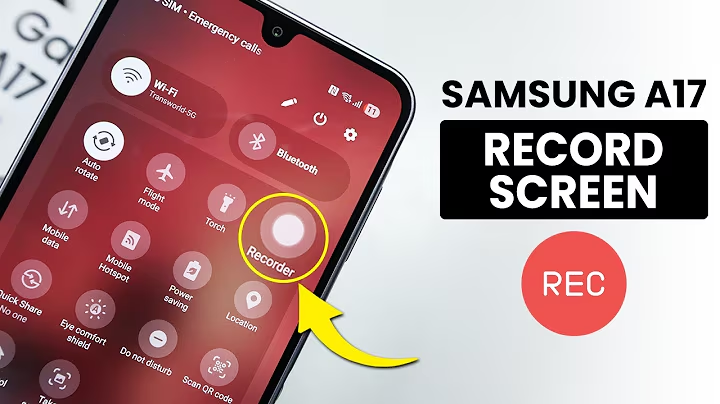
Samsung A17 users often need screen recording for tutorials or gaming highlights. This feature simplifies content creation without manual editing hassles.
Screen recording on Samsung A17 also aids troubleshooting. Visual demonstrations help friends understand issues quickly.
Installing a Screen Recorder App
Start by opening Google Play Store on your Samsung A17. Search and install a reliable, lightweight app like X Recorder.
The installation takes only a few minutes. Tap install, wait for download completion, then open the app.
Grant the necessary permissions promptly. Enable overlay and screen access to ensure smooth recording functionality.
If you want audio narration, allow microphone access when prompted. This makes your recordings more engaging.
Once permissions are set, a floating bubble icon appears on the screen. You can move it anywhere for quick access.
How to Start Recording
Tap the bubble to reveal shortcut options. Press the red circle to begin recording.
You may need to confirm additional permissions. After confirmation, recording starts immediately, capturing every screen action seamlessly.
Navigate your screen as usual. Every gesture and tap is recorded clearly for future review.
To stop, tap the bubble and select the red stop square icon. The video saves automatically to your gallery.
Review your recording inside the app. Basic editing features help trim or enhance the video as needed.
Using Quick Panel for Faster Access
Swipe down from the top of the screen to open the Control Center. This offers quick access to essential shortcuts.
Tap the edit icon in the corner to customize shortcuts. Add the screen recorder toggle to your main quick panel.
Once added, you can start recording with a single swipe and tap. This makes Samsung A17 more efficient for multitasking.
Advanced Tips and Features
X Recorder supports adjustable resolution settings. Choose 1080p for crisp videos perfect for social media sharing.
You can also record internal audio directly from the device. This maintains immersive sound without external microphones.
If the recording shows a blank screen, recheck app permissions in settings. Restarting your phone typically resolves minor glitches.
Alternative apps like AZ Screen Recorder provide additional editing tools. Testing different options helps find the best fit for your needs.
Recording is useful for documenting software updates. This method captures step-by-step installation, preventing missed details.
Videos integrate smoothly with Samsung’s gallery app. You can share clips instantly via WhatsApp or other platforms without extra conversion.
Optimization and Storage Management
Select 720p resolution to save storage space or full HD for premium quality uploads. Balance quality and storage based on project goals.
Pause features allow you to halt recording temporarily without starting over. Resume recording smoothly after short breaks.
Samsung A17 supports recordings up to 30 minutes. To avoid overheating, consider pausing periodically during long sessions.
Lower screen brightness during recording to extend battery life. This keeps the process smooth without rapid power drain.
Keeping your recording app updated ensures access to new features like slow-motion effects. These additions enhance video creativity.
Combine screen recording with screenshots to capture precise moments. This builds a comprehensive visual archive for later use.
Practical Uses and Enhancements
Screen recording improves presentation skills by allowing you to demo ideas in virtual meetings. Audiences grasp concepts instantly without live demonstrations.
Capture GPS navigation routes to review travel history conveniently. This feature is especially beneficial for novice travelers.
Adding a watermark logo gives your videos a professional branded look. Content creators can establish stronger personal branding this way.
Set automatic cleanup for old recordings to free up storage continuously. This keeps your device running efficiently without manual file management.
Record webinars or short lessons to review anytime without internet access. Flexible learning is possible anywhere, anytime.
Backup your recordings to cloud storage like Google Drive. This provides easy access across multiple devices without hassle.
Use screen recording as a teamwork tool. Send annotated feedback to developers for faster and clearer communication.
Apply text overlays or visual effects after recording. These enhancements create more engaging and informative tutorial videos.
Samsung A17 combines simplicity with powerful recording features. Users can effortlessly create original content tailored to daily digital needs.