

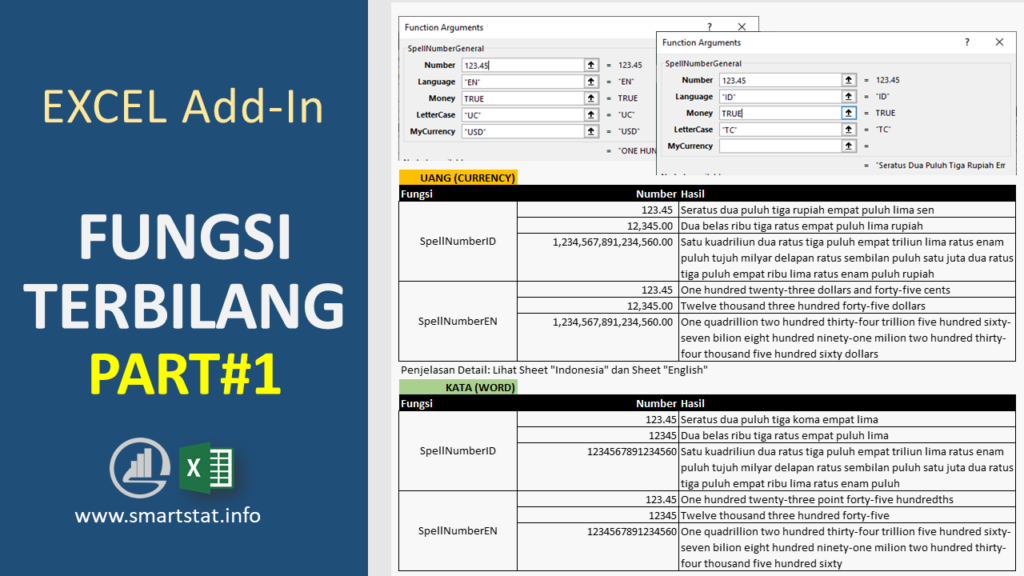
For many Excel users, the real challenge is not entering numbers but turning them into words in a format that works cleanly inside a worksheet. Excel can do that, but the terbilang function is not built in, so it needs an add-in, VBA, macro, or a special template before it can run properly.
The good news is that enabling it is not especially difficult. Once the add-in file has been downloaded and extracted, Excel can be set up to recognize it through the Add-Ins menu.
How the add-in is installed
The file usually comes in .xlam or .xla format, so extraction is often required before installation. After that, Excel needs to be opened and the Developer tab must be visible on the ribbon.
If the Developer tab is not shown yet, it can be enabled by right-clicking the Ribbon area, choosing Customize The Ribbon, then checking Developer and confirming with OK. From there, the Excel Add-Ins menu is opened, Browse is selected, and the extracted add-in file is imported.
When the process succeeds, the add-in name appears in the Add-Ins window. At that point, the terbilang function is ready to use in the worksheet.
Using terbilang in a worksheet
Once the add-in is active, the function works like any other Excel formula. A user simply types an equal sign and then points to the cell containing the number that should be converted into words.
For example, if the number is in B4 and the text output should appear in C4, the formula starts with =terbilang(B4). After Enter is pressed, the numeric value turns into written form.
The add-in also follows spelling rules based on the official Indonesian orthography guidelines. When there is a large amount of data, the same formula can be filled down across rows or columns to speed up the work.
Adjusting capitalization and adding “Rupiah”
The terbilang result can be combined with UPPER, LOWER, and PROPER. UPPER turns all letters into capital letters, LOWER makes everything lowercase, and PROPER capitalizes the beginning of each word.
To make the text fully uppercase, the formula becomes =UPPER(terbilang(B4)). For all lowercase, it is =LOWER(terbilang(B4)), while title-style capitalization uses =PROPER(terbilang(B4)).
A currency label can also be attached with the ampersand symbol. The format is =PROPER(terbilang(B4))&"Rupiah" when “Rupiah” needs to appear after the written amount.
Working with decimal numbers
Decimal values require a longer formula because the whole number and decimal part must be handled separately. The integer portion is written first with =terbilang(rounddown(B4;0)) so the result only captures the rounded-down whole number.
The decimal part is then added with the word “Koma” and another terbilang expression. When there are two digits after the decimal point, the formula uses 10^2 in the decimal handling section.
A complete form can look like =terbilang(rounddown(B4;0))&"Koma"&terbilang(rounddown(10^2*(B4-Rounddown(B4;0));))&"Rupiah" if the output also needs the currency label. After that, Enter is pressed to apply the formula, and the same pattern can be copied across a row or column.
When Excel shows an error
If Excel returns #NAME?, the issue is usually that the function has not been activated in the workbook. In that case, SpellNumber or Terbilang must be enabled first through VBA or an add-in.
In some situations, terbilang may still work without a macro, but that route is usually more complicated. It often requires a long formula combination or a special template to produce the same result.