A failing GPU rarely announces itself with a single dramatic moment. More often, the warning signs build slowly through visual glitches, unstable behavior under load, or hardware that suddenly no longer responds the way it used to.
That is why early detection matters. A graphics card can still appear fine during light tasks such as browsing or video playback, while showing clear trouble only when a game, render, or other demanding workload pushes it harder.
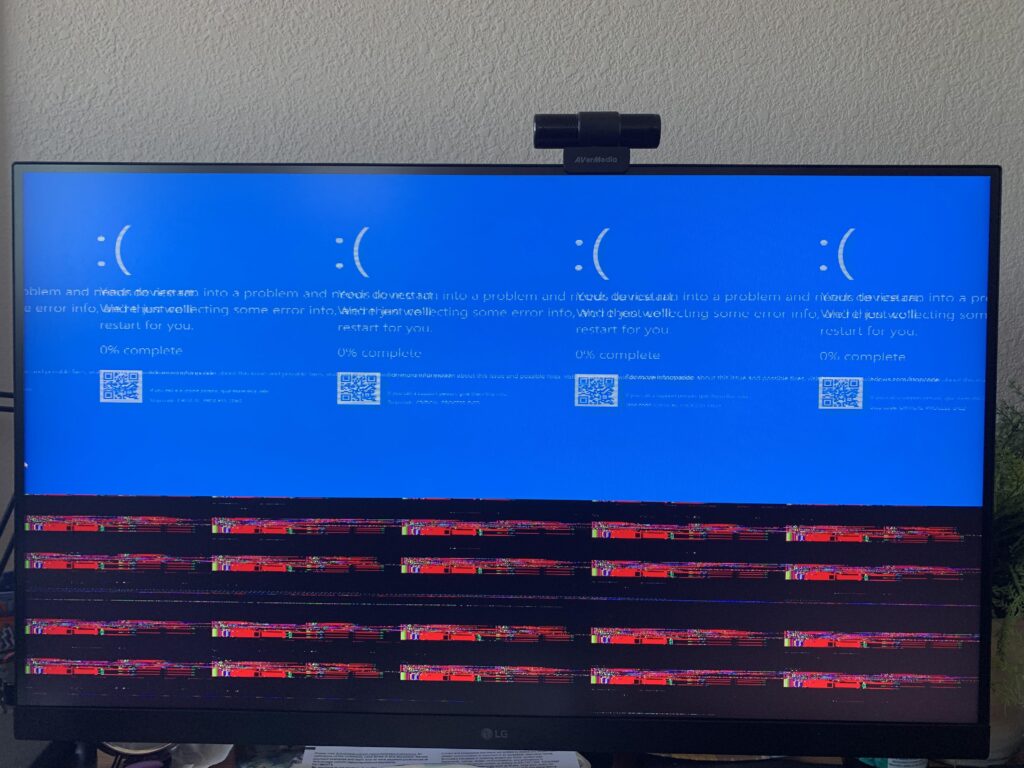
One of the most visible warning signs is graphical corruption on the screen. Random blocks, lines, strange color patterns, broken text, corrupted UI elements, and screen tearing in non-gaming apps can all point to trouble inside the GPU or its VRAM.
These artifacts usually mean the video memory is no longer delivering clean data to the display. When that happens, the frame information reaching the monitor becomes distorted, and the result is an image that looks visibly wrong.
Instability during heavy workloads is another strong clue. A GPU may seem normal until it is asked to run a game or export video, then the application suddenly closes, freezes, or displays a message such as “Display driver stopped responding.”
In more serious cases, the entire system may restart on its own or the screen may go black and only recover after a full power cycle. Even so, these symptoms are not exclusive to the GPU, since corrupted drivers, an unstable power supply, or problematic RAM can produce similar behavior.
Thermal behavior also deserves close attention. Modern GPUs are designed to run hot and stay near safe limits when needed, but repeated overheating can force clock speeds down as the card tries to cool itself.
A drop in boost clock performance is especially important if the card used to reach its maximum boost more easily. If the clock falls below base clock levels and frame rates collapse with it, the issue may be more than simple aging.
Blue Screen of Death events add another layer of concern. A single crash on Windows does not automatically confirm a graphics card failure, but repeated blue screens are more suggestive of a hardware-level problem than an ordinary application error.
In some cases, deeper diagnostics can reveal a damaged memory chip or a fault in the power delivery side of the card. Once the system begins stopping completely and no longer recovers normally, troubleshooting usually becomes more difficult and more urgent.
Cooling hardware can expose hidden trouble
The GPU’s fans should become audible when the card is working hard, and that basic behavior can reveal a lot. If the fans do not spin during gaming or another heavy task, the cooling system needs immediate inspection.
Unusual sounds also matter. Grinding, clicking, buzzing, or rattling may come from dust in the assembly, but they can also signal worn bearings or a failing fan motor.
When the system no longer recognizes the card
Another common sign appears at the software level. In some cases, the computer still shows an image, but Windows only loads a generic driver instead of the proper one from the manufacturer.
A more serious scenario is when the GPU disappears from Device Manager entirely or fails to produce any display output at all. Before assuming the card itself has died, the monitor cable still needs to be checked to make sure it is not connected to the motherboard port by mistake.
When these symptoms show up, the most practical next step is to test the card in another known-good computer. If the same problems follow the GPU, attention should turn to the fan system, thermal paste, and the case airflow.
If the damage is already severe, repair may no longer be the realistic path. At that point, professional help or a full GPU replacement becomes the more sensible option.