A MacBook that suddenly shows a black screen does not always mean the device is beyond repair. In many cases, the issue begins with power, display settings, or software behavior rather than permanent hardware damage.
That is why the safest first move is to check the basics before thinking about costly service work. If the MacBook still responds in small ways, the data inside may still be intact.
Start with power and brightness
If the black screen appears right after startup or after login, battery trouble should be considered first. The laptop may simply have run out of power while booting or waking from sleep.
Connect the MacBook to power using USB-C or MagSafe, then leave it for a few minutes before trying again. If the screen returns, the problem may have been only a drained battery.
It is also worth checking whether the display is just too dim to notice. On MacBook models without a Touch Bar, press F2 to raise brightness, while models with a Touch Bar use the brightness controls there.
Watch for signs that the system is still alive
Small indicators can reveal whether the MacBook is still receiving power. A lit charging indicator on the cable suggests the device is being powered, while Caps Lock lighting up when pressed shows that the logic board and operating system are still working.
When those signs appear, the data is more likely to remain safe. At that stage, a monitor connected externally can help determine whether the issue is limited to the internal display.
Use an external monitor as the next test
If the desktop appears on an external display, the MacBook is still running normally enough to be controlled. That is the moment to prioritize backing up important files before making further changes.
If the external monitor also stays blank, the issue may be deeper than a simple display setting. The next step is to try a full power cycle.
Move on to recovery steps if the screen stays black
To force a power cycle, hold the power button for 10 seconds, wait about 30 seconds, and then press it again. This can clear a temporary freeze that prevents the display from waking properly.
If that does not work, resetting SMC and NVRAM becomes relevant. NVRAM reset is available only on Intel-based Mac models, while Apple silicon uses a different power reset procedure.
Intel Mac and Apple silicon use different resets
On Intel MacBook models, an SMC reset is done while the laptop is turned off and connected to power. Hold Shift + Control + Option and the power button together for about 10 seconds, then turn the laptop back on.
For Apple silicon MacBook models, shut down the device, hold the power button for about 10 seconds, wait another 10 seconds, and then start it again.
NVRAM reset on Intel Mac requires pressing Option + Command + P + R immediately after startup. Keep holding for about 20 seconds, then release after the startup sound is heard for the second time or the Apple logo disappears twice.
Recovery Mode may still be available
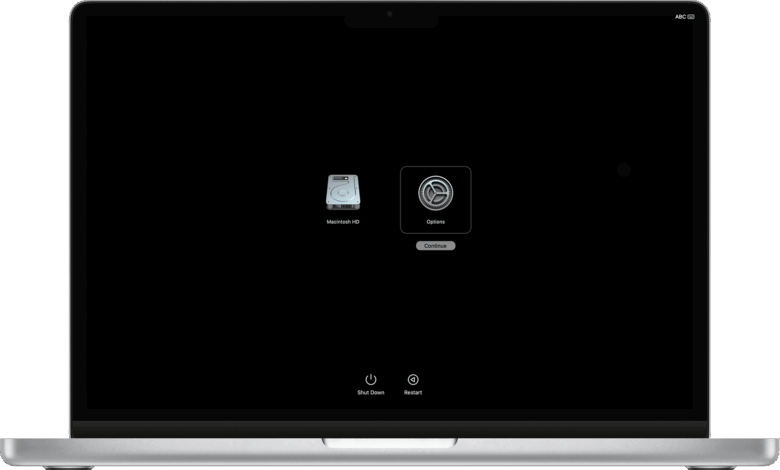
If the recovery menu appears, Recovery Mode can be used to run First Aid on the disk or attempt a restoration. On Intel models, restart and press Command + R, while Apple silicon users must hold the power button until the Options screen appears.
When none of these steps bring back the display, the cause may involve the GPU, logic board, ribbon display cable, or backlight. In that situation, Apple Support or an authorized service center may be needed.