


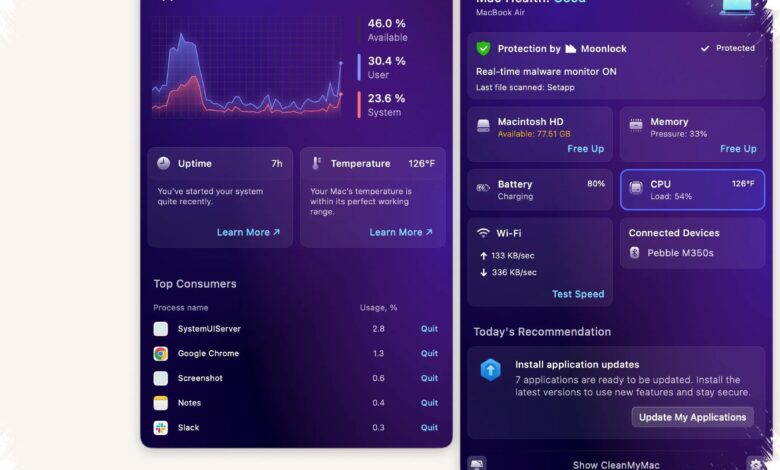
Hot weather can do more than make a room uncomfortable. It can also push a MacBook or iMac harder than usual, and in some cases cause performance to fall or the device to shut down suddenly.
That is why temperature checks matter before heat turns into a larger problem. Prolonged internal heat can speed up wear on key components, including the CPU, GPU, SSD, and battery.
When heat starts to affect a Mac
Apple recommends using Mac computers in ambient temperatures between 10 and 35 degrees Celsius with humidity up to 95 percent. Outside that range, the cooling system has to work harder to keep the device stable.
Internal temperatures are naturally higher than room temperature, and in normal use they often sit at around 40 degrees Celsius or more. Still, the CPU, GPU, ports, and other main components should not stay above 89 degrees Celsius for long periods.
| Temperature Range | Meaning | What It Suggests |
|---|---|---|
| 10–35°C | Recommended ambient operating range | Within Apple’s suggested conditions |
| Around 40°C or higher | Normal internal temperature | Not unusual during regular use |
| Above 89°C for a long time | Component temperatures getting too high | Check workload and cooling |
| Near 100°C | Critical heat level | Find the cause and reduce load immediately |
As the temperature nears 100 degrees Celsius, users need to look for the cause and reduce the workload quickly. That is the point where the risk of throttling and sudden shutdown becomes much more serious.
How to check MacBook and iMac temperature
There are several ways to monitor a Mac’s temperature, from built-in macOS tools to third-party apps. The best option depends on whether the user wants a quick look, direct readings, or more complete tracking.
Activity Monitor is the simplest starting point because it is already included in macOS. It can be opened from the Applications folder, then the Utilities folder.
Inside Activity Monitor, the Energy tab helps identify which apps are using the most power. Apps with high energy use are often among the biggest sources of heat.
Browsers are a common cause, especially when too many tabs stay open or high-resolution video is playing. Video editing apps, 3D rendering tools, and heavy games can also raise Mac temperatures sharply.
Terminal and app-based options
Intel-based Macs can check CPU temperature through Terminal with the command sudo powermetrics --samplers smc | grep -i "CPU die temperature". After pressing Enter, the system asks for the administrator password and then shows real-time CPU temperature readings.
This method suits users who want direct data without installing extra software. It is also useful when monitoring the device under heavy workloads.
Fanny is another option for users who prefer a simpler visual display. The free app shows CPU and GPU temperatures directly in the menu bar.
It also displays fan speed in real time, making it easier to watch cooling behavior without opening multiple menus. That can be useful during demanding tasks that keep temperatures elevated.
For a more complete view, TG Pro provides detailed monitoring and supports Intel Macs as well as Apple Silicon models, including the M1, M2, and newer chips.
TG Pro can read nearly all temperature sensors in the device, including the CPU, GPU, SSD, and other components. One of its standout features is manual fan control, allowing users to increase fan speed based on a chosen temperature threshold.
Its built-in rules automatically push fan speed to maximum when CPU temperature reaches 70 degrees Celsius. That helps keep heat under control during heavier work sessions.
Simple habits that help keep a Mac cooler
Monitoring temperature works best when paired with better usage habits. Air vents should stay clear, especially when a MacBook is used on a bed or sofa.
A flat surface such as a desk helps air circulate more freely. It also helps to reduce the number of apps running at the same time, especially resource-heavy software that consumes a lot of CPU power.
If the room itself is hot, a fan or air conditioner can help lower the surrounding temperature. Cleaning dust from the vents is also important, particularly on Macs that have been used for years.
Keeping a Mac at a stable temperature is not only about comfort. It also helps preserve performance and extend the life of the device over time.
With regular monitoring and more disciplined usage, MacBook and iMac users can reduce heat-related slowdowns before they become more serious.