
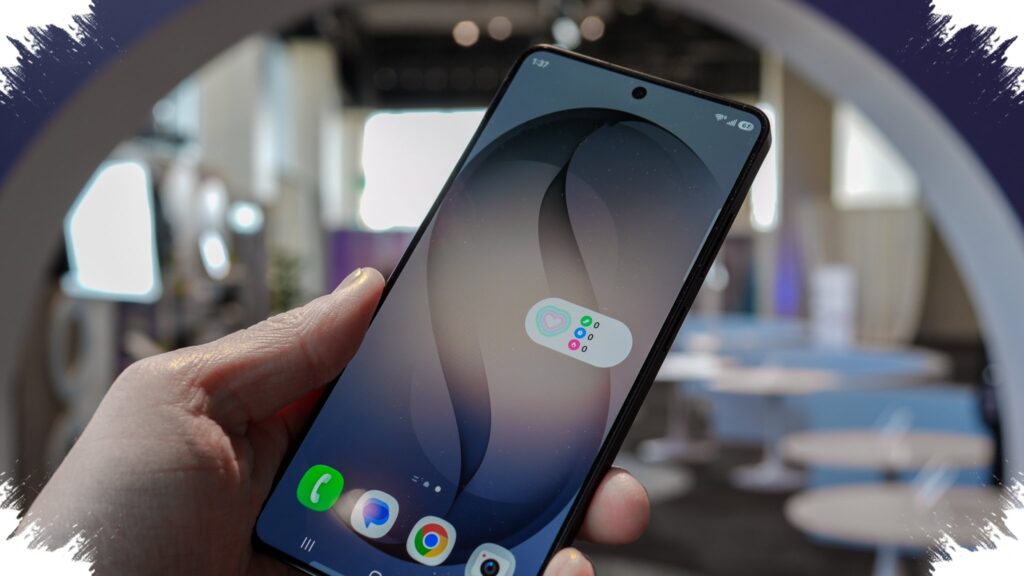
Samsung Galaxy S26 Ultra is drawing attention not only for what it shows on screen, but for what it keeps out of sight. The device introduces Privacy Display, a feature designed to make content easy to read from the front while becoming much harder for people nearby to view from the side.
That matters in everyday situations where screens are exposed to other eyes. On trains, buses, in cafés, airports, coworking spaces, or waiting rooms, a glance from the side can expose banking details, private chats, work emails, PIN entries, and other sensitive information.
A hardware-based privacy layer
Privacy Display is built as a hardware-level screen protection system using Flex Magic Pixel technology. Instead of relying on a conventional privacy tempered glass that often dims the display, Samsung’s approach dynamically controls the light emitted by each pixel.
The result is a screen that stays sharp and clear when viewed head-on, while becoming blurred from side angles. Samsung says this preserves color, clarity, and visual comfort, so privacy protection does not come at the cost of the regular viewing experience.
That approach is especially relevant now that a smartphone often stores a large amount of sensitive data in one place. Bank accounts, work email, personal data, photos, and OTP codes may all be accessed from the same device, often in public.
Different modes for different situations
Samsung does not limit Privacy Display to one fixed setting. Instead, it offers several modes so users can adjust protection based on what they are doing and where they are.
Full Screen Privacy keeps the entire display clearly visible only from the front. This mode is suited to moments when someone is working or opening important content in a public space.
Partial Screen Privacy narrows protection to selected apps, including WhatsApp, mobile banking, or the gallery. PIN and Pattern Protection activates automatically when a user enters a PIN, pattern, or password. Maximum Privacy Protection offers the strictest setting with the narrowest viewing angle for situations that require the highest level of confidentiality.
Quick ways to turn it on
Activating Privacy Display is designed to be simple. One of the fastest methods is through Quick Panel by swiping down from the top right, finding the Privacy Display icon, tapping it, switching on Turn On Privacy Display, and confirming with Done.
The feature can also be enabled through Settings, then Display, then Privacy Display. Samsung also includes automatic controls so the feature does not have to stay on all the time.
These automatic options are found under Settings, Display, Privacy Display, and Conditions for Turning On. Users can choose when it should activate, such as when opening certain apps, typing a PIN or password, showing pop-up notifications, or being outside the home and in public areas.
That flexibility makes the feature more practical in daily use. It can turn on when privacy is needed most and remain out of the way when the user is in a more private setting.