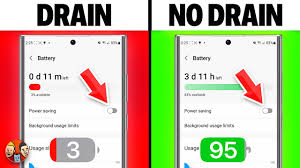
Battery drain after an Android 16 update is not always caused by heavy apps. In many cases, the bigger issue comes from built-in settings that keep radios, sensors, and system processes active in the background.
That background activity can quietly add up through the day. Even with Android 16’s machine-learning-based resource optimization, several smart features can still push the CPU, modem, Bluetooth, and Wi‑Fi to work more often than needed.
Background reporting can keep the system awake
One setting that is easy to overlook is usage and diagnostic data sharing. After a major setup or update, it is often enabled and continues collecting system logs, monitoring app crashes, and uploading performance statistics.
That process can wake the processor from deep sleep more often than expected. To reduce that activity, go to Settings, open Security & Privacy, select More Privacy Settings, and turn off Send diagnostic data.
Nearby scanning can drain power without a visible connection
Android 16 relies heavily on ecosystem connectivity, so the phone may continue searching for nearby devices to pair with. This can keep Bluetooth and Wi‑Fi radios active in the background even when no accessory is being connected.
The setting is found under Settings, then Location, where Nearby device scanning can be disabled. Turning it off can reduce silent device searches that run throughout the day.
5G is fast, but not always efficient
5G is useful for high-resolution streaming and large downloads, but it is not always the most battery-friendly choice. In areas where 5G signal is unstable, the modem may work harder by switching between 5G and LTE repeatedly.
That constant shifting can raise internal heat and speed up battery loss, even when the phone is just sitting in a pocket. If maximum throughput is not needed all the time, open Settings, go to Network & Internet, then SIMs, and change Preferred network type from 5G to LTE.
Always-On Display keeps drawing power
Always-On Display is convenient because time and notifications stay visible without fully waking the screen. The trade-off is that the display layer and proximity sensors still need power to stay active.
On Android 16’s default setup, the feature can use around 1% to 2% battery per hour when the phone remains on a desk all day. To save power, open Settings, go to Display, select Lock Screen, and turn off Always-on display.
Adaptive network switching can add hidden overhead
Adaptive Connectivity is designed to choose the most efficient network available. When wireless signal weakens, the system may automatically move from Wi‑Fi to mobile data to keep the connection stable.
That constant monitoring and radio handoff can also contribute to faster battery drain. In Android 16, Google split the feature into several toggles, and users can disable the more aggressive part by going to Settings, Network & Internet, then Adaptive Connectivity, and turning off Auto-switch to mobile network.
For many users, these five settings are the most practical starting point when Android 16 battery life suddenly feels shorter than before. They do not all need to be disabled at once, but checking them first can help cut power use before looking for more complex causes.
Source: tech.sportskeeda.com