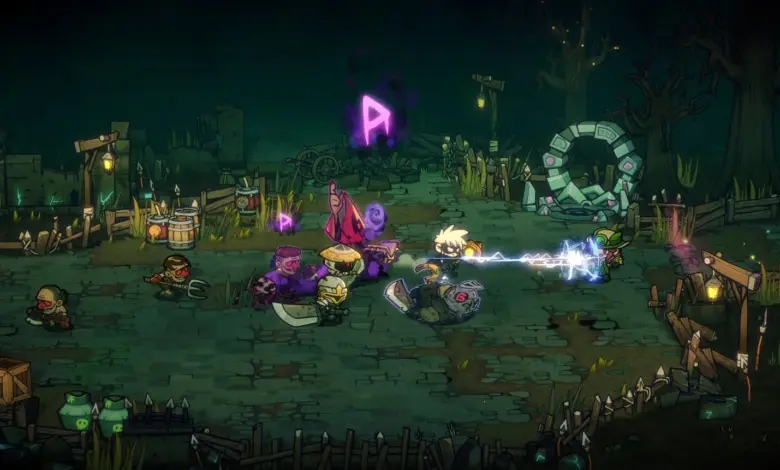
PC players of Lost Castle 2 are reporting crashes that can interrupt a run without warning and put progress at risk. For a roguelite built around longer sessions, that kind of instability quickly becomes a serious problem.
The good news is that the first fixes being discussed are straightforward and can be tested one by one. They focus on game files, modding tools, installation location, and, if needed, deeper system-level updates.
Start with Steam file verification
The most basic step is checking the integrity of the game files in Steam. This is often the first move when a game starts crashing, because missing or corrupted files can prevent stable performance.
Players can open the Steam Library, right-click Lost Castle 2, and go to Properties. From there, the Installed Files tab includes the “Verify integrity of game files” button.
When that option is used, Steam scans the installation and downloads any files that are missing or damaged. It is a low-risk step and one of the most practical places to begin before moving to more technical fixes.
Disable modding tools if they are active
Another possible source of instability is modding software, including BepInEx. In cases where mod tools are installed, they should be turned off first to see whether the crash stops.
That matters because modding tools alter how a game loads or runs certain processes. If there is a conflict, the result can be a failed boot, a freeze, or the game closing on its own during play.
For players who routinely use mods, testing the game without them is one of the fastest ways to isolate the cause. If Lost Castle 2 becomes stable afterward, the issue is likely tied to the added software rather than the base game.
Try moving the installation to another drive
If file verification does not help and modding is not the problem, the next option is to move Lost Castle 2 to a different drive. A change in storage location can help when the issue is connected to the current disk or the way the installation is set up.
Steam allows this through the Storage menu. Players need to open Steam, go to Settings from the top-right menu, then choose the Storage tab to view installed games on the current drive.
After selecting Lost Castle 2, the Move option can transfer it to another location. This does not require reinstalling the game from scratch, which makes it a simpler test than a full fresh install.
BIOS updates may be the final check
If the crash continues after those steps, a BIOS update becomes the more advanced option to consider. This has been mentioned because the instability may be linked to certain CPU frequencies.
Players can check the motherboard or laptop manufacturer’s website for the latest BIOS version available for their system. If a newer release exists, it may improve compatibility or stability.
Because BIOS sits deeper in the system than game settings or launch options, this step should be handled carefully. Still, when the simpler fixes fail, it is one of the remaining paths worth checking for PC players who want to keep Lost Castle 2 from crashing mid-run.
That leaves a clear order of attack: verify the files, disable modding tools, move the game to another drive, and only then look at BIOS updates. Working through the list in that sequence gives players the best chance of narrowing down the cause without jumping straight to the most complex solution.