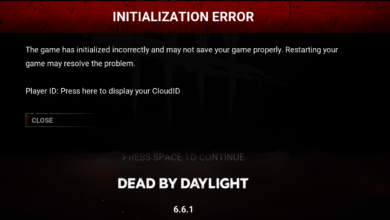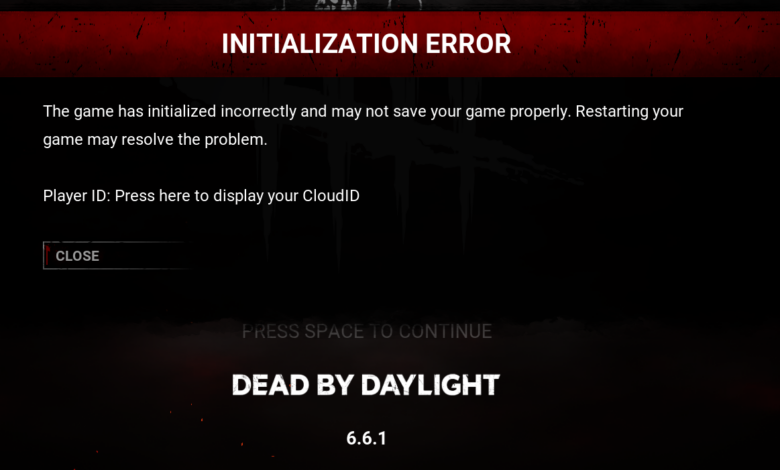
Dead by Daylight players on PC are once again facing an initialization error that can stop the game before it even launches. When the problem appears, the game fails to start and shows a message saying the initialization process was not completed.
The issue is not new for Behaviour Interactive’s survival horror game, and player reports suggest it has surfaced for several years, often after updates or patches. That pattern has made the error especially frustrating, because it can appear right when players expect a smooth return to the game.
Why the error can be so disruptive
An initialization failure is more than a minor glitch because it blocks access entirely. For active players, that means the problem is not limited to an in-match bug, but a startup issue that prevents the game from opening at all.
Community discussions point to several possible causes, including temporary server issues, interrupted application sessions, network configuration problems, and local data conflicts on Windows. None of the available fixes is officially confirmed as a universal solution, so results may vary from one PC to another.
1. Check the server status first
The most sensible first step is to make sure the problem is not coming from the game’s own services. Scheduled maintenance or unexpected server disruption can trigger an initialization error during launch.
Players can monitor updates through the official Dead by Daylight account on X. If the service is down, local troubleshooting on the PC is unlikely to help until the servers are stable again.
2. Fully restart Dead by Daylight and Steam
If the servers are working normally, a full restart is the next practical move. The error message itself directs players to relaunch the game, but the restart should be complete rather than partial.
Dead by Daylight should be closed entirely, and Steam should also be shut down before both are opened again. This simple step can clear temporary launch problems that sometimes appear after an update or during a failed connection attempt.
3. Review the router’s NAT and UPnP settings
A strict or closed NAT type has been widely discussed as a possible cause because it can interfere with Dead by Daylight’s connection to the server during initialization. In those cases, the issue may sit in the network path rather than in the game files themselves.
One common workaround is enabling UPnP on the router so the required ports can open automatically. To do that, players need to enter the router’s IP address in a browser, log in with the router credentials, and look for the Port Forwarding or NAT Forwarding section.
From there, the advanced settings usually contain the UPnP option. After enabling it and saving the changes, the router should be restarted before trying the game again.
4. Delete the PersistentDownloadDir folder
Another fix repeatedly mentioned by players is removing the PersistentDownloadDir folder from Dead by Daylight’s local Windows data. This workaround has been highlighted often in community reports, although it is still not an official repair.
The folder can be reached through Windows Search by entering the path %localappdata%DeadByDaylightSaved and pressing Enter. Once the directory opens, the PersistentDownloadDir folder can be deleted, after which Steam should be restarted and the game launched again.
Why the problem keeps coming back
The repeated discussion around this bug shows that it has not disappeared even though Dead by Daylight has been available for nearly a decade. Because the error appears before the game opens, it affects access far more seriously than a small in-game bug would.
Its tendency to appear after patches also explains why players often start with a restart or a local folder cleanup. At the same time, the possibility of a network-related cause means that one player may recover with a simple relaunch while another may need to adjust router settings before the game will start.
With no single fix guaranteed to work in every case, the safest approach is to begin with the simplest checks and move toward network or local-data changes only if the startup problem remains. That sequence avoids unnecessary changes when the root cause is temporary or external to the PC.