

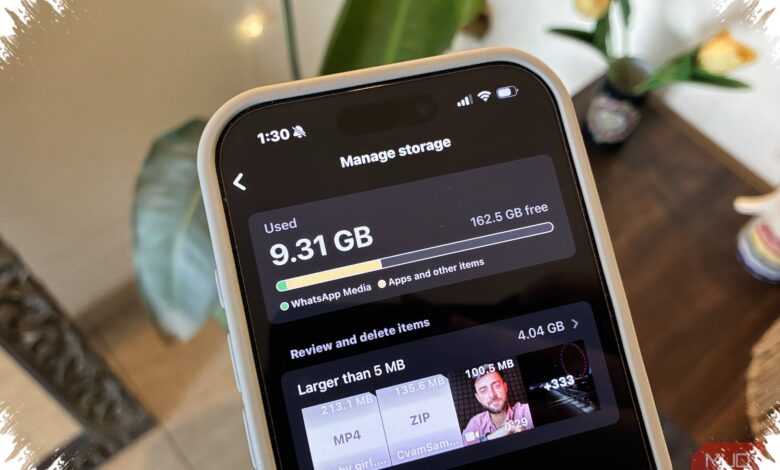
WhatsApp can quietly consume a large amount of storage because it keeps photos, videos, and documents shared in chats. For Android and iPhone users, clearing large files is one of the fastest ways to make a phone feel lighter again.
The process does not require special tools or advanced settings. WhatsApp already provides storage management controls that let users review the largest files first, remove what is no longer needed, and prevent new clutter from building up.
1. Remove the largest files from storage management
The quickest place to start is WhatsApp’s storage management menu, where files are grouped by size and chat. This makes it easier to identify the media that is taking up the most space.
From Settings, users can open Storage and Data, then choose Manage Storage to view the files that occupy the most memory. WhatsApp also makes it easy to focus on items larger than 5 MB, which speeds up the cleanup process.
| Step | Menu | Result |
|---|---|---|
| Open WhatsApp | Settings | Enter the app’s main settings |
| Select Storage and Data | Manage Storage | See files sorted by size and chat |
| Choose files over 5 MB | Large files list | Find media that can be deleted faster |
Before deleting anything important, it is best to make sure the files have already been backed up. That helps avoid losing photos, videos, or documents that may still be needed later.
2. Turn off automatic downloads
Deleting old files helps, but stopping new ones from piling up is just as important. WhatsApp lets users disable automatic downloads for documents, photos, and videos through the same Storage and Data menu.
For mobile data use, all file types can be selected and confirmed with the OK button in the “When Using Mobile Data” section. On WiFi, users can uncheck automatic download options for every file type so new media does not save itself automatically.
This setting works on both Android and iPhone. As a result, incoming files will no longer be stored automatically on the device every time a new message arrives.
3. Use disappearing messages to reduce buildup
Another way to keep WhatsApp storage under control is by enabling disappearing messages. The feature removes messages automatically after a chosen period, while also helping protect conversation privacy.
Users can open Settings, go to Storage and Data, and activate Disappearing Messages. The time limit can be adjusted according to each user’s preference.
WhatsApp also provides storage reminders when space begins to run low. That makes regular checks important, especially for users who receive a lot of photos and videos every day.
By clearing large files, disabling automatic downloads, and turning on disappearing messages, users can keep WhatsApp from filling up storage too quickly. The steps are simple, but they can help a phone stay responsive for longer.