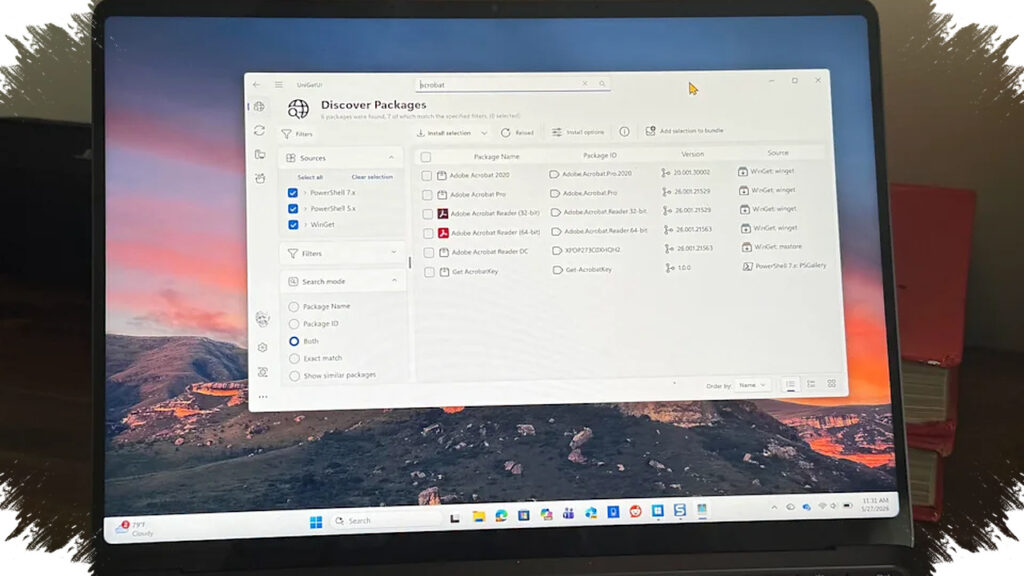
A cleaner way to manage Windows apps is gaining attention, and UniGetUI is at the center of it. The free, open-source tool lets users install and update software through Microsoft Store and WinGet instead of relying on random EXE downloads from the web.
That shift matters because traditional installer hunting is still one of the riskiest habits for keeping a PC clean. Even legitimate developer sites can be compromised, while ad-heavy download mirrors may bundle unwanted extras into the installation package.
Why the installation path matters
EXE installers remain a major route for malware distribution on Windows. By steering users toward Microsoft Store and WinGet, UniGetUI reduces the need to search for installers across unknown websites.
Microsoft Store is also more useful now than it was in its early days. Since opening to third-party apps, it has grown into a catalog that includes validated, signed Win32 packages that can be installed with a single click.
WinGet adds another layer with a large community-managed catalog on GitHub. Its repository contains tens of thousands of manifests that describe how to install and update apps directly from the original publisher.
A simpler front end for WinGet
WinGet has already been used for a long time to download and update Windows apps, but it depends on the command line. That makes it less approachable for many users, including people who are already comfortable with PowerShell.
Microsoft Store is easier to use, but it can still feel inconvenient when apps need to be found and installed one by one. UniGetUI steps in as a more direct interface that removes much of that friction.
On one PC used for writing reports, more than 200 apps were installed, and only two came from direct downloads on developer sites. Most of the rest were installed through UniGetUI, while the remaining apps came from Windows, OEM preloads, or system bundles.
Moving apps to a new PC
One of UniGetUI’s most practical features is its bundle creation system. A user can open the old PC, select the apps to move, save them into a single bundle file, and then open that file on a new PC for one-click installation.
The process still requires some approval so the UniGetUI Elevator can do its job. Even so, the installation usually runs automatically and only takes a few minutes.
That same bundle feature also works as a backup for an app setup. Because it stores app details, recreating the same software layout on another machine becomes much faster than reinstalling everything manually.
Updates, cleanup, and broader package support
UniGetUI does more than install software. It also tracks apps on the PC, offers uninstall options for software that is no longer needed, and can even remove Microsoft apps such as News and Weather.
The tool also monitors updates automatically and offers installation when needed. Its update list includes libraries and runtimes that third-party apps commonly use, including Microsoft Visual C++ 2015-2022 Redistributable.
In one example, the app flagged updates for seven items at once, and a single click in the pop-up completed the process. That makes routine maintenance much less tedious than checking each program separately.
Support is not limited to Microsoft Store and WinGet. UniGetUI also works with repositories such as Scoop, Snap, Chocolatey, Pip, and Npm, which makes it useful for both general users and developers who manage many tools from one place.
The project was originally developed by Martí Climent and later taken over by Devolutions. The company says it will keep the open-source foundation in place while strengthening stability, security, and long-term growth.