


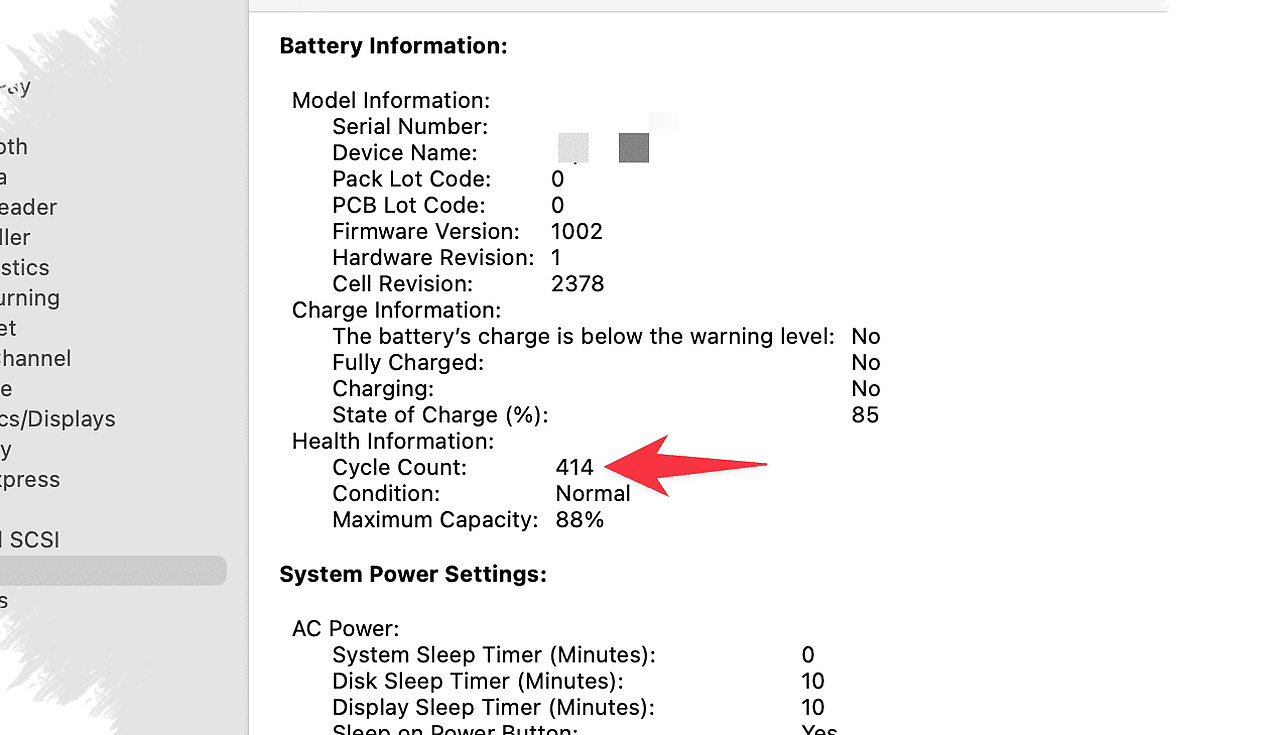
MacBook users often notice battery trouble only after uptime starts shrinking more quickly than usual. Apple already provides a built-in way to check whether that decline is still normal, and the key clue is the cycle count found in System Information.
That number is more useful when paired with two other indicators: battery condition and maximum capacity. Together, these three items give a clearer picture of whether a MacBook battery is still healthy or is approaching the point where replacement should be considered.
Where to find the battery data
The check starts from the Apple menu. Hold Option while clicking the Apple logo, then open “System Information,” go to “Hardware,” and select “Power.”
Inside that section, the most important item appears under “Health Information” as “Cycle Count.” The same screen also shows “Condition” and “Maximum Capacity,” which help explain how the battery is performing in real use.
This reading is more concrete than relying only on a feeling that the laptop drains too fast or charges too slowly. Apple makes these details available so users can assess battery health with more precision.
What cycle count actually means
Cycle count does not simply track how many times a charger is plugged in and removed. Apple calculates it based on the total energy used and replenished over time, so several partial charges can still add up to one full cycle.
For example, using 90% of the battery and then recharging it does not always count as a complete cycle right away. If the next round of use brings the total consumption to 100%, the system records that as one new cycle.
This approach helps explain why light charging habits do not always raise the number quickly. By contrast, heavy daily use tends to push the count upward faster because more of the battery’s total energy is consumed and restored.
Why the number matters
Apple sets a “Maximum Cycle Count” for each MacBook model. That figure marks the point at which the battery is still considered safe to use before its performance begins to decline more noticeably.
A MacBook that shows a cycle count of 126, for instance, can still be in a normal state if the limit for that model is much higher. In that case, the number itself does not automatically signal a problem.
Maximum capacity should also be checked at the same time. When this figure drops, the battery holds less power than before, and battery life becomes shorter even if the device still runs properly.
Battery condition gives the practical signal
The “Condition” field adds another layer of context because it helps identify whether the battery is operating within normal expectations. When paired with cycle count and maximum capacity, it becomes easier to judge whether the battery is aging naturally or showing signs that replacement may be needed.
That combination is useful because a MacBook can remain functional even when battery endurance has already weakened. The laptop may still power on normally, but the available runtime can feel noticeably shorter during daily use.
A feature that helps slow wear
Apple also includes “optimized battery charging” in macOS Catalina 10.5.5. In certain situations, this feature limits charging to 80% so the battery does not stay at full level all the time.
Keeping the charge below maximum in those cases can reduce long-term strain on the battery. The trade-off is that the device may need to be plugged in more often during portable use, but the battery is not pushed to full capacity as frequently.
Apple also recommends keeping the MacBook on the latest macOS version so battery management features can work as intended. Regular checks of cycle count, condition, and maximum capacity make it easier to spot when the battery is still within a healthy range and when replacement should start to be considered.